> For the complete documentation index, see [llms.txt](https://docs.carto.com/llms.txt). Markdown versions of documentation pages are available by appending `.md` to page URLs; this page is available as [Markdown](https://docs.carto.com/carto-user-manual/maps/map-view-modes.md).
# Map view modes
Builder maps can be shown in a normal (flat) view or in 3D, and Editors can split the map in two to compare them. The **Normal** view is selected by default.
## 3D view
As an Editor, switch between 2D and 3D with the 3D toggle in the basemap selector, in the bottom-right corner of the map. Selecting a 3D tiles basemap switches the map to 3D automatically, and choosing another basemap switches it back to 2D. Once you use the toggle yourself, your choice is kept for the rest of the session.
## Dual map view
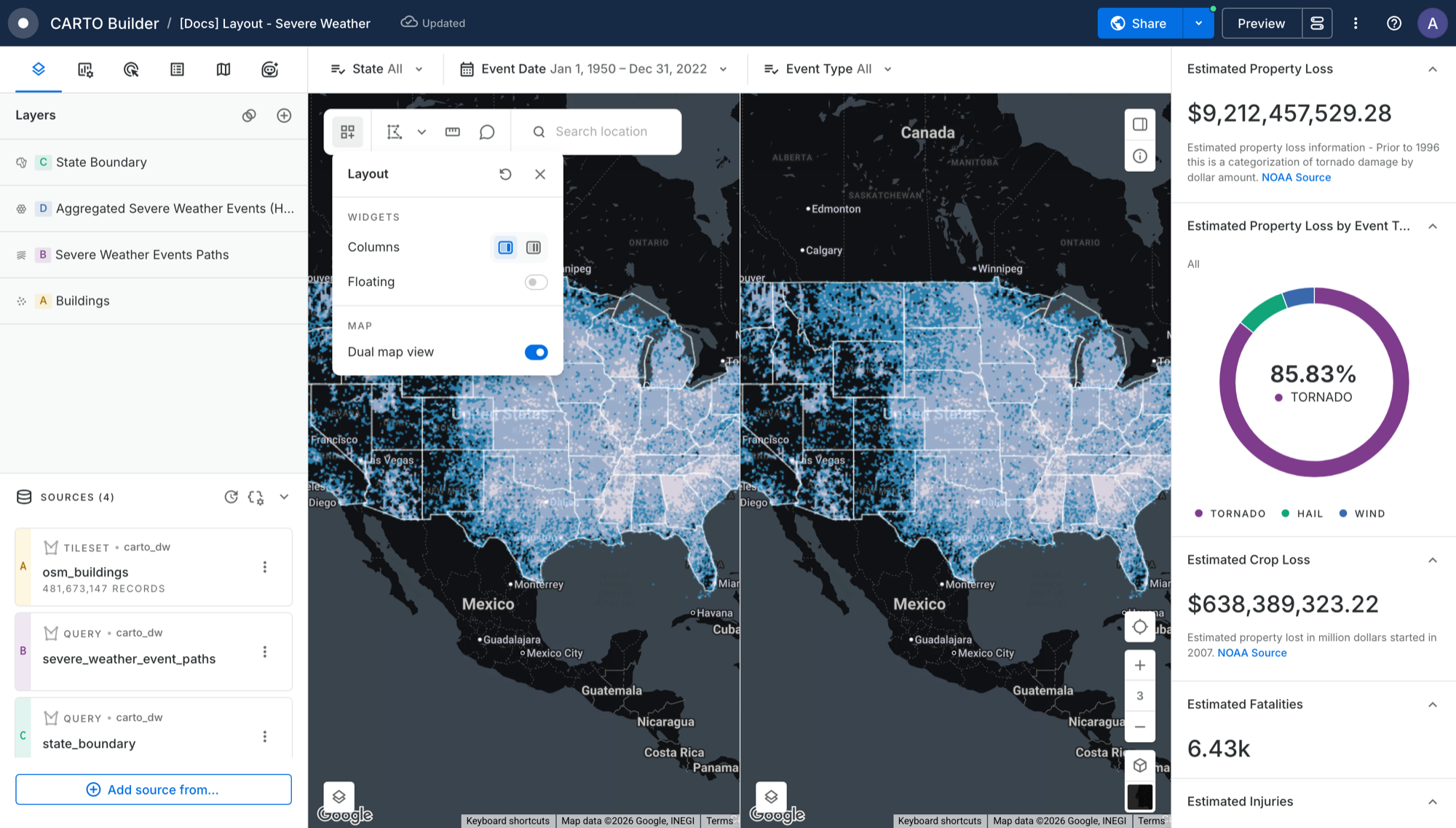
Dual map view shows two maps side by side, so you can compare them. As an Editor, click the **Layout** button in the map toolbar and turn on **Dual map view**.
Each map has its own legend. The parameters bar, the widgets panel and the widgets at the bottom of the map apply to both maps. While dual map view is on, the widgets panel stays docked to the right side.
Viewers see the dual map view exactly as the Editor saved it.
### Exiting dual map view
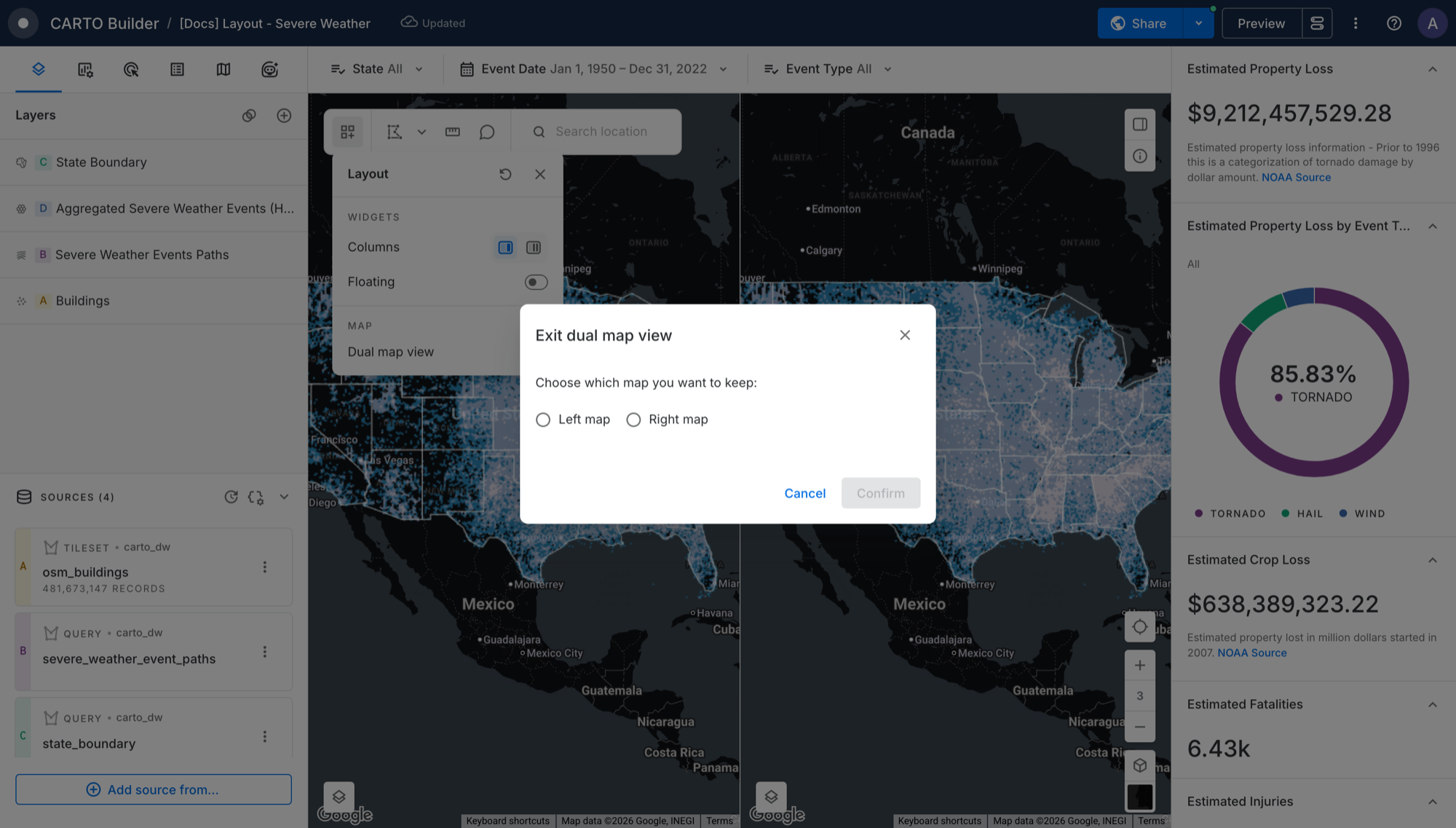
To return to a single map, turn off **Dual map view** from the **Layout** button. A dialog asks you which map to keep, the left or the right one.
If the map you discard has unresolved comments, the same dialog lets you choose what happens to them:
* **Preserve existing status** keeps each comment resolved or unresolved, as it was.
* **Resolve all comments** marks them all as resolved.
The Exit dual map view dialog
In both cases the comments move to the map you keep, in the same location, so none are lost. Click **Cancel** to keep both maps.
---
# Agent Instructions
This documentation is published with GitBook. GitBook is the documentation platform designed so that both humans and AI agents can read, navigate, and reason over technical content effectively. Learn more at gitbook.com.
## Querying This Documentation
If you need additional information that is not directly available in this page, you can query the documentation by asking a question.
Perform an HTTP GET request on the following URL with the `ask` and `goal` query parameters:
```
GET https://docs.carto.com/carto-user-manual/maps/map-view-modes.md?ask=&goal=
```
`ask` is the immediate question: it should be specific, self-contained, and written in natural language.
`goal` is what the user is ultimately trying to achieve, the reason they need the answer. Sharing it helps GitBook give you a better, more relevant answer. A goal is most helpful when it describes the outcome the user wants rather than restating the question. For example, with `ask=how do I create an API token`, a goal like `automate deployments from our CI pipeline` lets GitBook tailor the answer to that use case.
The response will contain a direct answer to the question and relevant excerpts and sources from the documentation.
Use this mechanism when the answer is not explicitly present in the current page, you need clarification or additional context, or you want to retrieve related documentation sections.