> For the complete documentation index, see [llms.txt](https://docs.carto.com/llms.txt). Markdown versions of documentation pages are available by appending `.md` to page URLs; this page is available as [Markdown](https://docs.carto.com/carto-user-manual/data-observatory/accessing-and-browsing-the-spatial-data-catalog.md).
# Browsing the Spatial Data Catalog
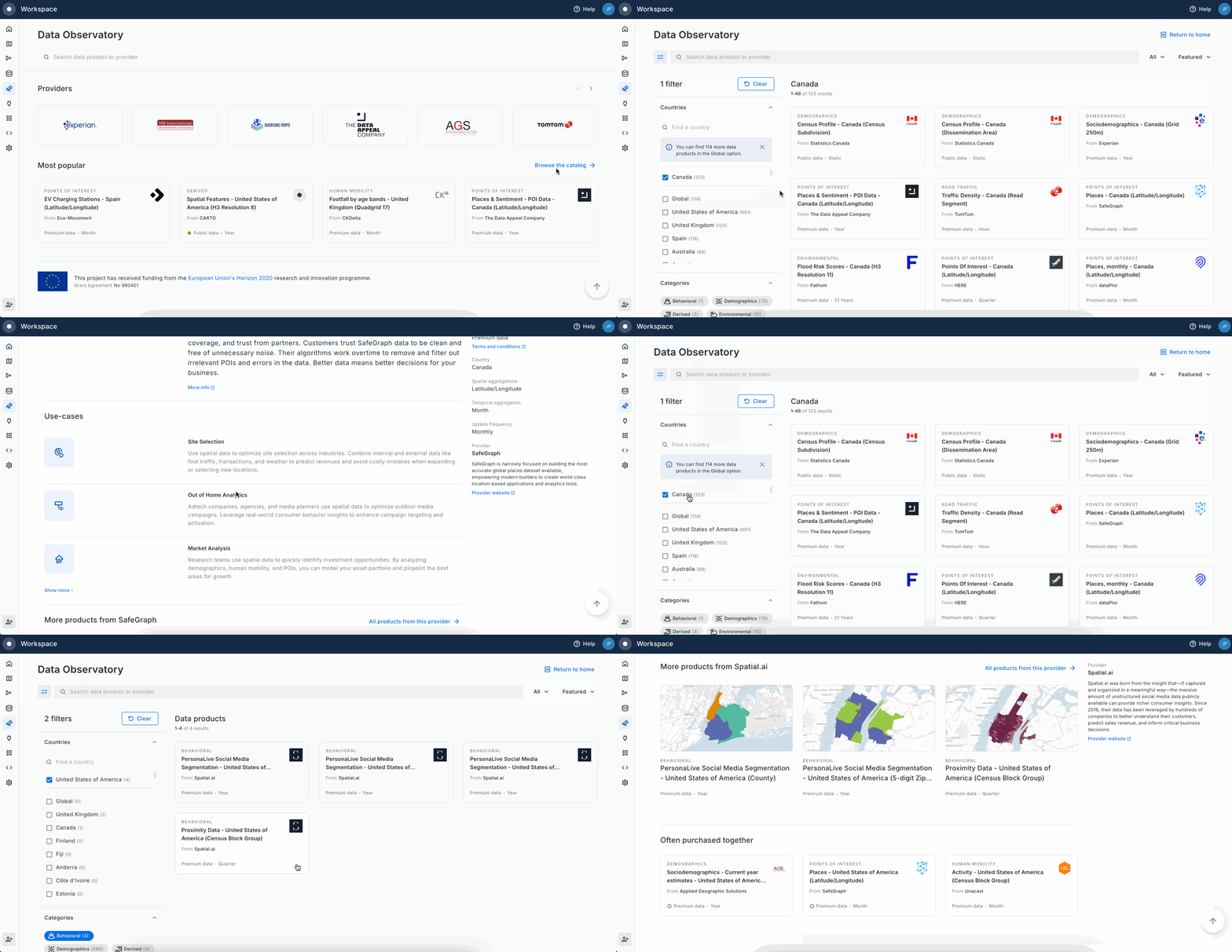
CARTO’s Spatial Data Catalog allows users to explore the specifications of thousands of spatial datasets available via the Data Observatory, in order to find the best data based on their requirements.
The Spatial Data Catalog is built on top of a smart metadata system that has all characteristics defining a dataset registered in an homogenous manner (i.e. provider, coverage, schema, variable description, sample data, etc.). This provides a unified experience that allows users to explore and understand the details of very different types of spatial data.
The Spatial Data Catalog is available from our [public website](http://www.carto.com/data) and also from within the CARTO Workspace once you [log into](http://www.carto.com/login) your account and navigate to the *Data Observatory* section.
There are two ways to find datasets in the catalog: browsing the catalog using filters, or chatting with the [AI Assistant in Data Observatory](#ai-assistant-in-data-observatory) to let it filter the catalog for you.
## Browsing with filters
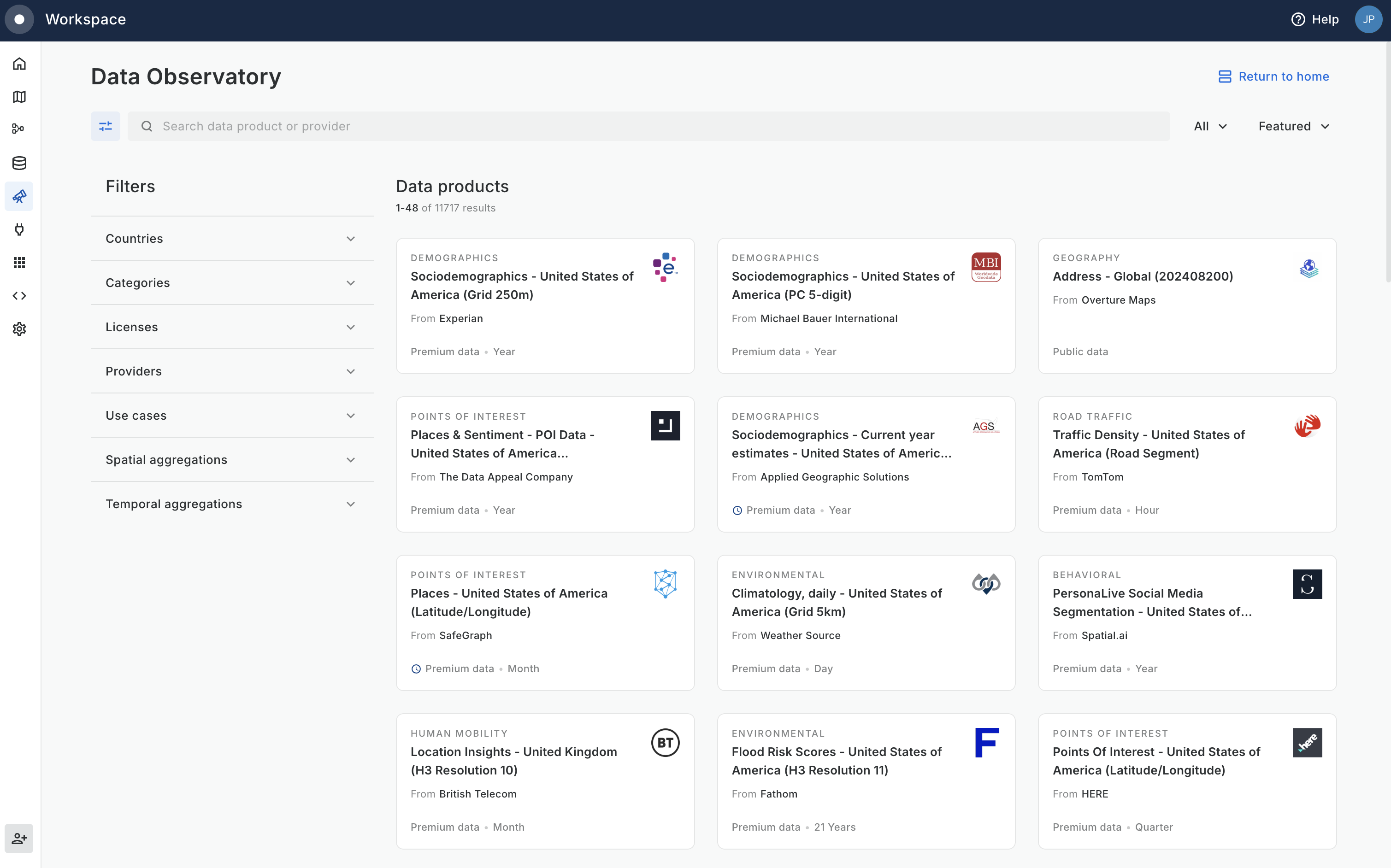
There are a set of high-level metadata attributes that allow the user to filter different datasets when browsing the Spatial Data Catalog:
* Countries – The geographical coverage of the datasets.
* Categories – The type of data product (e.g. demographic, human mobility, road traffic, environmental, etc.).
* Licenses – Identifies whether the dataset access is ruled by a public or premium license.
* Providers – The premium data provider or public data source of the datasets.
* Spatial aggregation – The type of spatial aggregation used in the dataset (e.g. admin region, postal codes, road segments, grids, etc.).
* Temporal aggregation - The type of temporal aggregation used in the dataset (e.g. hour, week, month, year, etc.).
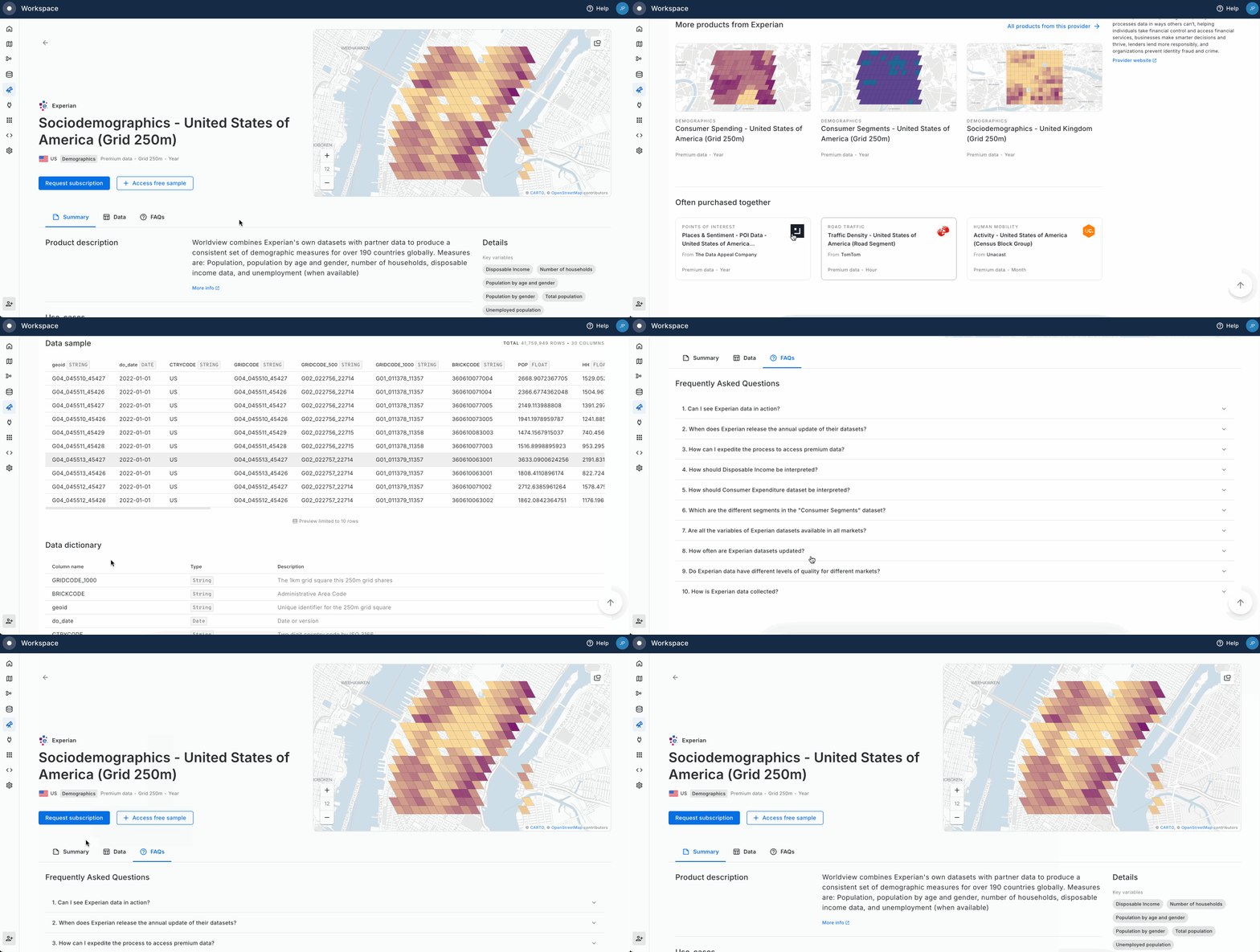
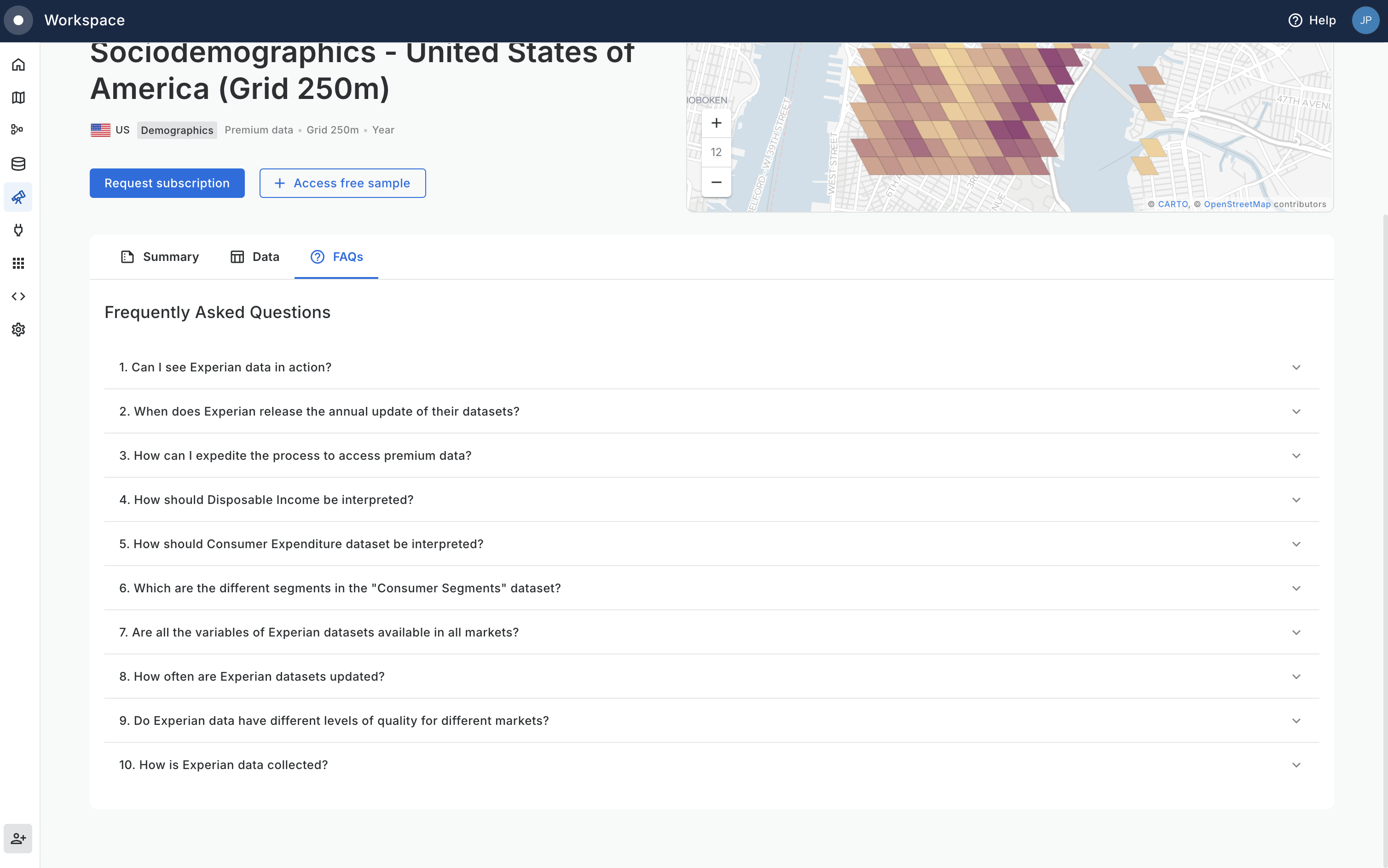
Then, once a dataset from the list is selected the following additional metadata attributes are available:
* Summary description of the dataset
* List of key variables
* Relevant use-cases
* More datasets from that provider
* Related datasets from other providers
* Temporal aggregation
* Update frequency
* Brief description from the provider or data source
* Associated Geography. If applies, these are the digital boundaries (geometries) associated with this dataset, this is, its spatial aggregation. Note that some Geographies can also require their own premium license
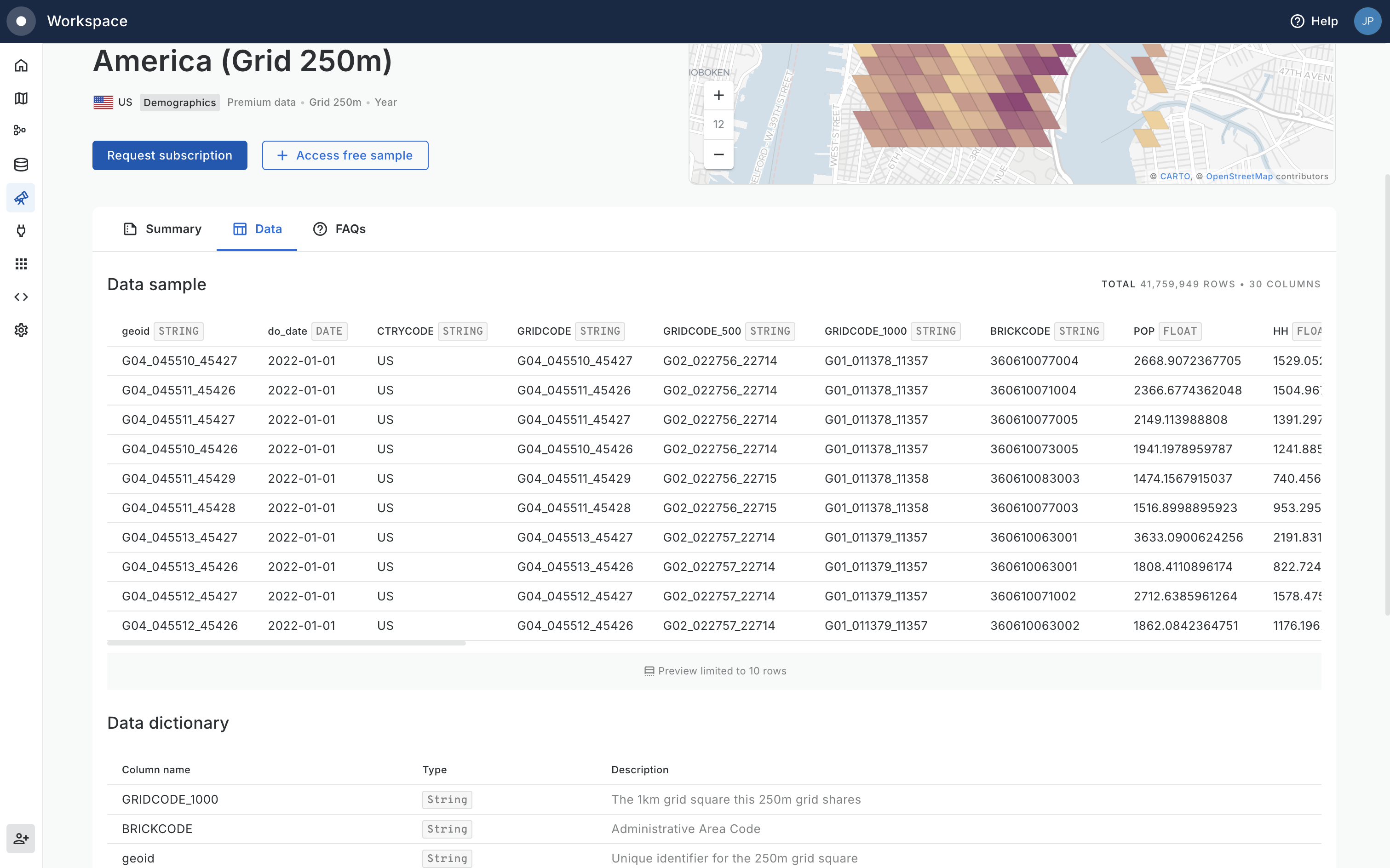
* Sample table with 10 rows of data
* Full detailed dataset schema with variable names and descriptions
* Frequently Asked Questions about the dataset or provider
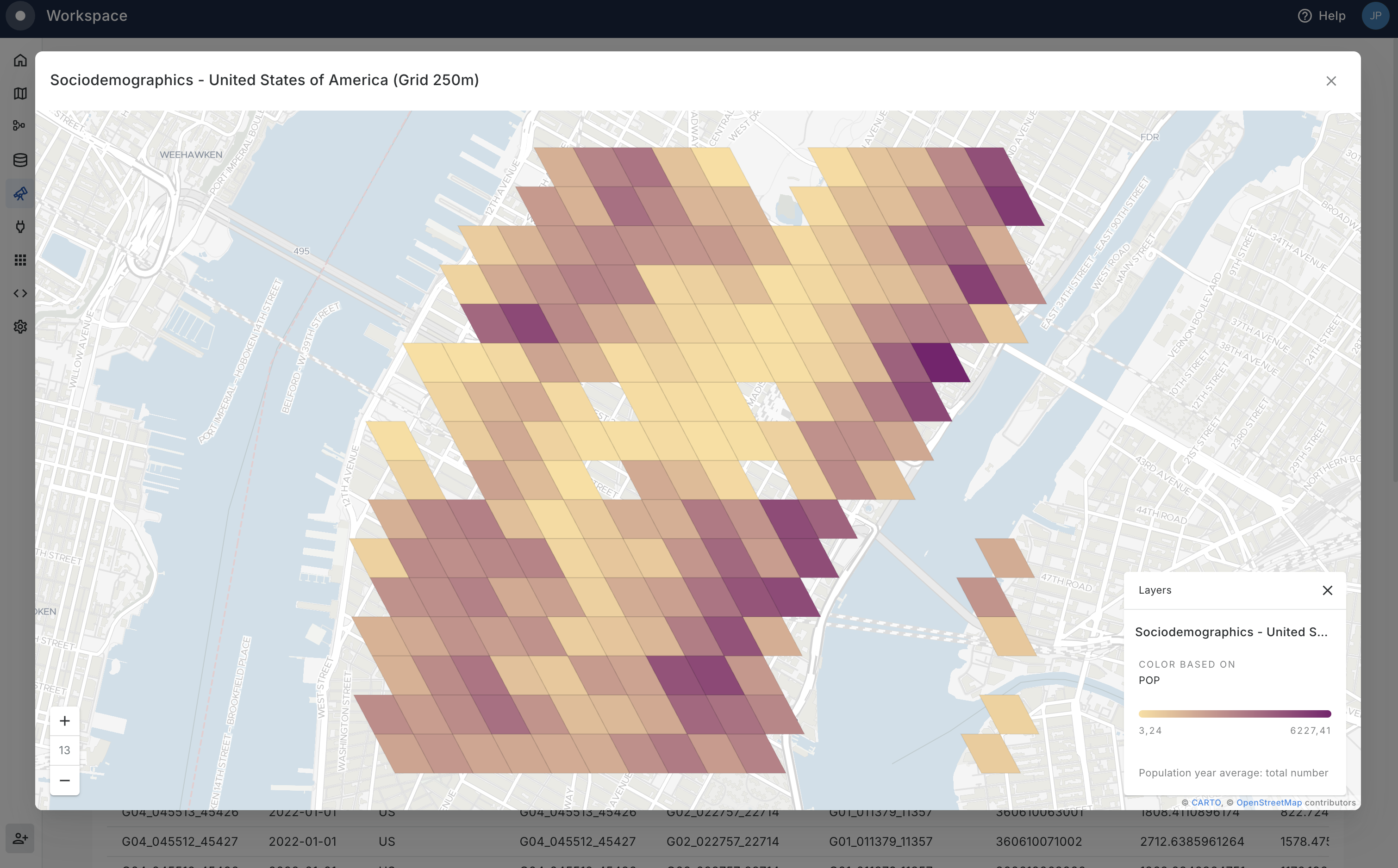
* Map preview
## AI Assistant
{% hint style="warning" %}
The **AI Assistant in Data Observatory** is off by default. An organization Admin needs to enable it from **Settings > CARTO AI** under **AI Features**, on top of having CARTO AI enabled for the organization. See [CARTO AI settings](/carto-user-manual/settings/carto-ai.md#ai-features) for details.
{% endhint %}
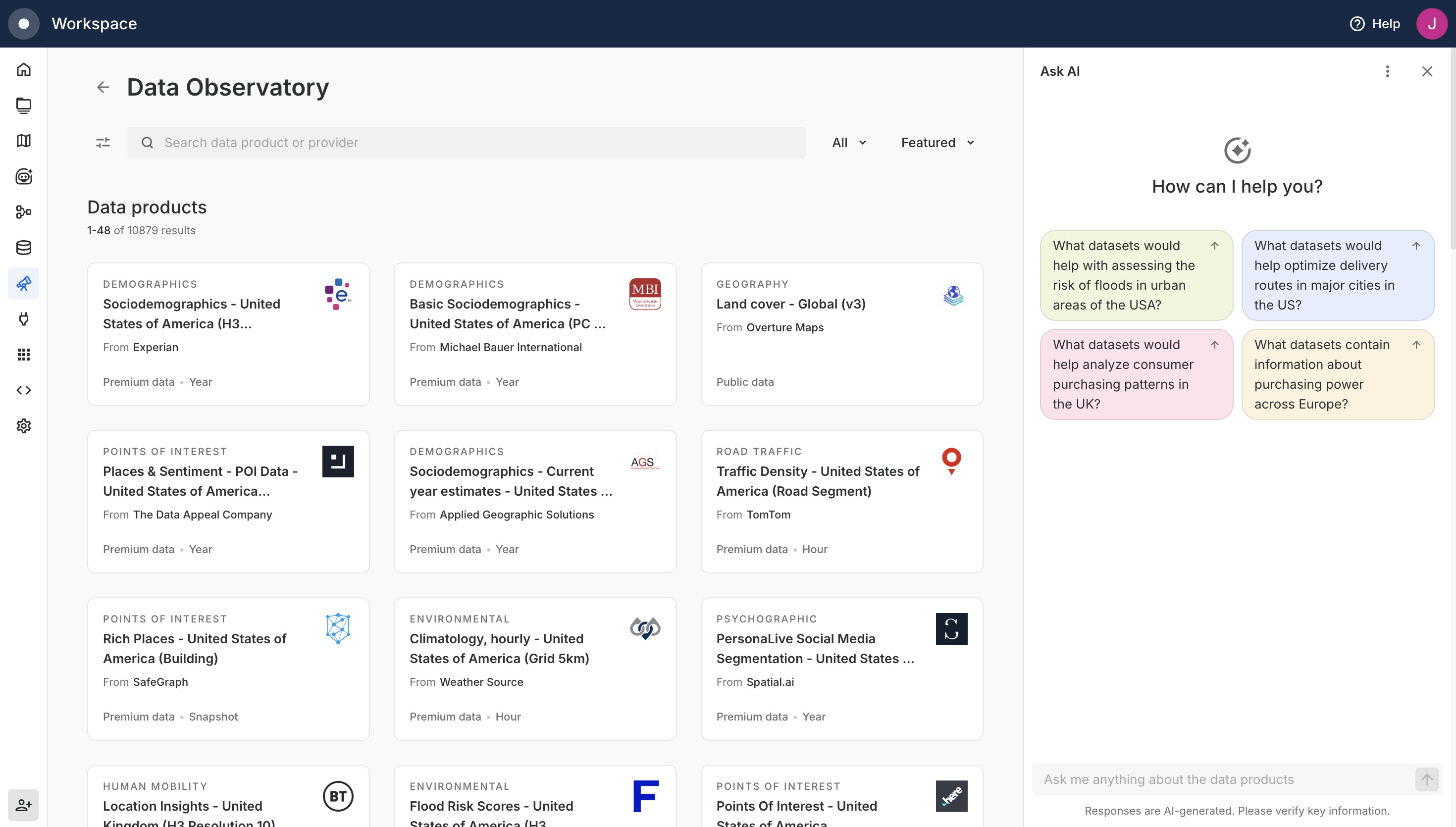
The **AI Assistant** in the Data Observatory catalog helps you find datasets by describing what you need in natural language, instead of clicking through filters. Open it with the **Ask AI** button at the top of the catalog and a sidebar opens where you can chat with the assistant.
The AI Assistant sidebar with suggested starter prompts
Tell it what you are looking for (for example, *"What datasets would help with assessing the risk of floods in urban areas of the USA?"* or *"What datasets contain information about purchasing power across Europe?"*) and the assistant will apply the relevant filters to the catalog and narrow the list of datasets down to the ones that match your request. You can keep iterating in the same conversation to refine the results, ask follow-up questions about specific datasets, or change direction entirely.
The assistant works on top of the same metadata that powers the manual filters, so the results you get are the same ones you would reach by filtering yourself, just without having to know which filter combination to pick. It is meant to complement manual browsing, not replace it: you can keep adjusting filters by hand at any point during the conversation.
{% hint style="info" %}
Responses are AI-generated. Please verify key information before subscribing to a dataset.
{% endhint %}
---
# Agent Instructions
This documentation is published with GitBook. GitBook is the documentation platform designed so that both humans and AI agents can read, navigate, and reason over technical content effectively. Learn more at gitbook.com.
## Querying This Documentation
If you need additional information that is not directly available in this page, you can query the documentation by asking a question.
Perform an HTTP GET request on the following URL with the `ask` and `goal` query parameters:
```
GET https://docs.carto.com/carto-user-manual/data-observatory/accessing-and-browsing-the-spatial-data-catalog.md?ask=&goal=
```
`ask` is the immediate question: it should be specific, self-contained, and written in natural language.
`goal` is what the user is ultimately trying to achieve, the reason they need the answer. Sharing it helps GitBook give you a better, more relevant answer. A goal is most helpful when it describes the outcome the user wants rather than restating the question. For example, with `ask=how do I create an API token`, a goal like `automate deployments from our CI pipeline` lets GitBook tailor the answer to that use case.
The response will contain a direct answer to the question and relevant excerpts and sources from the documentation.
Use this mechanism when the answer is not explicitly present in the current page, you need clarification or additional context, or you want to retrieve related documentation sections.