> For the complete documentation index, see [llms.txt](https://docs.carto.com/llms.txt). Markdown versions of documentation pages are available by appending `.md` to page URLs; this page is available as [Markdown](https://docs.carto.com/carto-user-manual/maps/sharing-and-collaboration.md).
# Sharing and collaboration
Editors can share their maps with teammates or the public using Builder's sharing feature. To do so, click either the *Share* button on the top right of the map Builder, or select *Share* from the three-dot menu next to a map in the workspace.
Choose one of three sharing modes at the top of the Share modal:
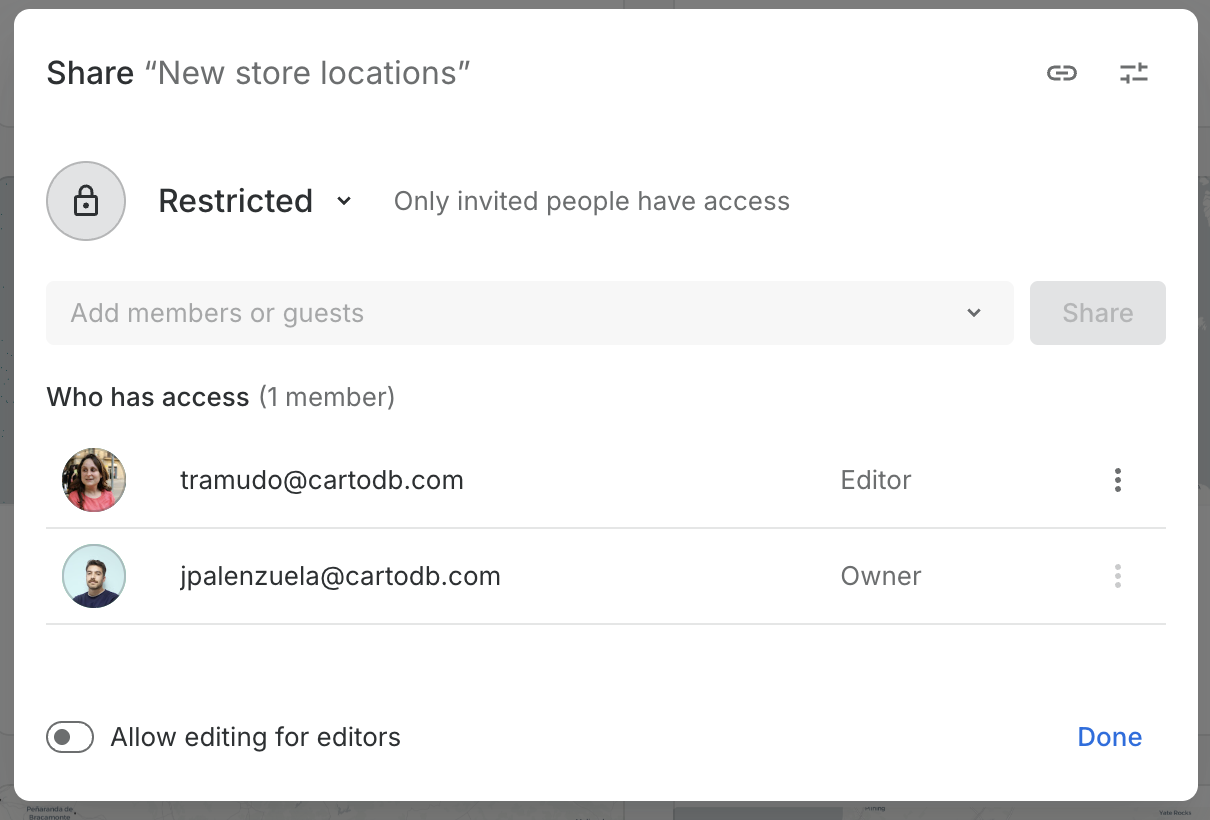
* **Restricted:** Only the people you invite can access the map. Add specific users or groups from the *Add members or guests* field. A new map starts as Restricted, with only you on the list.
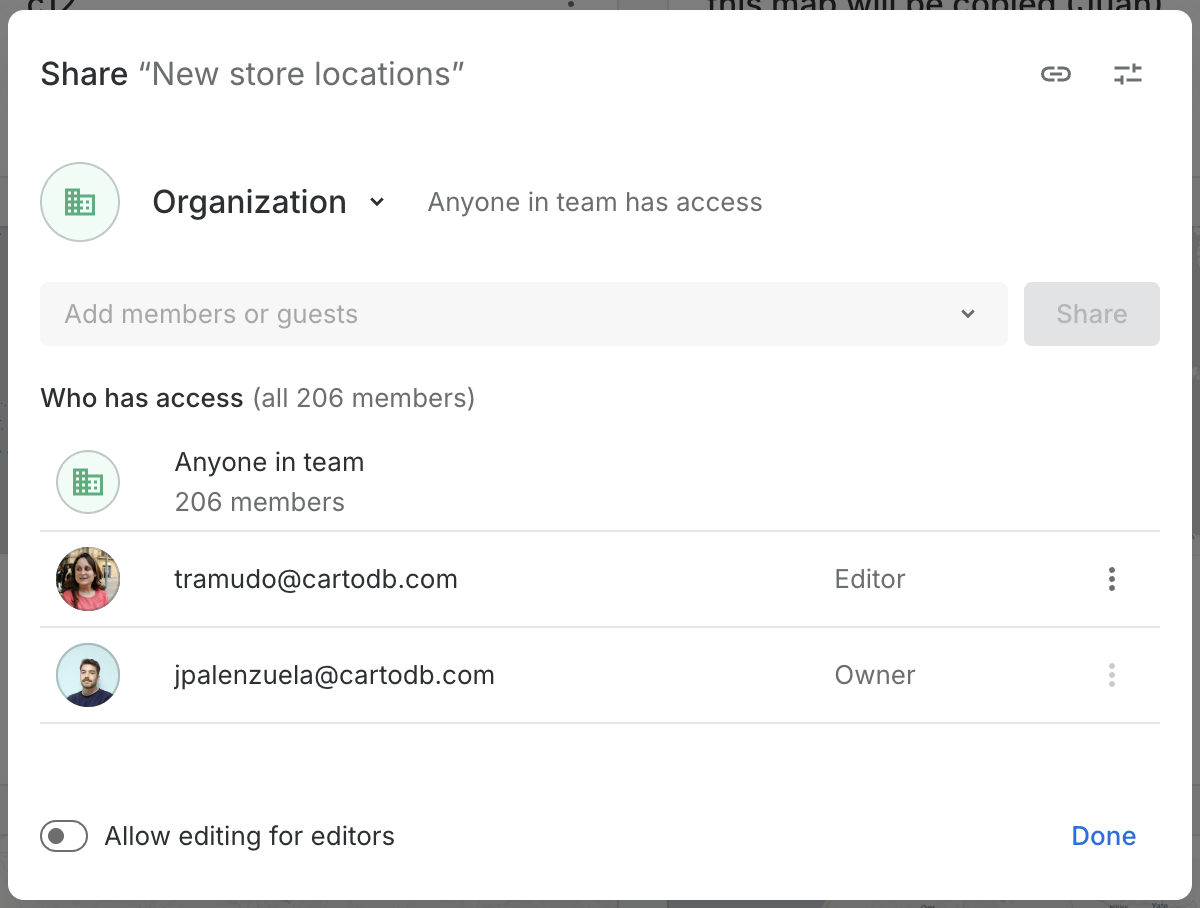
* **Organization:** Everyone in your organization can access the map. You can still add specific users or groups on top; those direct grants are kept if you later switch back to Restricted.
* **Public:** Anyone with the link can view the map. A public map stays visible to your organization as well; it cannot be made public-only.
Restricted: only invited people have access
Organization: anyone in the organization has access
Switching modes keeps the users and groups you have already added, so you can move between Restricted and Organization without losing your selection.
{% hint style="info" %}
Admins can disable the *Public* map sharing option for the whole organization from the [**Governance**](/carto-user-manual/settings/organization-governance.md) settings.
{% endhint %}
{% hint style="info" %}
To share several maps at once, group them in a **project or folder** and share that. Every map inside inherits the project's sharing. See [Projects](/carto-user-manual/projects.md).
{% endhint %}
Only the map's owner can change how it is shared; other users see the Share modal in read-only mode. Once a map is shared, the owner can turn on **Allow editing for editors** to let other Editors edit it (see [collaborative mapping](/carto-user-manual/maps/sharing-and-collaboration/collaborative-maps.md)), and set specific [**URL Parameters**](/carto-user-manual/maps/sharing-and-collaboration/url-parameters.md) to direct Viewers to specific map views, layers, or geographic areas.
***
### **Sharing maps with specific users and groups**
In **Restricted** mode, Editors add individual users or groups from the *Add members or guests* field to grant them access. They receive an email notification when the map is shared with them. In **Organization** mode you can still add specific users or groups; those direct grants are kept if you switch back to Restricted.
The role shown next to each person is their organization role (for example Editor or Viewer), not a per-map setting. Whether an Editor can change the map is controlled by the **Allow editing for editors** toggle, not by choosing a role here.
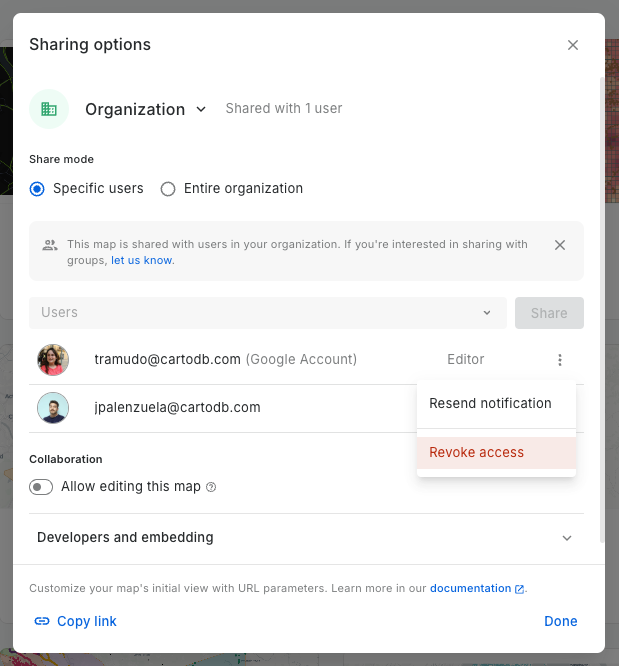
Access can be revoked at any time by clicking the three-dot menu next to a user's name and selecting *Revoke access*. From the same menu, Editors can also choose to resend the notification email.
### Inherited access
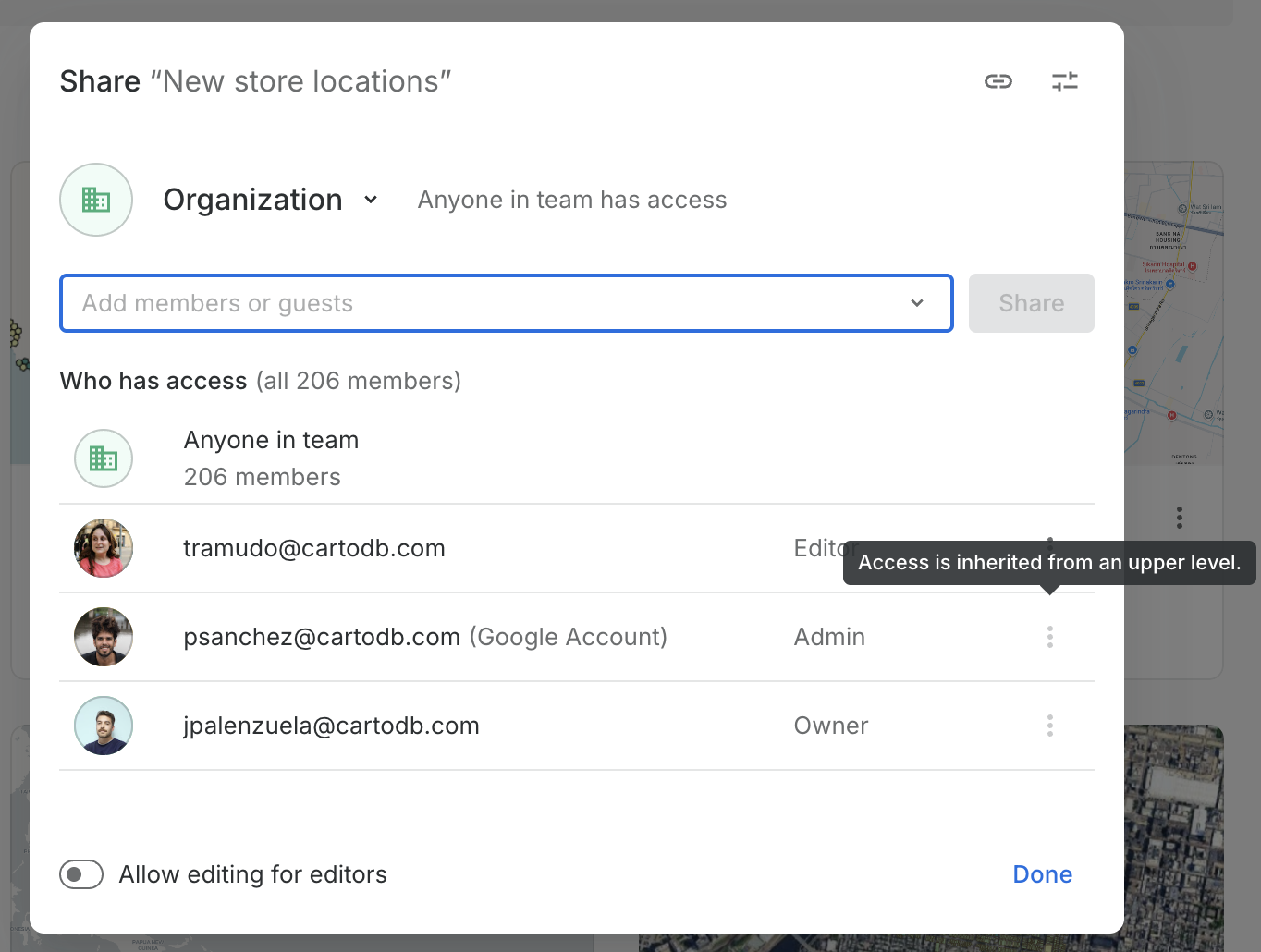
A map inside a shared [project or folder](/carto-user-manual/projects.md) inherits that project's sharing. In the Share modal, access that comes from a parent project or folder is labeled **Access is inherited from an upper level**, so you can tell it apart from access set directly on the map.
### **Password protected maps**
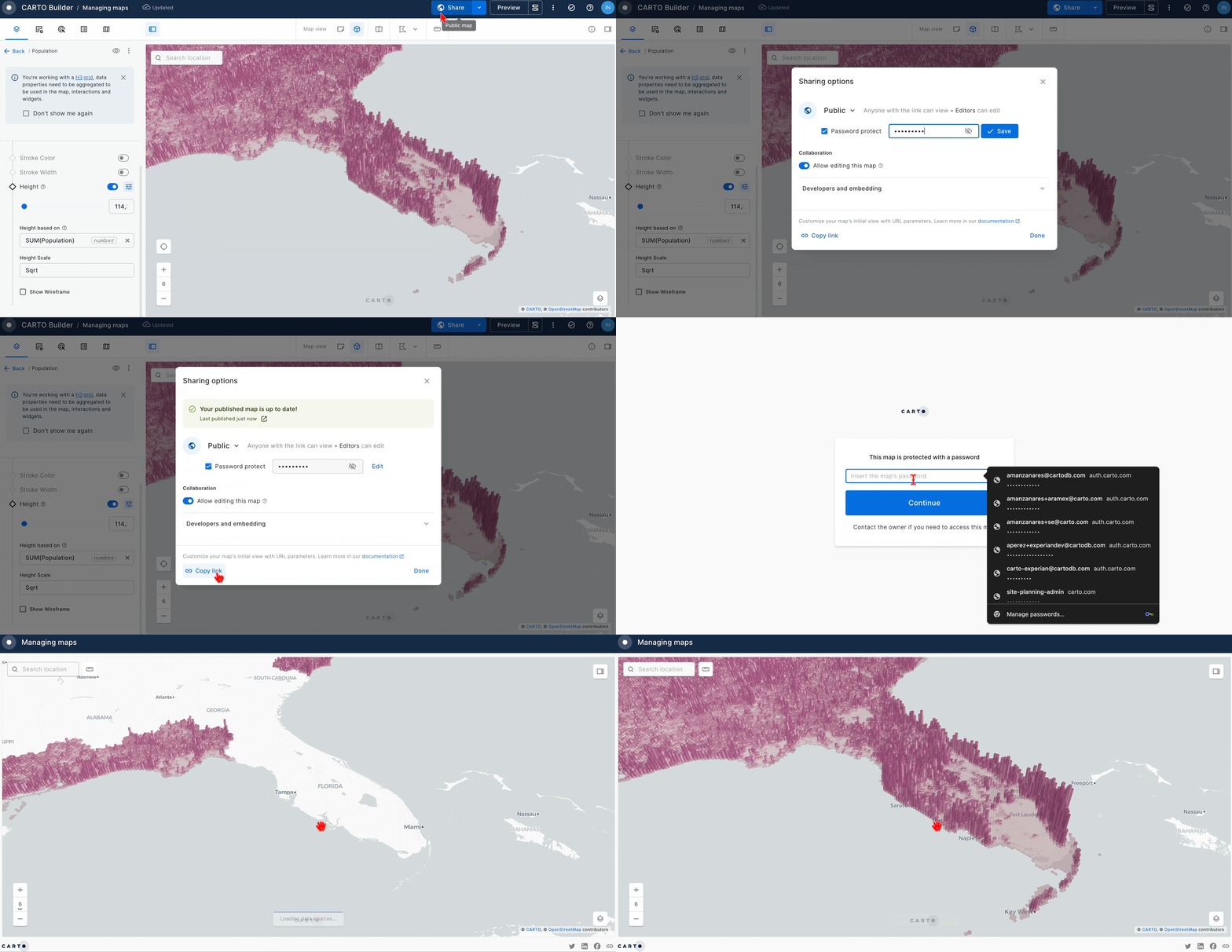
Public maps can be set to require a password before they can be viewed. To enable this, simply tick the password protection checkbox in the share modal of a public map, set a new password and click *Save* This password can be changed or removed at any time.
Once this is set, anyone trying to access the map will be required to enter the password to view the map.
Setting up a password-protected map
## Sharing resources
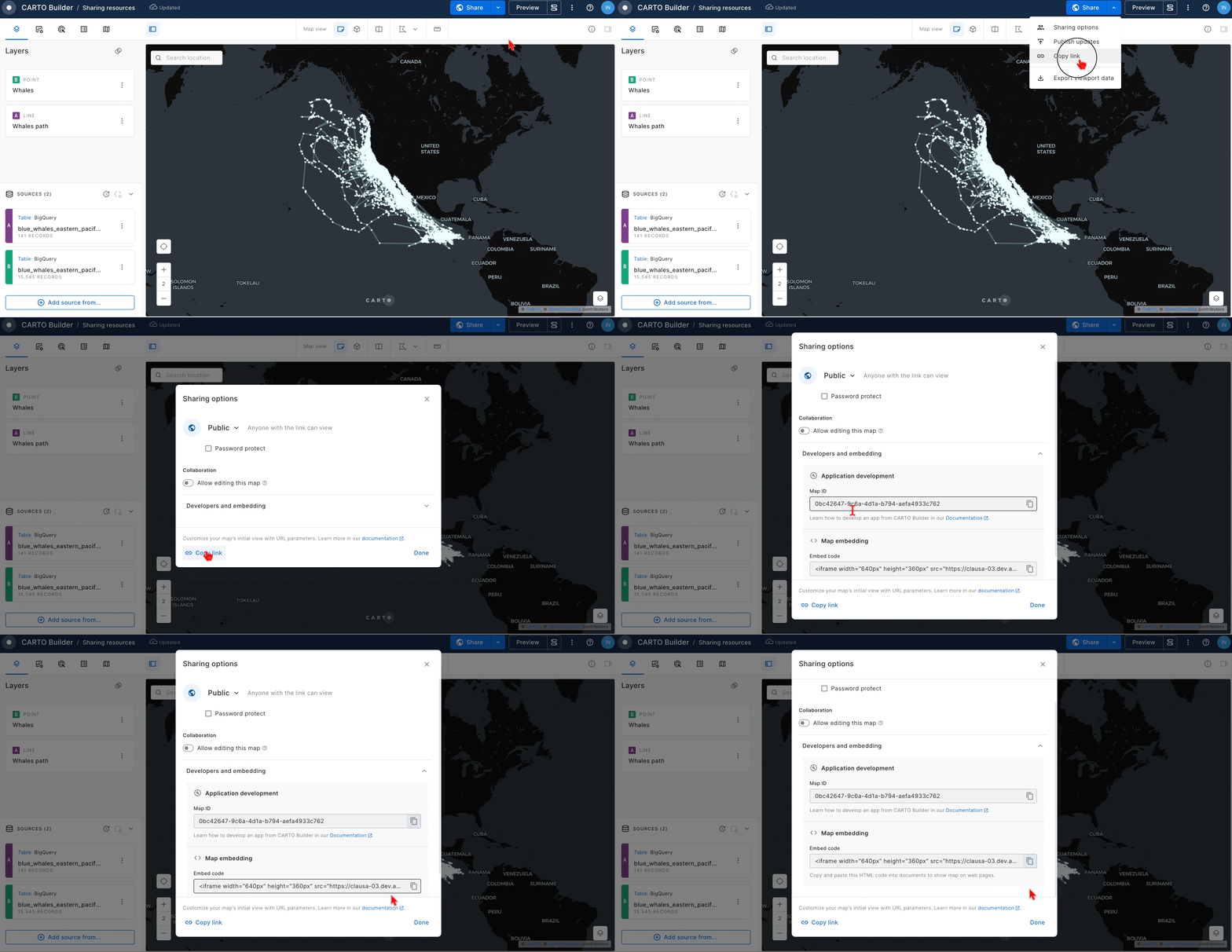
Once the map is accessible by others, you can access the following sharing resources:
* **Copy map link**: Quickly share your map by copying its direct link. You can access this resource from the main Sharing modal or as a quick action.
* **Embed this map**: Seamlessly integrate your map into websites or applications with the provided embed code snippet available in the Sharing modal. [Learn more about embedding maps](/carto-user-manual/maps/sharing-and-collaboration/embedding-maps.md).
* **Develop a custom app:** Use the Map ID available in the Sharing modal to craft a custom application. [Read more in this section.](/carto-for-developers/key-concepts/rapid-map-prototyping.md)
## Publishing updates for shared and public maps
Once you've shared your map with your organization, groups, or made it public, you can manage its updates to ensure that any ongoing edits enhance rather than disrupt the viewing experience.
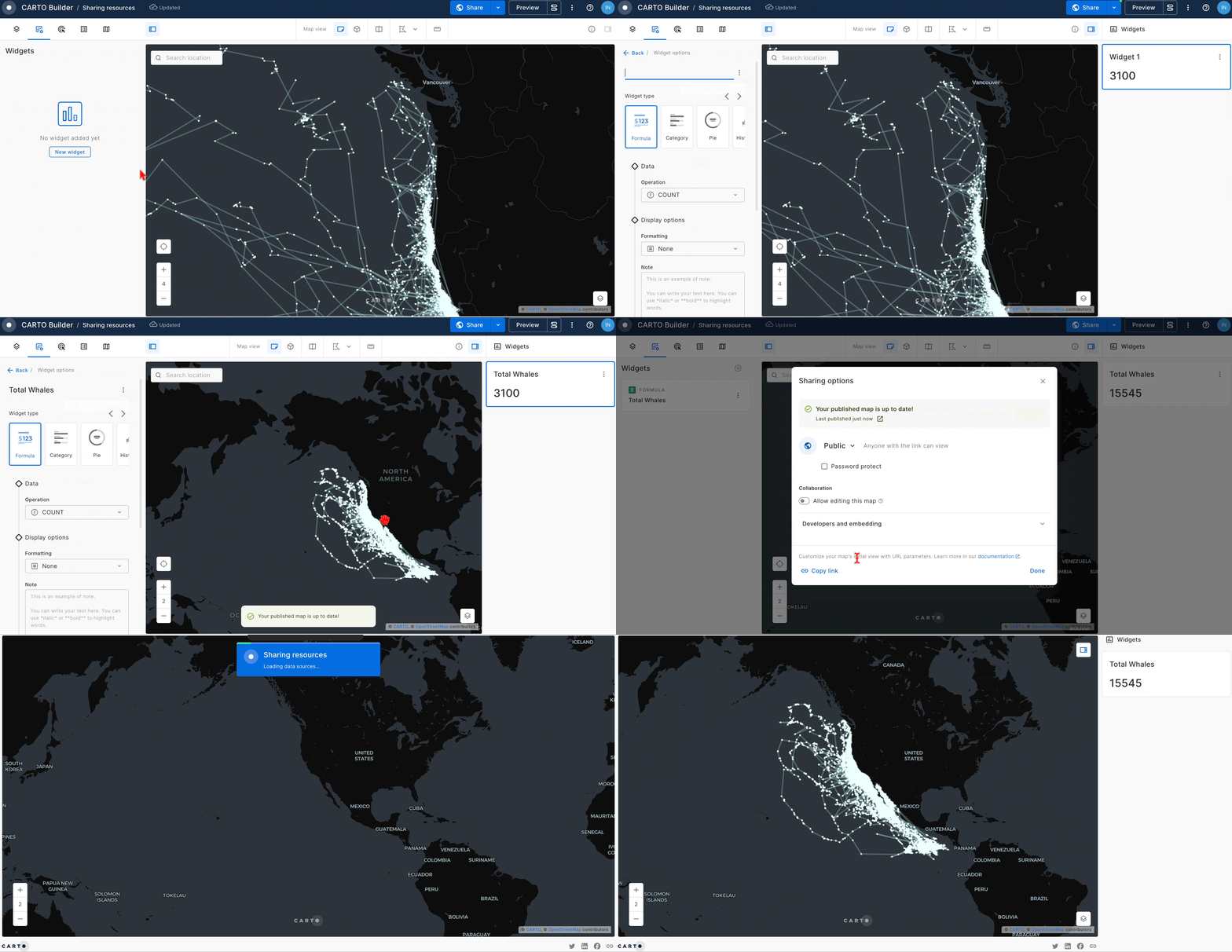
To publish your recent modifications, use the "Publish updates" option. This is conveniently located as a quick action near the Share button or within the main sharing modal. This feature allows for swift publication of updates.
Upon publishing, the system ensures that all viewers access the most current version of the map. For editors, the modal will display the date of the most recent update, providing clear insight into the timeliness of the shared information.
---
# Agent Instructions
This documentation is published with GitBook. GitBook is the documentation platform designed so that both humans and AI agents can read, navigate, and reason over technical content effectively. Learn more at gitbook.com.
## Querying This Documentation
If you need additional information that is not directly available in this page, you can query the documentation by asking a question.
Perform an HTTP GET request on the following URL with the `ask` and `goal` query parameters:
```
GET https://docs.carto.com/carto-user-manual/maps/sharing-and-collaboration.md?ask=&goal=
```
`ask` is the immediate question: it should be specific, self-contained, and written in natural language.
`goal` is what the user is ultimately trying to achieve, the reason they need the answer. Sharing it helps GitBook give you a better, more relevant answer. A goal is most helpful when it describes the outcome the user wants rather than restating the question. For example, with `ask=how do I create an API token`, a goal like `automate deployments from our CI pipeline` lets GitBook tailor the answer to that use case.
The response will contain a direct answer to the question and relevant excerpts and sources from the documentation.
Use this mechanism when the answer is not explicitly present in the current page, you need clarification or additional context, or you want to retrieve related documentation sections.