> For the complete documentation index, see [llms.txt](https://docs.carto.com/llms.txt). Markdown versions of documentation pages are available by appending `.md` to page URLs; this page is available as [Markdown](https://docs.carto.com/carto-user-manual/maps/sharing-and-collaboration/embedding-maps.md).
# Embedding maps
Maps built with CARTO can be easily embedded in other websites or applications, using an [`
```
{% endcode %}
## Public embedding
Maps that are shared as ***Public*** can be embedded anywhere without restrictions. Public maps protected with a password can also be embedded, forcing viewers to know and introduce the password.
## Private embedding
You can securely limit who can view your embedded map by sharing it with your **Organization**, or keeping it **Restricted** to specific **users or groups**.
Then, when you embed a non-public map, there are different strategies to verify and control if the external application is allowed to load the embedded map:
{% hint style="warning" %}
**Security considerations:**
* Methods 1 and 2 rely on tokens that are either long-lived or grant access to user-level permissions. They must be treated as sensitive information. Do not expose said credentials in public repositories or client-side code that could be inspected by malicious actors.
* Make sure you follow [best practices when dealing with postMessage events](https://developer.mozilla.org/en-US/docs/Web/API/Window/postMessage), including event.origin and targetOrigin verifications.
* **When including the Map API Access Token in your iFrame URL,** the token is visible in the browser's address bar and network requests. If this is not desired, please send the Map API Access Token via postMessage or use a different method for private embedding..
{% endhint %}
### Method 1: using the Map API Access Token
The Map API Access Token is a long-lived, read-only [API Access Token](/carto-for-developers/key-concepts/authentication-methods/api-access-tokens.md) automatically generated for each map. This is the simplest method for embedding private maps in external applications.
**How it works:**
1. Navigate to your [map's sharing settings in the CARTO interface](/carto-user-manual/maps/sharing-and-collaboration.md) and copy the **Map API Access Token** displayed in the UI.
2. You can then pass this token in your app via either:
1. **URL parameter:** Include the token directly in your iframe URL as a `token` query parameter.
2. **PostMessage flow (recommended):**
1. Initialize your iframe with a `use-external-access-token` query parameter.
2. The embedded map will request the token via a postMessage event with eventType `cartoAccessTokenRequest` instead of expecting it in the URL.
1. Make sure you verify the `event.origin` of this message.
3. Respond to this message with a `cartoAccessToken` event type, where the event data is the **Map API Access Token**.
1. Make sure you set the `targetOrigin` so that this message is only received by the CARTO iframe.
Example (URL Parameter)
```html
```
Example (PostMessage flow)
```html
```
{% hint style="success" %}
**Best for:** Simple embedding scenarios where you control the host application and need a straightforward authentication method.
{% endhint %}
### Method 2: using an SPA OAuth Flow
[SPA OAuth Clients](/carto-user-manual/developers/managing-credentials/spa-oauth-clients.md) are an authentication mechanism that generate short-lived tokens that represent a specific user's permissions, including access to specific maps. This is great if your application already makes authenticated calls to CARTO using these user-level tokens.
**How it works:**
1. Implement the recommended authentication flow with an [SPA OAuth Client](/carto-for-developers/key-concepts/authentication-methods/applications.md#single-page-application-spa-oauth-clients) (where the user actively inputs their CARTO credentials), until you obtain a valid access token.
2. Make sure that the user has access to the embedded map, by [sharing this map](/carto-user-manual/maps/sharing-and-collaboration.md) with them.
3. Use the **PostMessage flow** to pass the resulting OAuth Access Token to the embedded CARTO map:
1. Initialize your iframe with a `use-external-access-token` query parameter.
2. The embedded map will request the token via a postMessage event with eventType `cartoAccessTokenRequest` instead of expecting it in the URL.
1. Make sure you verify the `event.origin` of this message.
3. Respond to this message with a `cartoAccessToken` event type, where the event data is the **OAuth Access Token**.
1. Make sure you set the `targetOrigin` so that this message is only received by the CARTO iframe.
Example (PostMessage flow)
```html
```
{% hint style="success" %}
**Best for:** Embedding scenarios where there's already a parent application that already requires CARTO authentication via SPA OAuth Client for other API calls.
{% endhint %}
{% hint style="warning" %}
This method is not compatible with M2M OAuth Clients
{% endhint %}
### Method 3: re-using an existing login session
If no `token` URL parameter is used, and the postMessage `cartoAccessToken` flow is not completed, CARTO will fall back to re-using the existing login session in the browser, if it exists. This will work when the following requirements are met.
* Users must be previously logged-in to CARTO in the same browser as the embedded map
* Users must have access to the map *(for example, they need to be part of the group that map is shared with)*
* CARTO needs to be able to access cookies in the user browser. Learn more in the [known limitations](#known-limitations) section of this page.
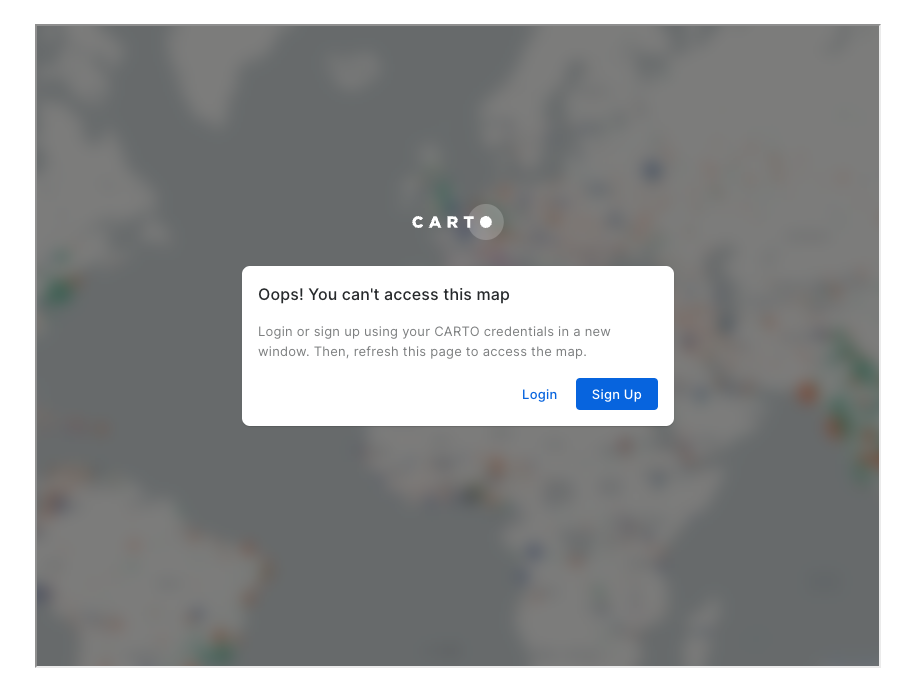
If the user has access but is not currently logged-in to CARTO, they will need to login in a separate tab/window and refresh the page containing the embedded map.
## Interacting with embedded maps
Users can interact with the embedded map in the same way they would in a standalone window by engaging with the map layers, widgets, SQL parameters...
An additional way to interact with the embedded map is by modifying the [**URL parameters**](/carto-user-manual/maps/sharing-and-collaboration/url-parameters.md)**.** This is particularly interesting because it allows the parent application to control the state of the embedded CARTO map.
{% hint style="info" %}
By modifying dynamically URL parameters in your embedded map, you can, for example:
* Control the map zoom and camera from user controls in your parent application
* Modify the map filters (widgets and parameters) when the users selects different options in your parent application
* Show/hide layers based on the user preferences in your parent application
{% endhint %}
## Listening to events from embedded maps
When embedding CARTO maps in an iframe, you can listen to events emitted by the embedded map to respond to user interactions and map state changes. This allows you to create bi-directional interactive experiences. The map uses the [postMessage API](https://developer.mozilla.org/en-US/docs/Web/API/Window/postMessage) to communicate with the parent application.
{% hint style="warning" %}
When listening to postMessage events, **always verify the `event.origin` of the message** to prevent security vulnerabilities
{% endhint %}
#### cartoMapLoaded
This event is fired once when the map finishes loading and is ready to use.
* **Event Type:** `cartoMapLoaded`
Event Data reference
```json
{
// The title of the map
"title": "string",
// List of widgets available on the map
"widgets": [
{
"id": "string", // Widget identifier
"type": "string", // Widget type: "category" | "pie" | "histogram" | "range"
"title": "string" // Widget title
}
],
// List of SQL parameters defined in the map
"sqlParameters": [
{
"name": "string", // Parameter name
"type": "string" // Parameter type: "category" | "numeric" | "dateRange" | "numericRange"
}
]
}
```
Javascript Example
```javascript
window.addEventListener('message', (event) => {
if (event.data.type === 'cartoMapLoaded') {
console.log('Map loaded:', event.data.data.title);
console.log('Available widgets:', event.data.data.widgets);
console.log('SQL parameters:', event.data.data.sqlParameters);
}
});
```
#### cartoMapUpdated
This event is fired whenever the map state changes (viewport changes, layer visibility, filters, etc.). This normally happens when the user zooms in, uses a widget or a SQL parameter, etc.
* **Event Type:** `cartoMapUpdated`
Event Data reference
```json
{
"lat": number, // Map center latitude
"long": number, // Map center longitude
"zoom": number, // Current zoom level
"bearing": number, // Map bearing/rotation in degrees
"pitch": number, // Map pitch/tilt in degrees
"search": "string", // (Optional) Current geocoder search text
"layers": [number], // Indices of visible layers
"mask": "string", // (Optional) WKT representation of the spatial filter geometry
// Active widget filters
"widgetFilters": [
{
"id": "string", // Widget identifier
"value": [] // string[] for category/pie widgets | number[][] for range/histogram, which is an array of [min, max] pairs
}
],
// Current SQL parameter values
"sqlParametersValues": [
{
"name": "string", // Parameter name
"value": any // string | number | string[] depending on parameter type
}
]
}
```
Javascript Example
```javascript
window.addEventListener('message', (event) => {
if (event.data.type === 'cartoMapUpdated') {
const mapState = event.data.data;
console.log('Map position:', mapState.lat, mapState.long, mapState.zoom);
console.log('Active widget filters:', mapState.widgetFilters);
console.log('SQL parameter values:', mapState.sqlParametersValues);
}
});
```
## Known limitations
1. The parent application must specify a valid `origin` HTTP header for the CARTO embedded map to load. This is a security requirement.
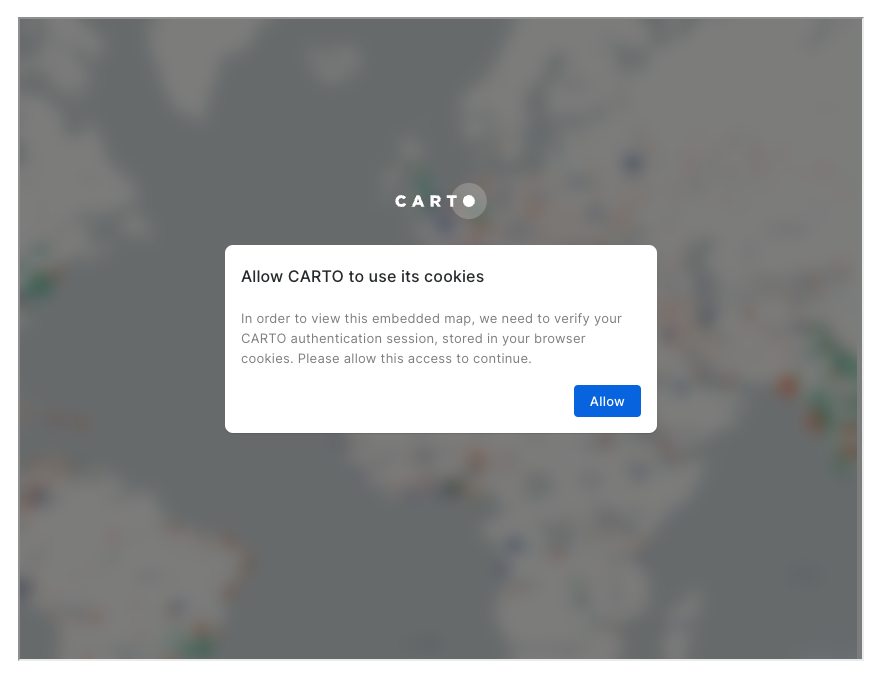
2. **For private embedding when re-using existing login session (method 3):** If the user browser does not allow access to cookies to the CARTO embedded iframe, a screen will pop up, prompting for permission.
* Some browsers such as Firefox or Brave offer advanced privacy/tracking protection that might interfere with the CARTO embedded iframe. While these features are great for user privacy, they also disable legitimate secure use cases like this one. Users can disable these protections.
---
# Agent Instructions
This documentation is published with GitBook. GitBook is the documentation platform designed so that both humans and AI agents can read, navigate, and reason over technical content effectively. Learn more at gitbook.com.
## Querying This Documentation
If you need additional information that is not directly available in this page, you can query the documentation by asking a question.
Perform an HTTP GET request on the following URL with the `ask` and `goal` query parameters:
```
GET https://docs.carto.com/carto-user-manual/maps/sharing-and-collaboration/embedding-maps.md?ask=&goal=
```
`ask` is the immediate question: it should be specific, self-contained, and written in natural language.
`goal` is what the user is ultimately trying to achieve, the reason they need the answer. Sharing it helps GitBook give you a better, more relevant answer. A goal is most helpful when it describes the outcome the user wants rather than restating the question. For example, with `ask=how do I create an API token`, a goal like `automate deployments from our CI pipeline` lets GitBook tailor the answer to that use case.
The response will contain a direct answer to the question and relevant excerpts and sources from the documentation.
Use this mechanism when the answer is not explicitly present in the current page, you need clarification or additional context, or you want to retrieve related documentation sections.