CARTO AI

CARTO AI adds AI capabilities across the CARTO platform. This includes AI Agents in Builder for natural-language interaction with maps, along with other AI features where supported.

Enabling CARTO AI

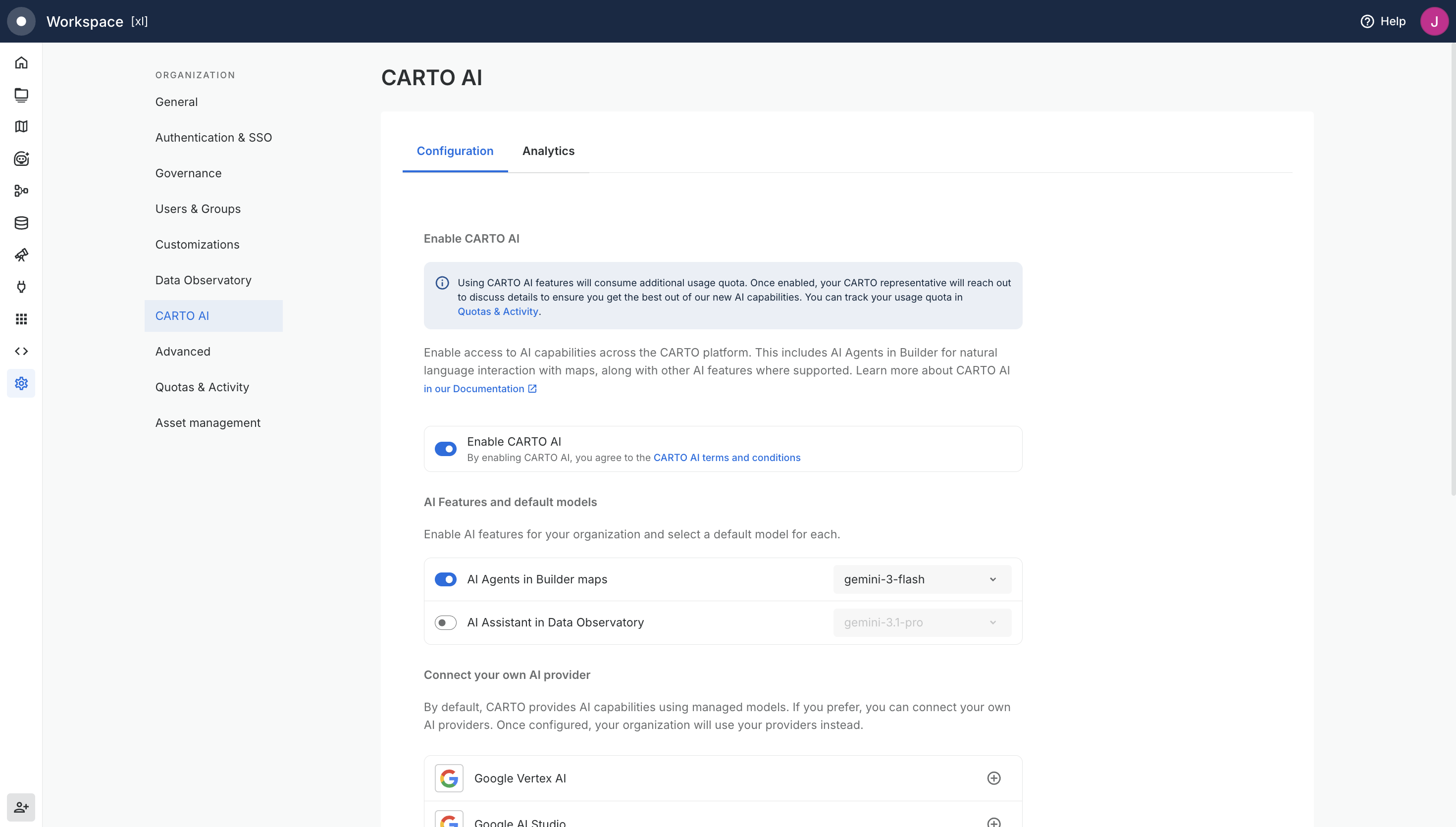
CARTO AI is controlled from Settings > CARTO AI with two layers of toggles:

  1. Enable CARTO AI (top-level toggle). This is the organization-wide master switch for all AI capabilities. When it is off, no AI feature is available to anyone in the organization, regardless of the granular settings below.

  2. AI Features (per-feature toggles). Once CARTO AI is enabled, Admins can choose which specific AI features are available to users (see AI Features).

To turn AI capabilities on for your organization, navigate to Settings > CARTO AI and toggle Enable CARTO AI.

Settings > CARTO AI, with the master toggle and the granular AI features

By enabling CARTO AI, you agree to the CARTO AI terms and conditions.

AI Features

Once CARTO AI is enabled, Admins can choose which specific AI features are available to users from the AI Features and default models section. Each feature has its own switch and its own default model selector, so you can enable only the capabilities you want available and pair each one with the model that best fits it.

Currently, the following AI features can be toggled independently:

  • AI Agents in Builder maps: Editor users can create conversational agents that analyze and interact with maps, using available CARTO tools and MCP tools to provide insights directly in the interface. Enabled by default when CARTO AI is on.

  • AI Assistant in Data Observatory: Users can find datasets in the Spatial Data Catalog by describing what they need in natural language, and the assistant applies the matching filters for them. Disabled by default. Admins need to enable it explicitly for it to appear in the Data Observatory.

More features will become individually toggleable over time.

Default model

The Default model dropdown at the top of the page sets the model that all AI features use by default across the organization. Each feature in AI Features and default models also has its own model selector: when a per-feature model is set, it overrides the organization-wide default for that specific feature; if left blank, the feature falls back to the organization-wide default.

Available models in any of these selectors come from the CARTO-managed models or from any custom providers you have configured (see Model Options).

The default model is pre-selected when configuring or using AI-powered features. However, Editor users can override this selection and choose a different model as needed.

Model Options

CARTO managed models (default)

When you enable CARTO AI, these models are available immediately:

  • claude-sonnet-4.6 (default): Recommended default for geospatial use cases across CARTO AI. Strong reasoning, spatial analysis, and SQL generation with a good balance of quality, cost, and latency.

  • claude-opus-4.7: Most capable Claude model for the hardest geospatial reasoning and multi-step analytical tasks. Higher cost and latency than Sonnet.

  • claude-opus-4.6: Previous-generation Opus, still available for organizations that have standardized on it.

  • gemini-3.1-pro: Advanced Gemini model with strong geospatial reasoning and multi-modal capabilities.

  • gemini-3-flash: Fast and efficient Gemini model, ideal for simpler queries and high-volume interactions.

Bring your own model

Organizations can configure their own AI models from multiple providers, giving you full control over model selection, data residency, and cost management.

Supported Providers

Provider
Authentication
Supported Models

Service Account

gemini-3.1-pro, gemini-3-flash, gemini-2.5-pro, gemini-2.5-flash, claude-opus-4.7, claude-opus-4.6, claude-sonnet-4.6, claude-opus-4.5, claude-sonnet-4.5

API Key

gemini-3.1-pro, gemini-3-flash, gemini-2.5-pro, gemini-2.5-flash

API Key

gpt-5.2-pro, gpt-5.2, gpt-5, gpt-5-mini, gpt-4o, gpt-4o-mini

AWS Credentials

claude-opus-4.7, claude-opus-4.6, claude-sonnet-4.6, claude-opus-4.5, claude-sonnet-4.5, claude-haiku-4.5

API Key

claude-opus-4.7, claude-opus-4.6, claude-sonnet-4.6, claude-opus-4.5, claude-sonnet-4.5, claude-haiku-4.5

API Key + Endpoint

gpt-5.2, gpt-5, gpt-5-mini, gpt-4o, gpt-4o-mini

PAT Token

claude-opus-4.7, claude-opus-4.6, claude-sonnet-4.6, claude-opus-4.5, claude-sonnet-4.5, claude-haiku-4.5, openai-gpt-5, openai-gpt-5-mini

PAT Token

databricks-claude-opus-4.7, databricks-claude-opus-4.6, databricks-claude-sonnet-4.6, databricks-claude-opus-4.5, databricks-claude-sonnet-4.5, databricks-claude-haiku-4.5, databricks-gemini-3.1-pro, databricks-gemini-3-flash, databricks-gemini-2.5-pro, databricks-gemini-2.5-flash, databricks-gpt-5.2, databricks-gpt-5, databricks-gpt-5-mini

OCI Credentials

google.gemini-2.5-pro, google.gemini-2.5-flash, xai.grok-4

API Key

User-defined (any OpenAI-compatible model)

OpenAI

Connect directly to OpenAI's API.

Supported models: gpt-5.2-pro, gpt-5.2, gpt-5, gpt-5-mini, gpt-4o, gpt-4o-mini

Configuration:

  • API Key (required): Your OpenAI API Key

  • Base URL (optional): Custom API endpoint URL


Anthropic

Connect directly to Anthropic's API.

Supported models: claude-opus-4.7, claude-opus-4.6, claude-sonnet-4.6, claude-opus-4.5, claude-sonnet-4.5, claude-haiku-4.5

Configuration:

  • API Key (required): Your Anthropic API Key

  • Base URL (optional): Custom API endpoint URL


Google AI Studio

Connect to Google's AI Studio API.

Supported models: gemini-3.1-pro, gemini-3-flash, gemini-2.5-pro, gemini-2.5-flash

Configuration:

  • API Key (required): Your Google AI Studio API Key


Google Vertex AI

Connect to Gemini and Claude models via Google Cloud Platform.

Supported models: gemini-3.1-pro, gemini-3-flash, gemini-2.5-pro, gemini-2.5-flash, claude-opus-4.7, claude-opus-4.6, claude-sonnet-4.6, claude-opus-4.5, claude-sonnet-4.5

Configuration:

  • Project ID (required): Your GCP project ID

  • Location (required): GCP region (e.g., us-central-1)

  • Service Account Credentials (required): JSON credentials for a service account granted the Vertex AI User role (roles/aiplatform.user). See Google's documentation for creating a service account and granting roles.


AWS Bedrock

Access Claude models through AWS infrastructure.

Supported models: claude-opus-4.7, claude-opus-4.6, claude-sonnet-4.6, claude-opus-4.5, claude-sonnet-4.5, claude-haiku-4.5

Configuration:

  • AWS Access Key ID (required)

  • AWS Secret Access Key (required)

  • AWS Region (required): e.g., us-east-1


Azure OpenAI

Access OpenAI models through Azure infrastructure.

Supported models: gpt-5.2, gpt-5, gpt-5-mini, gpt-4o, gpt-4o-mini

Configuration:

  • API Base (required): Your Azure OpenAI endpoint URL

  • API Key (required): Your Azure OpenAI API key

  • API Key Version (required): API version (e.g., 2025-01-01-preview)


Snowflake Cortex

Access AI models directly within your Snowflake environment

Supported models: claude-opus-4.7, claude-opus-4.6, claude-sonnet-4.6, claude-opus-4.5, claude-sonnet-4.5, claude-haiku-4.5, openai-gpt-5, openai-gpt-5-mini

Configuration:

  • API Base (required): Your Snowflake Cortex endpoint (e.g., https://myorg-myaccount.snowflakecomputing.com/api/v2/cortex/inference:complete)

  • PAT (required): Personal Access Token (PAT)


Databricks Model Serving

Access models through Databricks serving endpoints.

Supported models: databricks-claude-opus-4.7, databricks-claude-opus-4.6, databricks-claude-sonnet-4.6, databricks-claude-opus-4.5, databricks-claude-sonnet-4.5, databricks-claude-haiku-4.5, databricks-gemini-3.1-pro, databricks-gemini-3-flash, databricks-gemini-2.5-pro, databricks-gemini-2.5-flash, databricks-gpt-5.2, databricks-gpt-5, databricks-gpt-5-mini

Configuration:

  • API Base (required): Your Databricks serving endpoint URL.

  • PAT (required): Databricks Personal Access Token


Oracle Generative AI

Access models through Oracle Cloud.

Supported models: google.gemini-2.5-pro, google.gemini-2.5-flash, xai.grok-4

Configuration:

  • OCI User OCID (required)

  • OCI Tenancy OCID (required)

  • OCI Fingerprint (required)

  • OCI Private Key (required)

  • OCI Region (required): e.g., us-ashburn-1

Custom (OpenAI compatible)

Access models throgh your own LLM proxy or self-hosted endpoint that implementes the OpenAI-compatible chat completions API.

Supported models: User defined, enter a comma-separated list of the model IDs your endpoint serves (e.g. model-1, model-2).

Configuration:

  • Base URL (required): Your OpenAI-compatible endpoint URL (e.g., https://llm.yourcompany.com/v1)

  • API Key (required): Your own API key

  • Models (required): Comma-separated list of model IDs you serve

When you you bring your own provider, it replaces the CARTO-managed models. Only the models from your configured providers will be available when creating AI Agents.

Interested in other providers or models? We're continuously expanding our AI provider support. If you'd like to see a specific provider or model added, pleas share your feedback with us.

Managing Models

From the CARTO AI settings page, you can:

  • Add providers: Configure credentials for a supported provider to make its models available to the organization.

  • Remove providers: Disable a provider to remove its models from availability. Any models from that provider will no longer be selectable for new agents or AI features.

  • Set default model: Choose which model to use by default for all CARTO AI features.

  • View available models: See the full list of models currently available to the organization across all configured providers.

Analytics

Organization Admins can monitor how CARTO AI is being used across the organization from the Analytics tab in Settings > CARTO AI. See CARTO AI Analytics for details.

Last updated

Was this helpful?