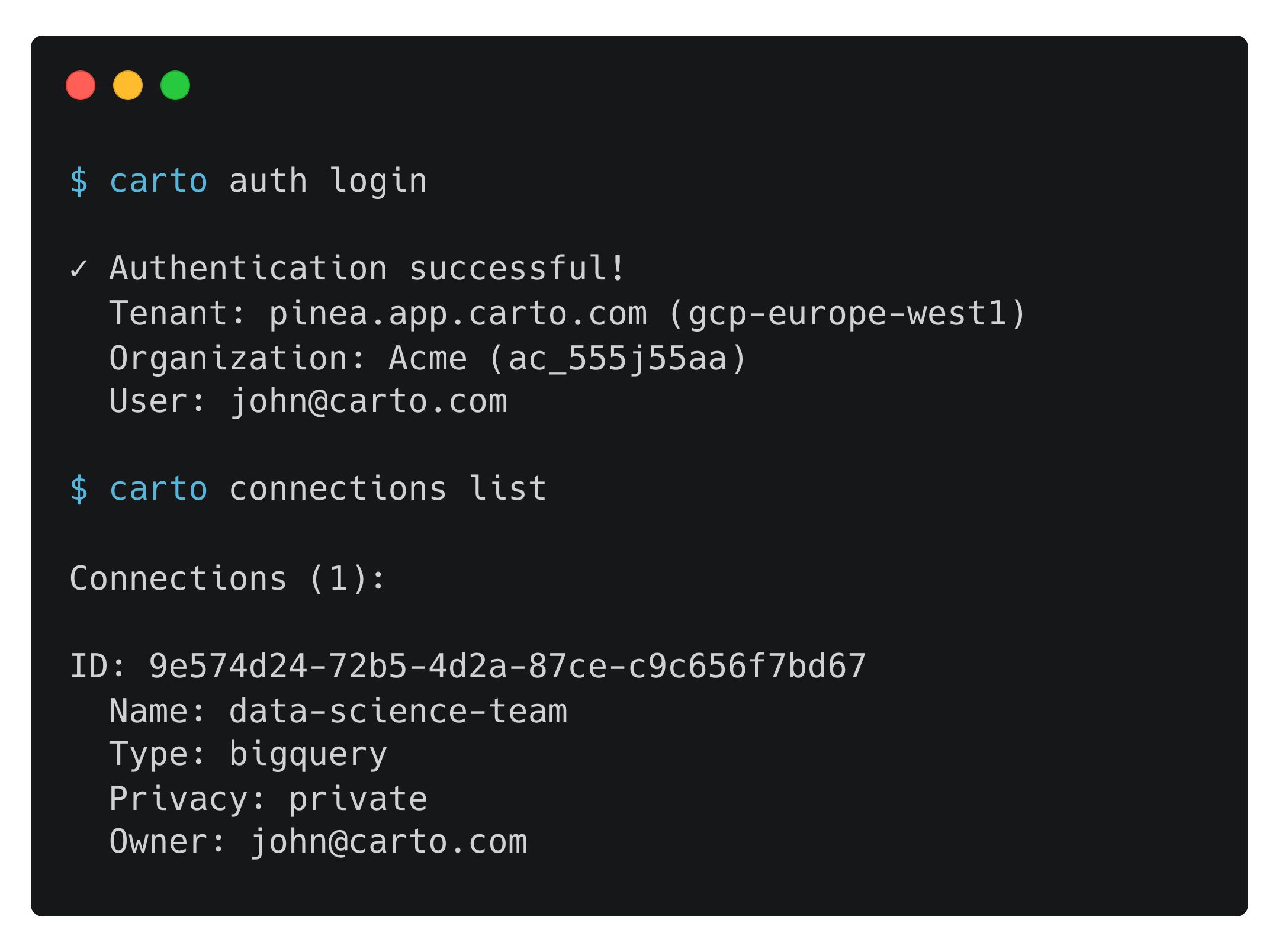
> For the complete documentation index, see [llms.txt](https://docs.carto.com/llms.txt). Markdown versions of documentation pages are available by appending `.md` to page URLs; this page is available as [Markdown](https://docs.carto.com/carto-for-agents/cli.md).
# CARTO CLI
The **CARTO CLI** (`@carto/carto-cli`) is the official command-line interface for CARTO. It exposes nearly every platform operation as a scriptable command. Find and manage maps, workflows, connections and credentials, import and export geospatial data, run SQL on connected warehouses, manage users, audit activity, transfer assets between organizations, and chat with the AI agents configured on your maps.
The CLI is designed to be driven by:
* **Humans** at the terminal, for one-off admin tasks, scripting, and CI/CD.
* **AI agents** like Claude Code, Cursor, Codex, or Gemini CLI through tool use. The `--json` global flag gives agents machine-readable output for every command.
{% hint style="info" %}
**Most users don't need the CLI to start.** For chatting with your data — creating maps, running Workflows, exploring your warehouse — the [CARTO MCP Server](/carto-for-agents/mcp-server.md) is the shortest path and needs no install. Reach for the CLI when you want scripting, CI/CD, and headless automation; bulk or cross-organization operations; deeper administration and auditing (including SQL over your usage logs); or the most complete command surface.
{% endhint %}
## Capabilities
* **Builder maps**. Create, update, validate, publish, and copy CARTO Builder maps from a round-trippable JSON bundle. Inspect the AI agent surface available on each map. (Map `screenshot` is also available as an experimental command.)
* **Workflows**. Create, update, validate, verify, run, schedule, share, and publish CARTO Workflows. Publish a workflow as an MCP tool so any connected agent can call it. Install workflow extensions and browse the component catalog.
* **Projects (folders)**. Group maps and workflows into projects, with a local-sync workflow that lets you clone, edit, and push changes back from your machine.
* **Credentials**. Create and manage API Access Tokens, SPA OAuth clients, M2M OAuth clients, and Named Sources.
* **Connections**. List, create, update, and delete data warehouse connections. Browse the resource tree, search tables, and describe schemas.
* **Data Observatory**. Browse, search, and subscribe to spatial datasets from CARTO's public and premium catalog.
* **Data movement**. Import geospatial files (CSV, GeoJSON, GeoPackage, GeoParquet, KML, KMZ, TAB, Shapefile) from local files or URLs. Export warehouse tables back out, or transfer data between warehouses.
* **SQL**. Run SQL queries and DDL/DML jobs against your data warehouse from the terminal.
* **Organization and users**. View quotas, resources, and AI limits. List, invite, and manage users and pending invitations.
* **Activity data**. Query and export usage logs via DuckDB SQL (Enterprise Large+).
* **Superadmin operations**. Batch operations and cross-org resource transfers.
* **Multi-profile support**. Manage multiple CARTO accounts or environments with named profiles. Tokens are stored locally in `~/.carto_credentials.json`.
* **Single executable**. Bundled into one file with minimal dependencies.
* **JSON output**. Machine-readable output (`--json`) on every command for scripting and agent tool use.
## Get started
1. [Install the CLI](/carto-for-agents/cli/installation.md).
2. [Authenticate](/carto-for-agents/cli/authentication.md) to your CARTO organization with `carto auth login`. Configure additional [named profiles](/carto-for-agents/cli/authentication.md#multiple-profiles) if you work with several organizations.
3. [Browse the command reference](/carto-for-agents/cli/command-reference.md) to see every available command, flag, and example.
4. Walk through end-to-end [examples](/carto-for-agents/cli/examples.md): creating Builder maps and workflows from JSON, copying assets between organizations, scheduling workflows, importing data, and querying activity logs.
If you're driving the CLI from an AI coding agent, also see [CARTO Agent Skills](/carto-for-agents/agent-skills.md), the catalog of skills that teach coding agents how to use the CLI idiomatically.
---
# Agent Instructions
This documentation is published with GitBook. GitBook is the documentation platform designed so that both humans and AI agents can read, navigate, and reason over technical content effectively. Learn more at gitbook.com.
## Querying This Documentation
If you need additional information that is not directly available in this page, you can query the documentation by asking a question.
Perform an HTTP GET request on the following URL with the `ask` and `goal` query parameters:
```
GET https://docs.carto.com/carto-for-agents/cli.md?ask=&goal=
```
`ask` is the immediate question: it should be specific, self-contained, and written in natural language.
`goal` is what the user is ultimately trying to achieve, the reason they need the answer. Sharing it helps GitBook give you a better, more relevant answer. A goal is most helpful when it describes the outcome the user wants rather than restating the question. For example, with `ask=how do I create an API token`, a goal like `automate deployments from our CI pipeline` lets GitBook tailor the answer to that use case.
The response will contain a direct answer to the question and relevant excerpts and sources from the documentation.
Use this mechanism when the answer is not explicitly present in the current page, you need clarification or additional context, or you want to retrieve related documentation sections.