# Working with tools

AI Agents transform natural language into spatial insights by invoking tools that can take geospatial action such as geocoding an address, executing a Workflows to identify best locations around geocoded location and add the output as new layer highlighting top locations.

<figure><img src="https://3029946802-files.gitbook.io/~/files/v0/b/gitbook-x-prod.appspot.com/o/spaces%2FybPdpmLltPkzGFvz7m8A%2Fuploads%2Fgit-blob-07c01c5bfb1adf10563c2836634e16dafbb95048%2FScreenshot%202025-10-05%20at%2010.19.53.png?alt=media" alt=""><figcaption></figcaption></figure>

### Types of tools

#### Core tools

The «Core tools» are built-in tools by CARTO available immediately with no setup required. These handle common map interactions such as displaying a geocoded address on the map, zooming to a given location, filtering a layer or even adding new styled layers into the map.

For detailed information about each tool including parameters and response structures, see the [AI Tools Reference](https://docs.carto.com/carto-user-manual/ai-agents/ai-tools-reference).

#### MCP tools

You can provide your AI Agent with access to Workflows MCP Tools you have access to within your organization, expanding its capabilities. In CARTO you can create MCP Tools using Workflows, ensuring your AI Agent has access to valid and trustworthy tools that ensure your business logic is taken into account. [Learn how to create Workflows MCP Tools in this section](https://docs.carto.com/carto-user-manual/workflows/workflows-as-mcp-tools).

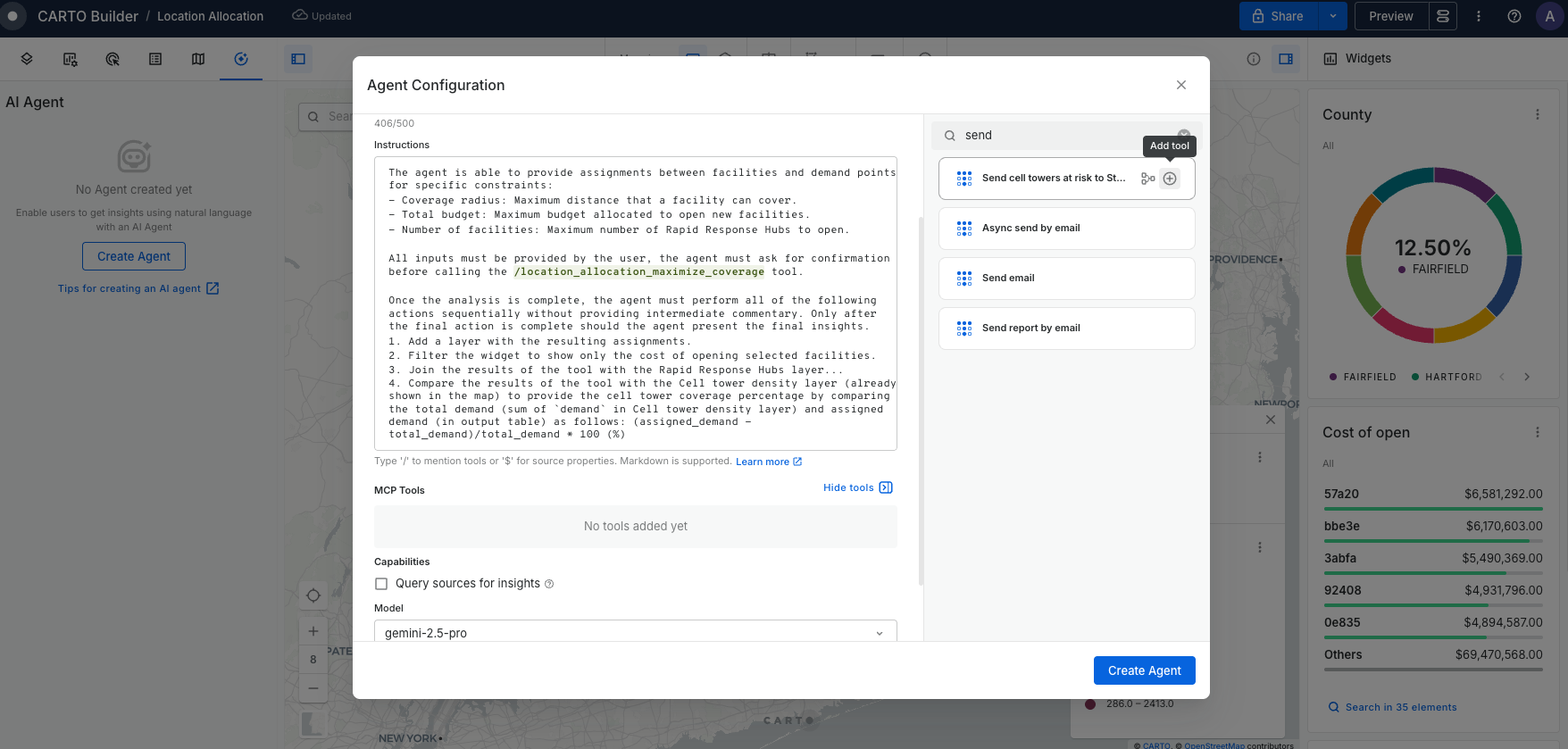
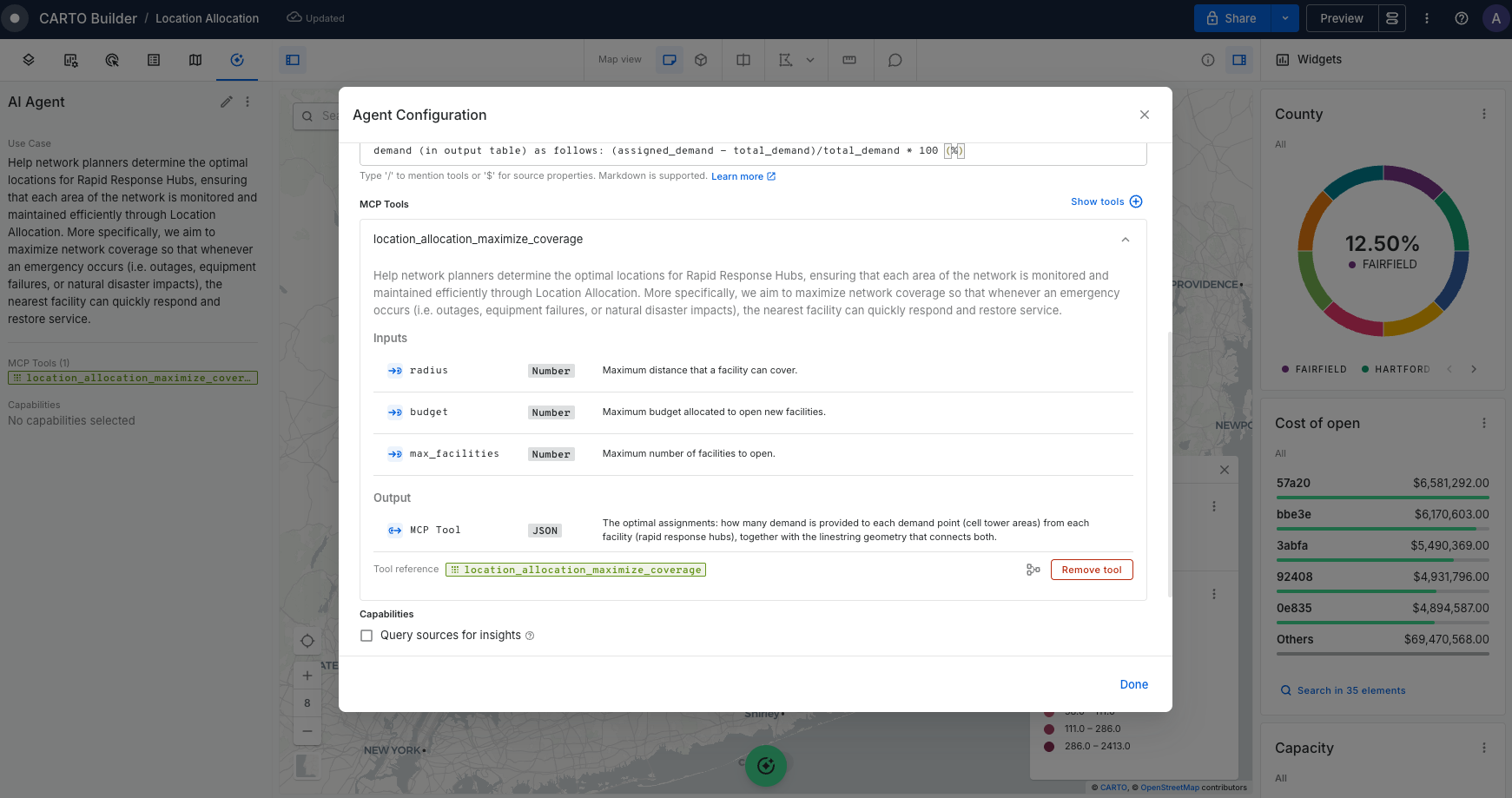
Once the required MCP Tools for your AI Agent are created, you can add them by clicking "Show tools" to expand the MCP Tool panel located on the right side. After that, you can review the Tool description, Input and Output details if present.

<figure><img src="https://3029946802-files.gitbook.io/~/files/v0/b/gitbook-x-prod.appspot.com/o/spaces%2FybPdpmLltPkzGFvz7m8A%2Fuploads%2Fgit-blob-c382be9574ccf24e8b144b70155753ae967bfcd8%2FScreenshot%202025-10-06%20at%2013.57.49.png?alt=media" alt=""><figcaption></figcaption></figure>

{% hint style="info" %}
In the future CARTO will expand support to connect AI Agents to 3rd party MCP Servers. Please get in touch if you're interested in this upcoming feature.
{% endhint %}

### **Core tools overview**

Core Tools are organized into four main categories. You don't need to know their parameters, just reference them by name in your Instructions, and the agent handles the details.

#### Map tools

These tools let the Agent control the map position as well as the map extracting area of interest.

<table><thead><tr><th width="299.86328125">Tool</th><th>Description</th></tr></thead><tbody><tr><td><code>add_marker</code></td><td>Add marker(s) on the map.</td></tr><tr><td><code>get_map_coordinates</code></td><td>Retrieve the current map view coordinates and zoom level.</td></tr><tr><td><code>get_spatial_filter</code></td><td>Get current area of interest (viewport or polygon mask).</td></tr><tr><td><code>lds_geocode</code></td><td>Convert address to coordinates.</td></tr><tr><td><code>set_map_center_and_zoom</code></td><td>Zoom the map view to a specific layer extent.</td></tr><tr><td><code>set_map_center_and_zoom_to_layer</code></td><td>Zoom the map view to a specific layer extent.</td></tr><tr><td><code>set_spatial_filter</code></td><td>Set, replace or remove polygon mask as spatial filter on the map.</td></tr><tr><td><code>get_active_filters</code></td><td>Get all active filters (spatial, widget, and parameter filters) from a map.</td></tr></tbody></table>

#### Layer tools

These tools let the Agent add, style and display layers on the map.

<table><thead><tr><th width="250.1484375">Tool</th><th>Purpose</th></tr></thead><tbody><tr><td><code>add_layer</code></td><td>Visualize source data as new layer on the map.</td></tr><tr><td><code>style_layer</code></td><td>Style ai-generated layers.</td></tr><tr><td><code>set_layers_visibility</code></td><td>Remove ai-generated layers.</td></tr><tr><td><code>remove_layer</code></td><td>Removes a temporal ai-generated layer.</td></tr></tbody></table>

#### Widget tools

These tools let the Agent extract widget values and use them to filter data sources on the map.

<table><thead><tr><th width="300.125">Function Name</th><th>Description</th></tr></thead><tbody><tr><td><code>filter_category_widget</code></td><td>Filter by categories (e.g., type, region)</td></tr><tr><td><code>filter_histogram_widget</code></td><td>Filter by distribution ranges</td></tr><tr><td><code>filter_range_widget</code></td><td>Filter by min/max values</td></tr><tr><td><code>get_formula_widget</code></td><td>Retrieve calculated metrics (KPIs).</td></tr><tr><td><code>get_category_widget</code></td><td>Get category breakdowns.</td></tr><tr><td><code>get_histogram_widget</code></td><td>Get distribution data.</td></tr><tr><td><code>get_time_series_widget</code></td><td>Get temporal patterns.</td></tr></tbody></table>

{% hint style="info" %}
Extracting widget values using `get_widget` tools can retrieve up to 5,000 values.
{% endhint %}

#### Parameter tools

These tools let the Agent update parameter values on the map.

<table><thead><tr><th width="299.87890625">Tool</th><th>Purpose</th></tr></thead><tbody><tr><td><code>set_sql_parameter_text</code></td><td>Update text parameter values.</td></tr><tr><td><code>set_sql_parameter_date</code></td><td>Update date parameter values.</td></tr><tr><td><code>set_sql_parameter_numeric</code></td><td>Update numeric parameter value.</td></tr><tr><td><code>set_sql_parameter_numeric_range</code></td><td>Update numeric range parameter values.</td></tr></tbody></table>

#### Data tools

These tools let the Agent generate SQL to add new sources on the map as well as executing queries against your map connection. Note this tools are off by default, you must enable Query sources capability in order to enable them. [Learn how to configure capabilities in this section](https://docs.carto.com/carto-user-manual/ai-agents/configuring-capabilities).

<table><thead><tr><th width="299.796875">Tool</th><th>Purpose</th></tr></thead><tbody><tr><td><code>add_source</code></td><td>Creates temporal ai-generated data sources from queries that can be used to render a new layer on the map.</td></tr><tr><td><code>remove_source</code></td><td>Remove a temporal ai-generated data sources.</td></tr><tr><td><code>execute_query</code></td><td>Run ai-generated query to provide insights.</td></tr></tbody></table>

#### Insights tools

These tools let the Agent generate insights such as charts directly in the conversation from analyzing data.

<table><thead><tr><th width="299.796875">Tool</th><th>Purpose</th></tr></thead><tbody><tr><td><code>generate_chart</code></td><td>Validate and render interactive <a href="https://vega.github.io/vega-lite/">Vega-Lite</a> charts in the conversation. </td></tr></tbody></table>

### Workflows Output tools

If a Workflows MCP Tool is provided to your Agent, your Agent comes with additional tools that let your Agent retrieve results from the Workflows execution. [Learn about Workflows as MCP Tools in this section](https://docs.carto.com/carto-user-manual/workflows/workflows-as-mcp-tools).

<table><thead><tr><th width="299.78125">Tool</th><th>Purpose</th></tr></thead><tbody><tr><td>add_source_from_workflows</td><td>Creates a temporal ai-generated layer using the fully-qualified table name output by a Workflows.</td></tr><tr><td>async_workflows_job_check_status</td><td>Check job status from Asynchronous Workflows execution.</td></tr><tr><td>async_workflows_job_get_results</td><td>Get the results from Asynchronous Workflows execution.</td></tr></tbody></table>
