> For the complete documentation index, see [llms.txt](https://docs.carto.com/llms.txt). Markdown versions of documentation pages are available by appending `.md` to page URLs; this page is available as [Markdown](https://docs.carto.com/carto-user-manual/maps/sql-parameters/numeric-parameter.md).
# Numeric parameter
Numeric parameters are **replaced by a single or a pair of numeric values** in your query. They are a good choice if you need to filter your data by specific range or calculate analysis based on numeric values.
## **Numeric Parameter Settings**
When creating a numeric parameter, there are a few settings to be defined:
### **Values**
Choose your preferred slider and scale type, be it simple or range for slider type, and discrete or continuous for scale, to optimize data collection according to your needs.
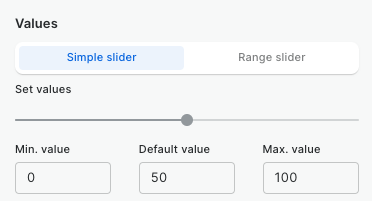
* **Simple Slider:** Allows for the selection of a single numeric value.
* **Min Value:** The smallest value a user can select.
* **Default Value:** The initial value that is presented when the parameter is first used.
* **Max Value:** The largest value a user can select.
Defining Simple Slider Values
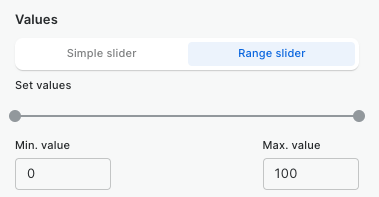
* **Range Slider:** Enables the selection of a pair of numeric values, defining a range.
* **Min Value:** The smallest value within the range a user can select.
* **Max Value:** The largest value within the range a user can select.
Defining Range Slider Values
* **Scale:** Determines the selection scope and type on a slider, which can be either continuous or discrete.
* **Continuous:** Allows unrestricted selection of any value within a defined range.
* **Discrete:** Permits selection from specific values within a range, controlled by a "*Step Increment*" that defines the interval between selectable values.
### **Naming**
* **Display name:** The name that will appear in the control UI.
* **SQL name(s):** The name(s) to be used in the SQL query to be replaced by the control UI value(s).
## **Using Numeric Parameters in your SQL Query**
Once the parameter is created, we should manually add it (using its SQL name) to one or more of your SQL Query data sources.
**Simple Slider**
```sql
SELECT ST_BUFFER(geom,{{buffer_size}}) as geom
FROM carto-demo-data.demo_tables.newyork_newjersey_ooh_panels
```
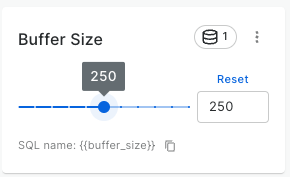
After adding the parameter to your SQL query data sources, the control will appear in the parameters bar above the map, allowing users to define a **custom numeric value**:
Control UI for a Numeric Parameter using Simple Slider
**Range Slider**
```sql
SELECT * FROM carto-demo-data.demo_tables.riskanalysis_railroad_accidents
WHERE highest_speed_reported >= {{highest_speed_from}} AND highest_speed_reported <= {{highest_speed_to}}
```
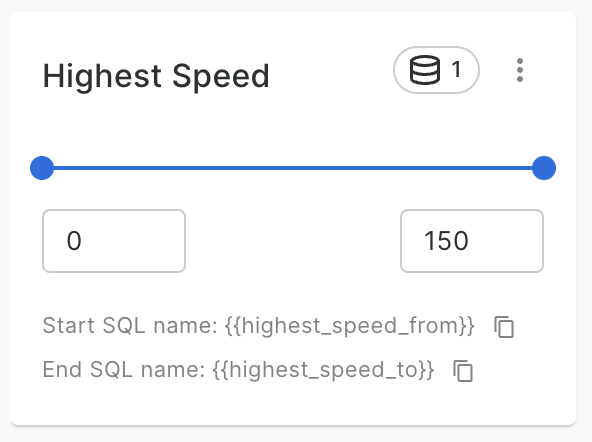
After adding the parameter to your SQL query data sources, the control will appear in the parameters bar above the map, allowing users to define the **min and max** **pair of numeric values**:
Control UI for a Numeric Parameter using Range Slider
---
# Agent Instructions
This documentation is published with GitBook. GitBook is the documentation platform designed so that both humans and AI agents can read, navigate, and reason over technical content effectively. Learn more at gitbook.com.
## Querying This Documentation
If you need additional information that is not directly available in this page, you can query the documentation dynamically by asking a question.
Perform an HTTP GET request on the current page URL with the `ask` query parameter, and the optional `goal` query parameter:
```
GET https://docs.carto.com/carto-user-manual/maps/sql-parameters/numeric-parameter.md?ask=&goal=
```
`ask` is the immediate question: it should be specific, self-contained, and written in natural language.
`goal` is optional and describes the broader end goal you are ultimately trying to accomplish on behalf of the user. GitBook uses it to tailor the answer towards what is most useful for that goal.
The response will contain a direct answer to the question and relevant excerpts and sources from the documentation.
Use this mechanism when the answer is not explicitly present in the current page, you need clarification or additional context, or you want to retrieve related documentation sections.