> For the complete documentation index, see [llms.txt](https://docs.carto.com/llms.txt). Markdown versions of documentation pages are available by appending `.md` to page URLs; this page is available as [Markdown](https://docs.carto.com/data-and-analysis/analytics-toolbox-for-databricks/getting-access/installation-in-an-azure-vnet.md).
# Installation in an Azure VNet
This guide walks you through the process of configuring the CARTO Analytics Toolbox AT Gateway for Databricks to work within an Azure Virtual Network with a CARTO Self-Hosted installation on Azure.
{% hint style="info" %}
**Is your CARTO Self-Hosted deployment in an Azure VNet?**
When the CARTO platform is self-hosted within an Azure VNet with an internal Load Balancer, the AT Gateway needs to be deployed inside a peered VNet so that it can reach the CARTO platform's internal endpoint. This guide covers that deployment using Azure Container Apps.
{% endhint %}
{% hint style="danger" %}
**Verify your Databricks region supports Unity Catalog HTTP connections first**
Databricks `http_request()` — which the AT Gateway depends on — is only available in regions where Databricks Model Serving is supported (see the [Databricks region support tables](https://learn.microsoft.com/en-us/azure/databricks/resources/feature-region-support)). If your Databricks workspace is in a region without Model Serving, no Container App, VNet, or certificate configuration will make the AT Gateway reachable — the request never leaves Databricks. Confirm region support before following this guide.
{% endhint %}
## Prerequisites
Before following this guide, ensure you have:
* A Databricks workspace region that supports Unity Catalog HTTP connections (i.e., where [Model Serving is available](https://learn.microsoft.com/en-us/azure/databricks/resources/feature-region-support))
* CARTO Self-Hosted deployed on Azure, accessible through a private network endpoint (e.g., an internal Load Balancer with no public IP). This guide is designed for deployments where the CARTO platform is **not publicly accessible**
* The Analytics Toolbox functions installed in your Databricks workspace (see the [SQL Warehouse installation guide](/data-and-analysis/analytics-toolbox-for-databricks/getting-access/sql-warehouse.md))
* Azure CLI (`az`) authenticated with sufficient permissions to create VNets, subnets, Container Apps, and Private DNS zones
* A Databricks workspace with [Unity Catalog](https://docs.databricks.com/en/data-governance/unity-catalog/index.html) enabled and a [SQL Warehouse](https://docs.databricks.com/en/compute/sql-warehouse/index.html) provisioned
* The internal IP address of your CARTO Self-Hosted platform's Load Balancer
## Architecture overview
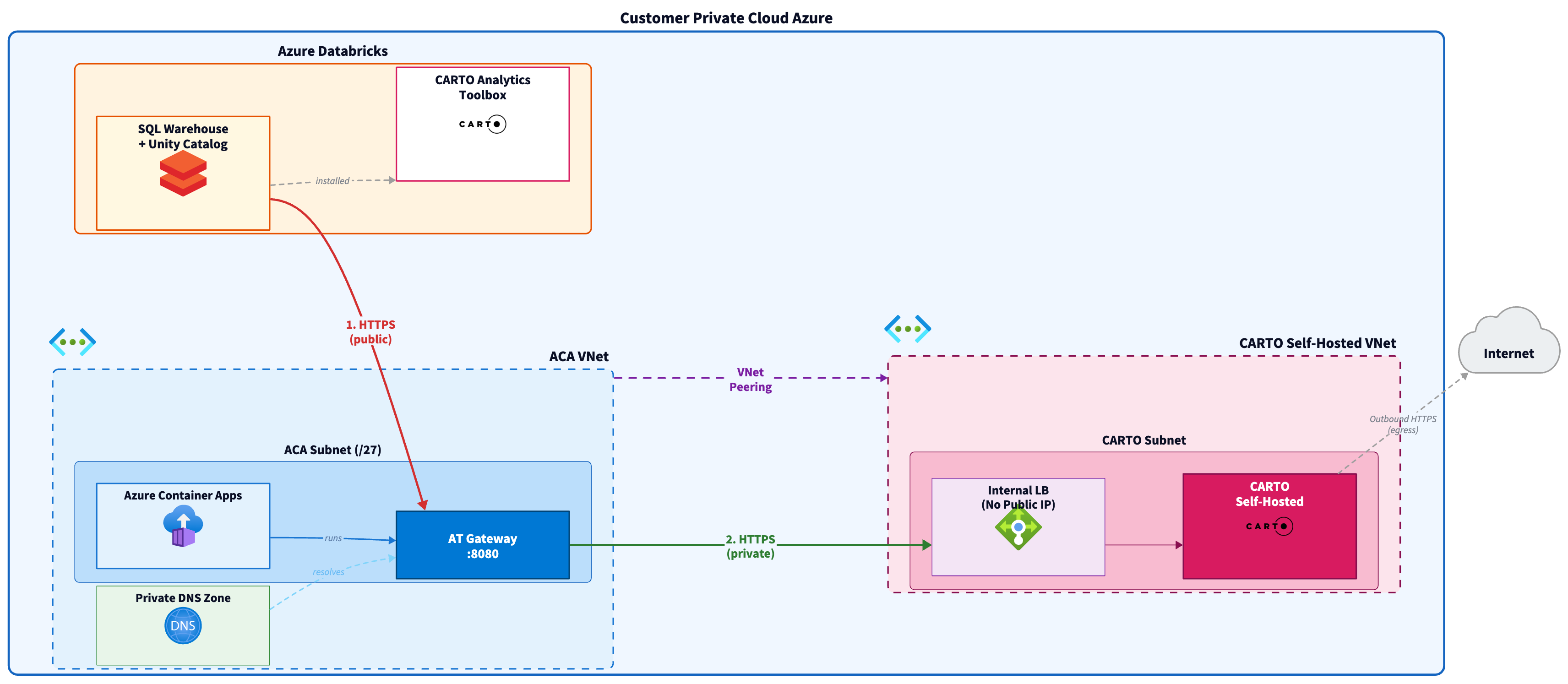
The AT Gateway acts as a bridge between Databricks and the CARTO Self-Hosted platform. Databricks SQL Warehouses use the `http_request()` function to call the AT Gateway over public HTTPS. The AT Gateway then forwards requests to the CARTO platform over the internal network via VNet peering.
The deployment consists of the following infrastructure pieces:
* An **Azure VNet** with a dedicated subnet delegated to `Microsoft.App/environments`, used to deploy the AT Gateway container
* An **Azure Container Apps environment** (Workload Profiles mode) with VNet integration and external ingress
* **Bidirectional VNet peering** between the ACA VNet and the CARTO VNet (the VNet where CARTO Self-Hosted is deployed), enabling private network connectivity
* The **AT Gateway container** deployed as a Container App, exposing a public HTTPS endpoint for Databricks and routing traffic internally to CARTO
* An **Azure Private DNS zone** linked to the ACA VNet, resolving the CARTO domain to the internal Load Balancer IP
* An **HTTP Connection** in Databricks pointing to the AT Gateway's public URL
{% hint style="info" %}
Databricks `http_request()` routes through Databricks-managed infrastructure, not through the customer VNet. This is why the AT Gateway requires a **public ingress endpoint** — Databricks cannot reach endpoints that are only accessible within your VNet.
{% endhint %}
{% hint style="info" %}
All following commands and instructions should be executed from an authenticated `az` CLI session.
{% endhint %}
## Step 1: Prepare VNet Infrastructure
Create a dedicated VNet and subnet for the Azure Container Apps environment. This VNet will be peered with the VNet where CARTO Self-Hosted is deployed to allow the AT Gateway to reach the CARTO internal Load Balancer.
{% hint style="danger" %}
**If using AKS:** Do **not** create resources in the AKS node resource group (`MC_*`). Microsoft explicitly states that modifying resources in the managed node resource group is unsupported and may cause cluster failures. Always create networking resources in your own resource group.
{% endhint %}
{% hint style="info" %}
**Same-VNet alternative:** If your CARTO Self-Hosted deployment uses a BYO (Bring Your Own) VNet — which is the [Microsoft-recommended approach for AKS](https://learn.microsoft.com/en-us/azure/aks/configure-kubenet) — you can add the ACA subnet directly to the CARTO VNet instead of creating a separate VNet. This eliminates the need for VNet peering (Step 2) and simplifies the architecture. Simply create the delegated subnet (Step 1.2) in the existing CARTO VNet and skip Step 2 entirely.
{% endhint %}
### 1.1 Create a VNet for Azure Container Apps
{% code overflow="wrap" %}
```bash
az network vnet create \
--resource-group {RESOURCE_GROUP} \
--name {ACA_VNET_NAME} \
--address-prefixes {ACA_VNET_CIDR} \
--location {REGION}
```
{% endcode %}
Replace the following:
* `RESOURCE_GROUP`: the resource group where you want to create the ACA networking resources (use your own resource group)
* `ACA_VNET_NAME`: the name for the new VNet (e.g., `aca-at-gateway-vnet`)
* `ACA_VNET_CIDR`: the address space for the VNet (e.g., `10.1.0.0/16`)
* `REGION`: the Azure region, which should match your CARTO Self-Hosted deployment region
{% hint style="warning" %}
The ACA VNet CIDR must **not overlap** with the CARTO VNet address space or any of the following Azure-reserved ranges: `169.254.0.0/16`, `172.30.0.0/16`, `172.31.0.0/16`, `192.0.2.0/24`.
{% endhint %}
### 1.2 Create a subnet for the Container Apps environment
{% code overflow="wrap" %}
```bash
az network vnet subnet create \
--resource-group {RESOURCE_GROUP} \
--vnet-name {ACA_VNET_NAME} \
--name {ACA_SUBNET_NAME} \
--address-prefixes {ACA_SUBNET_CIDR} \
--delegations Microsoft.App/environments
```
{% endcode %}
Replace the following:
* `ACA_SUBNET_NAME`: the name for the subnet (e.g., `aca-subnet`)
* `ACA_SUBNET_CIDR`: the subnet CIDR block (e.g., `10.1.0.0/27`)
{% hint style="info" %}
The subnet must use a minimum CIDR block of `/27` (32 addresses) when using Workload Profiles. The subnet must be **delegated** to `Microsoft.App/environments` — this is required for Workload Profiles mode.
{% endhint %}
Save the **Subnet Resource ID** from the output for use in later steps. You can retrieve it with:
```bash
ACA_SUBNET_ID=$(az network vnet subnet show \
--resource-group {RESOURCE_GROUP} \
--vnet-name {ACA_VNET_NAME} \
--name {ACA_SUBNET_NAME} \
--query "id" -o tsv)
```
## Step 2: Set Up VNet Peering
Create bidirectional VNet peering between the ACA VNet and the CARTO VNet so that the AT Gateway can reach the CARTO internal Load Balancer.
{% hint style="warning" %}
**Enterprise hub-spoke topologies:** For hub-spoke network topologies where CARTO Self-Hosted and ACA are in separate spoke VNets, the peered VNet approach documented here is the correct pattern. If VNet peering system routes do not work as expected (e.g., due to custom route tables on the hub), add a User-Defined Route (UDR) on the ACA subnet with the CARTO VNet address space pointing to the appropriate next hop.
{% endhint %}
### 2.1 Retrieve the CARTO VNet information
You need the resource ID of the VNet where your CARTO Self-Hosted platform is deployed.
**If using AKS** with a BYO (Bring Your Own) VNet:
{% code overflow="wrap" %}
```bash
CARTO_VNET_ID=$(az aks show \
--resource-group {CARTO_RESOURCE_GROUP} \
--name {CARTO_CLUSTER_NAME} \
--query "agentPoolProfiles[0].vnetSubnetId" -o tsv)
```
{% endcode %}
Replace the following:
* `CARTO_RESOURCE_GROUP`: the resource group containing your CARTO Self-Hosted deployment
* `CARTO_CLUSTER_NAME`: the name of your cluster
**If using AKS** without a BYO VNet, the VNet is in the managed node resource group:
{% code overflow="wrap" %}
```bash
CARTO_VNET_ID=$(az network vnet list \
--resource-group {CARTO_NODE_RESOURCE_GROUP} \
--query "[0].id" -o tsv)
```
{% endcode %}
* `CARTO_NODE_RESOURCE_GROUP`: the managed node resource group (typically `MC_{RESOURCE_GROUP}_{CLUSTER_NAME}_{REGION}`)
{% hint style="info" %}
**For embedded cluster deployments** (k0s, k3s, or similar on a VM): identify the VNet where the VM is deployed using `az network vnet list --resource-group {CARTO_RESOURCE_GROUP}` or through the Azure Portal. Use the VNet resource ID in the following steps.
{% endhint %}
### 2.2 Create bidirectional VNet peering
{% code overflow="wrap" %}
```bash
# Get the ACA VNet resource ID
ACA_VNET_ID=$(az network vnet show \
--resource-group {RESOURCE_GROUP} \
--name {ACA_VNET_NAME} \
--query "id" -o tsv)
# ACA VNet → CARTO VNet
az network vnet peering create \
--resource-group {RESOURCE_GROUP} \
--name aca-to-carto \
--vnet-name {ACA_VNET_NAME} \
--remote-vnet {CARTO_VNET_ID} \
--allow-vnet-access
# CARTO VNet → ACA VNet
az network vnet peering create \
--resource-group {CARTO_VNET_RESOURCE_GROUP} \
--name carto-to-aca \
--vnet-name {CARTO_VNET_NAME} \
--remote-vnet ${ACA_VNET_ID} \
--allow-vnet-access
```
{% endcode %}
Replace the following:
* `CARTO_VNET_ID`: the resource ID of the CARTO VNet (obtained in Step 2.1)
* `CARTO_VNET_RESOURCE_GROUP`: the resource group containing the CARTO VNet
* `CARTO_VNET_NAME`: the name of the CARTO VNet
### 2.3 Verify peering status
```bash
az network vnet peering show \
--resource-group {RESOURCE_GROUP} \
--vnet-name {ACA_VNET_NAME} \
--name aca-to-carto \
--query "peeringState" -o tsv
```
The peering state should be `Connected` for both directions.
## Step 3: Deploy Azure Container Apps Environment
Create an Azure Container Apps environment with Workload Profiles mode and VNet integration. This environment will host the AT Gateway container.
{% hint style="danger" %}
**You must use a Workload Profiles environment.** Consumption-only environments do not support VNet peering egress, UDR, or custom outbound routing. If you use a Consumption-only environment, the AT Gateway will not be able to reach the CARTO platform through VNet peering.
{% endhint %}
{% code overflow="wrap" %}
```bash
az containerapp env create \
--name {ACA_ENV_NAME} \
--resource-group {RESOURCE_GROUP} \
--location {REGION} \
--infrastructure-subnet-resource-id ${ACA_SUBNET_ID} \
--internal-only false \
--enable-workload-profiles true
```
{% endcode %}
Replace the following:
* `ACA_ENV_NAME`: the name for the Container Apps environment (e.g., `at-gateway-env`)
* `ACA_SUBNET_ID`: the subnet resource ID obtained in Step 1.2
{% hint style="info" %}
Setting `--internal-only false` enables external ingress on the environment. This is required because Databricks `http_request()` needs to reach the AT Gateway over the public internet.
Setting `--enable-workload-profiles true` enables Workload Profiles mode, which is required for VNet peering egress to work correctly.
{% endhint %}
## Step 4: Deploy the AT Gateway
Deploy the AT Gateway container on the Azure Container Apps environment. This container proxies requests between Databricks and the CARTO Self-Hosted platform.
{% code overflow="wrap" %}
```bash
az containerapp create \
--name {AT_GATEWAY_NAME} \
--resource-group {RESOURCE_GROUP} \
--environment {ACA_ENV_NAME} \
--image gcr.io/carto-onprem-artifacts/at-gateway/cloud-run:latest \
--target-port 8080 \
--ingress external \
--min-replicas 1 \
--max-replicas 3 \
--env-vars "AT_GATEWAY_LOG_LEVEL=info" "AT_GATEWAY_CLOUD_RUN_REGION={REGION}" "NODE_TLS_REJECT_UNAUTHORIZED=0"
```
{% endcode %}
Replace the following:
* `AT_GATEWAY_NAME`: the name for the Container App (e.g., `carto-at-gateway`)
* `REGION`: the Azure region matching your deployment
{% hint style="info" %}
The `NODE_TLS_REJECT_UNAUTHORIZED=0` environment variable disables the verification of custom TLS certificates in Self-Hosted deployments.
{% endhint %}
{% hint style="info" %}
**Scaling:** The AT Gateway is configured with a minimum of 1 and maximum of 3 replicas by default. Adjust the `--min-replicas` and `--max-replicas` values based on your expected query volume. For production workloads with high concurrency, consider increasing the minimum replica count to ensure consistent response times.
{% endhint %}
Once the deployment completes, retrieve the AT Gateway's public URL:
```bash
AT_GATEWAY_URL=$(az containerapp show \
--name {AT_GATEWAY_NAME} \
--resource-group {RESOURCE_GROUP} \
--query "properties.configuration.ingress.fqdn" -o tsv)
echo "AT Gateway URL: https://${AT_GATEWAY_URL}"
```
Save this URL for use in the Databricks configuration step.
## Step 5: Create Private DNS Zone for CARTO
The AT Gateway needs to resolve the CARTO Self-Hosted platform's domain to the internal Load Balancer IP address. Create an Azure Private DNS zone linked to the ACA VNet to enable this resolution.
{% hint style="info" %}
If you are configuring the AT Gateway to connect to CARTO using a direct IP address rather than a domain name, you can skip this step. However, using a Private DNS zone is recommended for production deployments.
{% endhint %}
### 5.1 Create the Private DNS zone
```bash
az network private-dns zone create \
--resource-group {RESOURCE_GROUP} \
--name {CARTO_DOMAIN}
```
Replace the following:
* `CARTO_DOMAIN`: the domain used by your CARTO Self-Hosted platform (e.g., `carto.internal.example.com`)
### 5.2 Link the DNS zone to the ACA VNet
{% code overflow="wrap" %}
```bash
az network private-dns link vnet create \
--resource-group {RESOURCE_GROUP} \
--zone-name {CARTO_DOMAIN} \
--name aca-vnet-link \
--virtual-network ${ACA_VNET_ID} \
--registration-enabled false
```
{% endcode %}
### 5.3 Create an A record pointing to the CARTO internal IP
{% code overflow="wrap" %}
```bash
az network private-dns record-set a add-record \
--resource-group {RESOURCE_GROUP} \
--zone-name {CARTO_DOMAIN} \
--record-set-name "@" \
--ipv4-address {CARTO_INTERNAL_IP}
```
{% endcode %}
Replace the following:
* `CARTO_INTERNAL_IP`: the internal IP address of your CARTO Self-Hosted platform's Load Balancer. You can obtain this with:
```bash
kubectl get svc -n {CARTO_NAMESPACE} | grep LoadBalancer
```
## Step 6: Verify Network Connectivity
Before configuring Databricks, verify that the AT Gateway container can reach the CARTO Self-Hosted platform through the VNet peering.
### 6.1 Test connectivity from the ACA environment
Deploy a temporary test container in the ACA environment to verify connectivity to the CARTO internal endpoint:
{% code overflow="wrap" %}
```bash
az containerapp create \
--name connectivity-test \
--resource-group {RESOURCE_GROUP} \
--environment {ACA_ENV_NAME} \
--image alpine/curl:latest \
--command "/bin/sh" "-c" "sleep 3600" \
--target-port 80 \
--ingress external \
--min-replicas 1 \
--max-replicas 1
```
{% endcode %}
Once running, execute a connectivity test:
{% code overflow="wrap" %}
```bash
az containerapp exec \
--name connectivity-test \
--resource-group {RESOURCE_GROUP} \
--command "curl -vsk https://{CARTO_INTERNAL_IP} --connect-timeout 10"
```
{% endcode %}
A successful TLS handshake with the CARTO Self-Hosted platform confirms that the VNet peering is working correctly. Look for a `200` HTTP response or a valid TLS certificate (`CN=*.yourdomain.com`) in the output.
### 6.2 Verify firewall and NSG rules
Ensure that the Network Security Groups (NSGs) associated with both the ACA subnet and the CARTO subnet allow:
* Outbound traffic from the ACA subnet to the CARTO subnet on port **443**
* The CARTO Self-Hosted platform to respond to requests from the ACA subnet
All requests are handled inside the peered VNets, so all network traffic involved occurs between the ACA subnet and the CARTO Self-Hosted instance.
### 6.3 Clean up the test container
```bash
az containerapp delete \
--name connectivity-test \
--resource-group {RESOURCE_GROUP} \
--yes
```
## Step 7: Configure the AT Gateway in Databricks
Now that the AT Gateway is deployed and can reach the CARTO platform, configure Databricks to use it.
### 7.1 Create an HTTP Connection
Connect to your Databricks SQL Warehouse and run the following SQL:
```sql
CREATE CONNECTION carto_at_gateway
TYPE HTTP
OPTIONS (
host '{AT_GATEWAY_URL}',
bearer_token ''
);
```
Replace the following:
* `AT_GATEWAY_URL`: the public URL of the AT Gateway obtained in Step 4 (e.g., `https://carto-at-gateway.niceocean-abcd1234.westeurope.azurecontainerapps.io`)
### 7.2 Grant permissions on the connection
```sql
GRANT USE CONNECTION ON CONNECTION carto_at_gateway TO `{PRINCIPAL}`;
```
Replace the following:
* `PRINCIPAL`: the Databricks principal (user, group, or service principal) that needs access to the AT Gateway
### 7.3 Run the SETUP procedure
```sql
CALL carto.carto.SETUP('{
"connection": "carto_at_gateway",
"api_base_url": "{API_BASE_URL}",
"api_access_token": "{API_ACCESS_TOKEN}"
}');
```
Replace the following:
* `API_BASE_URL`: the [API base URL](/carto-user-manual/developers/managing-credentials/api-base-url.md) of your CARTO Self-Hosted platform
* `API_ACCESS_TOKEN`: an access token generated inside the CARTO platform with permissions to use the LDS API
{% hint style="warning" %}
Keep your API Access Token secure. Anyone with access to this token can consume the LDS quota assigned to your account.
{% endhint %}
## Step 8: Verification
After completing the configuration, verify that the Analytics Toolbox is working correctly through the AT Gateway.
### 8.1 Check the Analytics Toolbox version
```sql
SELECT carto.carto.VERSION_ADVANCED();
```
You should receive a version string (e.g., `0.1.0`), confirming that the AT Gateway is correctly proxying requests to the CARTO platform.
### 8.2 Check the LDS quota
```sql
SELECT carto.carto.GET_LDS_QUOTA_INFO(NULL, NULL);
```
You should receive a JSON response showing your available quota and configured providers:
```json
[
{
"used_quota": 0,
"annual_quota": 15000,
"providers": {
"geocoding": "tomtom",
"isolines": "here",
"routing": "tomtom"
}
}
]
```
This confirms that:
* The AT Gateway is deployed and reachable from Databricks
* VNet peering is working correctly between the ACA VNet and the CARTO VNet
* The CARTO Self-Hosted platform is accessible through the internal network
* Your LDS credentials are valid
## Congratulations!
Your CARTO Analytics Toolbox AT Gateway for Databricks is now successfully deployed and configured inside your Azure VNet.
{% hint style="info" %}
After an installation or update of the Analytics Toolbox is performed, the CARTO connection needs to be refreshed by the owner of the connection by clicking on the refresh button on the connection's card.
{% endhint %}
Now you can start using the functions in the [SQL Reference](/data-and-analysis/analytics-toolbox-for-databricks/reference.md).
---
# Agent Instructions
This documentation is published with GitBook. GitBook is the documentation platform designed so that both humans and AI agents can read, navigate, and reason over technical content effectively. Learn more at gitbook.com.
## Querying This Documentation
If you need additional information that is not directly available in this page, you can query the documentation by asking a question.
Perform an HTTP GET request on the following URL with the `ask` and `goal` query parameters:
```
GET https://docs.carto.com/data-and-analysis/analytics-toolbox-for-databricks/getting-access/installation-in-an-azure-vnet.md?ask=&goal=
```
`ask` is the immediate question: it should be specific, self-contained, and written in natural language.
`goal` is what the user is ultimately trying to achieve, the reason they need the answer. Sharing it helps GitBook give you a better, more relevant answer. A goal is most helpful when it describes the outcome the user wants rather than restating the question. For example, with `ask=how do I create an API token`, a goal like `automate deployments from our CI pipeline` lets GitBook tailor the answer to that use case.
The response will contain a direct answer to the question and relevant excerpts and sources from the documentation.
Use this mechanism when the answer is not explicitly present in the current page, you need clarification or additional context, or you want to retrieve related documentation sections.