> For the complete documentation index, see [llms.txt](https://docs.carto.com/llms.txt). Markdown versions of documentation pages are available by appending `.md` to page URLs; this page is available as [Markdown](https://docs.carto.com/carto-user-manual/workflows/viewer-mode.md).
# Viewer Mode
Viewer Mode allows workflow editors to share workflows with other users who can **run** the workflow and inspect its results, without being able to edit the canvas or modify the workflow's structure. This is useful for delivering analytical tools and reports to stakeholders, business users, or anyone who needs to interact with the workflow's output without understanding its internals.
Editors configure which parameters viewers can adjust before running, and which results they can see. Viewers interact through a simplified interface with a parameter sidebar and a results panel.
## Setting up a workflow for Viewer Mode
### Defining viewer parameters
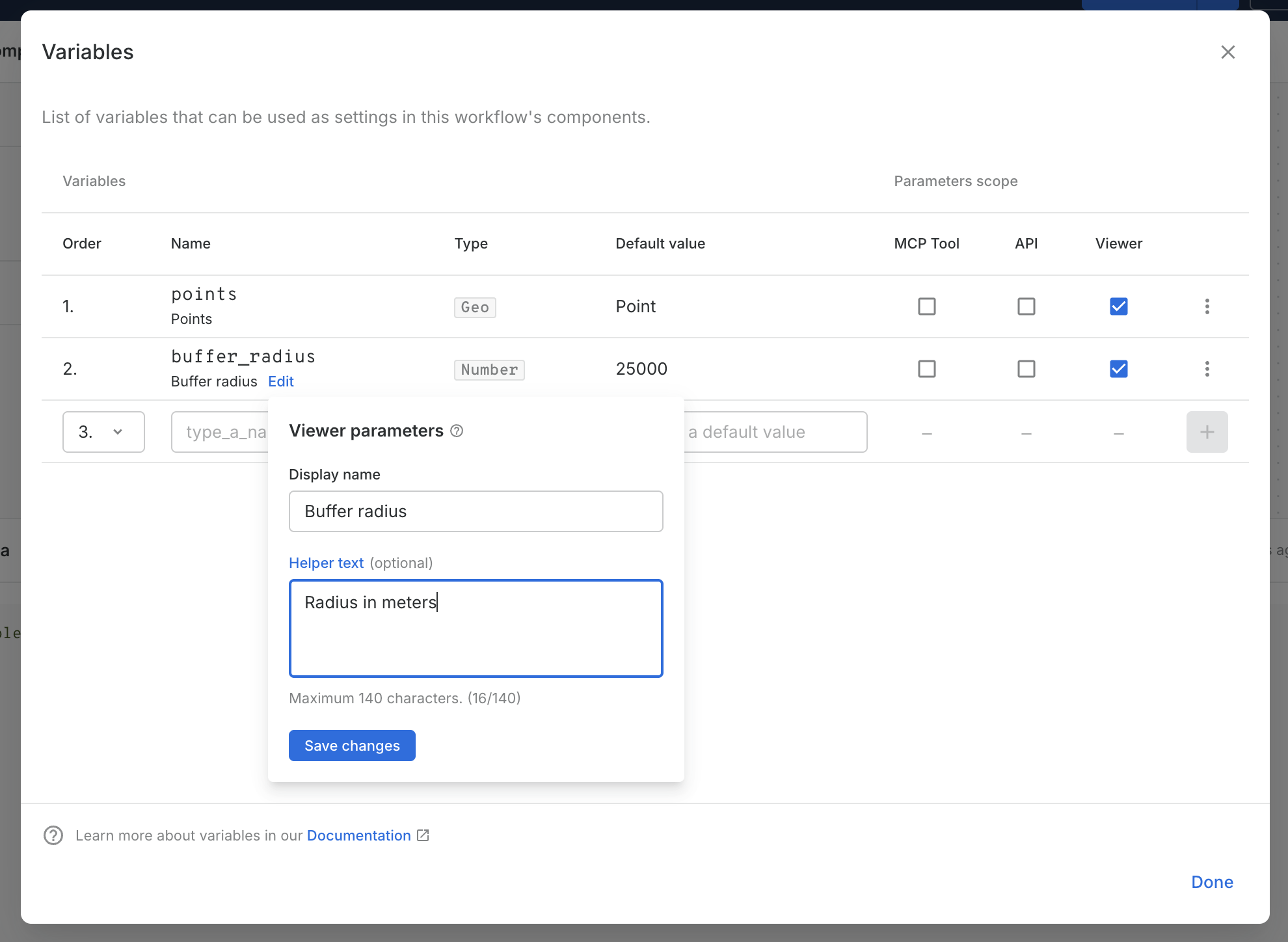
To allow viewers to control certain inputs of the workflow before running it, you need to define [variables](/carto-user-manual/workflows/using-variables-in-workflows.md) and mark them with the **Viewer** scope.
1. Open the Variables panel from the three-dot menu in the upper-right corner.
2. Create or edit a variable, choosing from the supported types: **Number**, **String**, or **Geo**.
3. Enable the **Viewer** scope for the variable. This makes it appear as a configurable parameter in the viewer's sidebar.
When the Viewer scope is enabled, you can configure additional properties for the parameter:
* **Display name**: The label that will be shown to viewers. By default, it is a formatted version of the variable name.
* **Helper text** (optional): A short description to guide viewers on how to use the parameter. Maximum 140 characters.
{% hint style="info" %}
A variable can have multiple scopes enabled simultaneously. For example, a variable can be a parameter for Viewer Mode, API execution, and MCP Tool execution at the same time.
{% endhint %}
{% hint style="info" %}
**Geo variables** allow viewers to draw geographic features (points, lines, polygons) on a map. The drawn features are stored as a GeoJSON FeatureCollection and can be passed to components like [Draw Custom Features](/carto-user-manual/workflows/components/parsers.md#draw-custom-features) using expression syntax `{{@geo_var_name}}`. Learn more about variable types in [Using variables in workflows](/carto-user-manual/workflows/using-variables-in-workflows.md).
{% endhint %}
### Defining viewer output
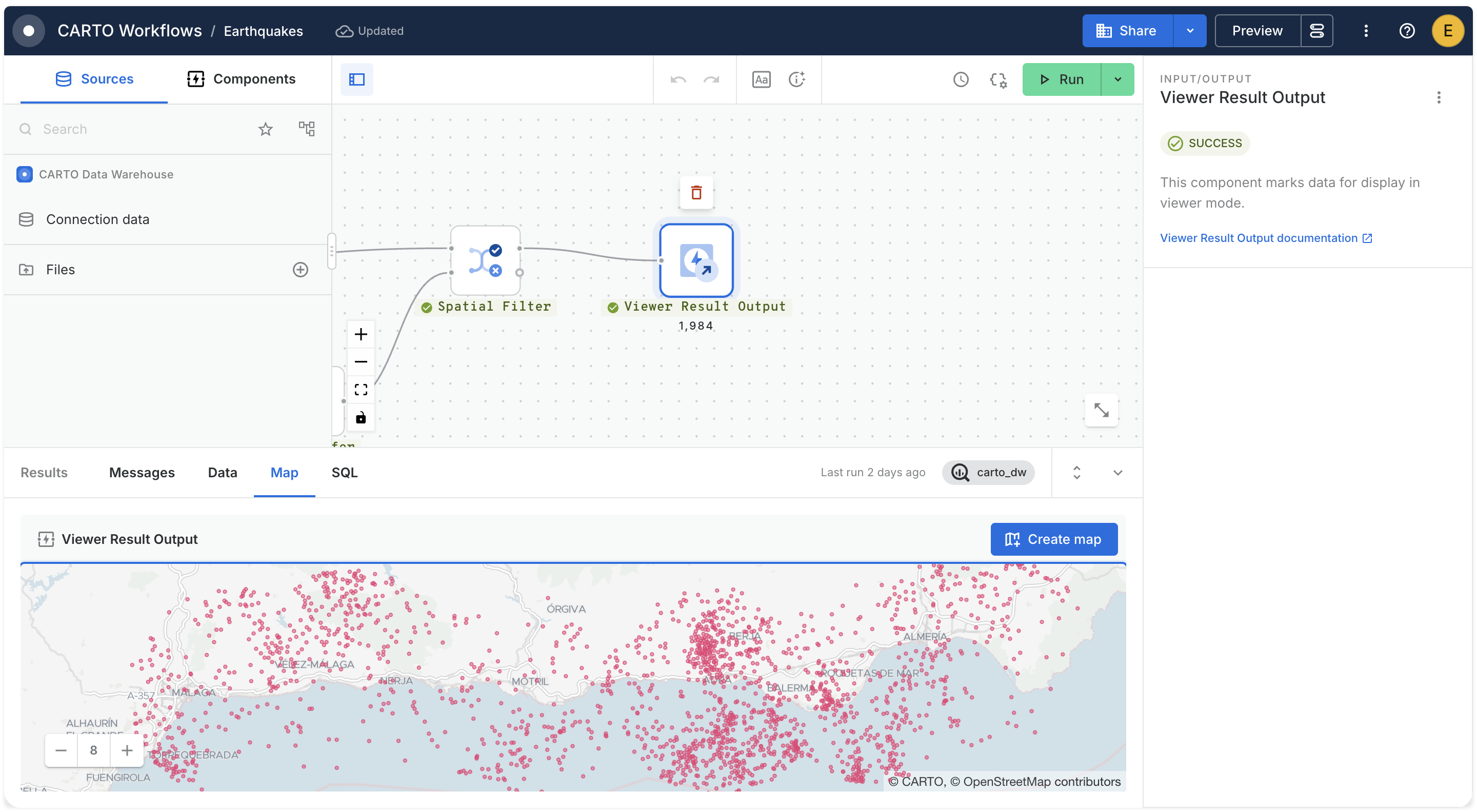
Use the [**Viewer Result Output**](/carto-user-manual/workflows/components/input-output.md#viewer-result-output) component to define which node's data will be displayed to viewers. Place it on the canvas and connect it to the node whose output you want viewers to see.
This component can only be used once per workflow. It passes data through unchanged, and when the workflow is executed in Viewer Mode, it stores the result in a table that the viewer can inspect.
### Configuring viewer settings
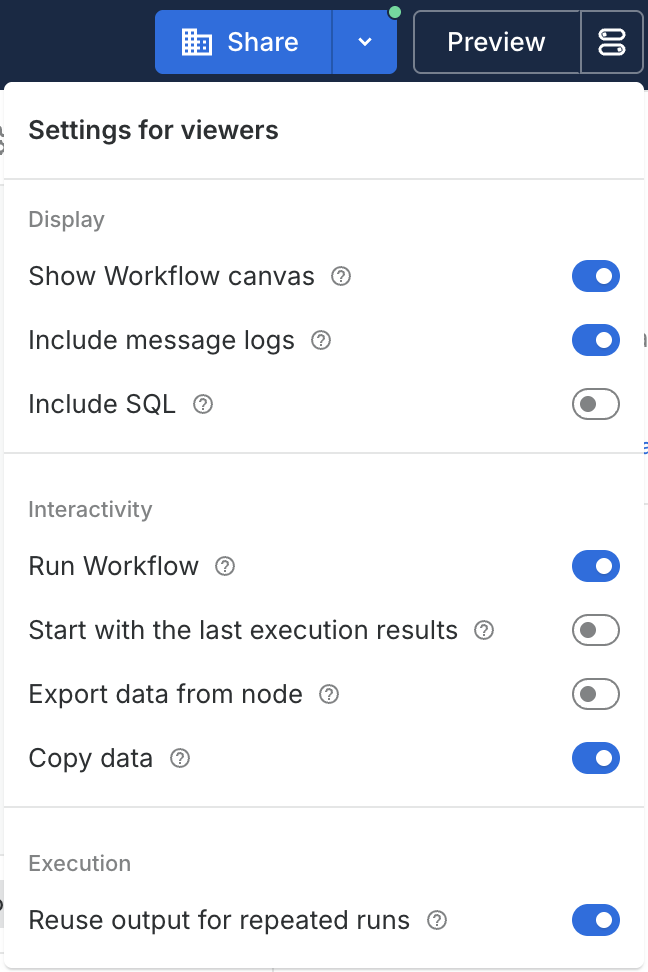
Viewer settings are available in the **Settings for viewers** menu, next to the **Preview** button, and allow editors to control what viewers can see and do. These settings are organized in three groups:
#### Display settings
* **Show workflow canvas** (default: on): When enabled, viewers can see the workflow canvas in a read-only state. They can hover and select nodes to inspect them, but cannot modify the workflow.
* **Show message logs tab** (default: on): When enabled, viewers can see the execution logs in the Messages tab.
* **Show SQL tab** (default: off): When enabled, viewers can see the generated SQL code in the SQL tab.
#### Interactivity settings
* **Allow running workflow** (default: on): When enabled, viewers can run the workflow with their chosen parameter values.
* **Start with last execution results** (default: on): When enabled, the viewer will see the results from the most recent execution when opening the workflow, instead of a blank state.
* **Export data from node** (default: off): When enabled, viewers can [export data](/carto-user-manual/workflows/exporting-data.md#exporting-as-a-viewer) from node results.
* **Allow copy data results** (default: off): When enabled, viewers can copy data from the results panel.
#### Execution settings
* **Reuse output for repeated calls**: When enabled, consecutive executions with the same parameter values will return cached results instead of re-running the workflow.
## Sharing a workflow in Viewer Mode
To share a workflow in Viewer Mode:
1. Make sure you have set up viewer parameters, placed the Viewer Result Output component, and configured the viewer settings.
2. Click on the **Share** button in the top-right corner.
3. Share the workflow with your organization, specific groups, or individual users. Users with viewer access (or editors without edit permission) will see the workflow in Viewer Mode.
{% hint style="warning" %}
The connection used by the workflow must also be shared with the viewers for them to be able to run it. Learn more about [sharing connections](/carto-user-manual/connections/sharing-a-connection.md).
{% endhint %}
## The viewer experience
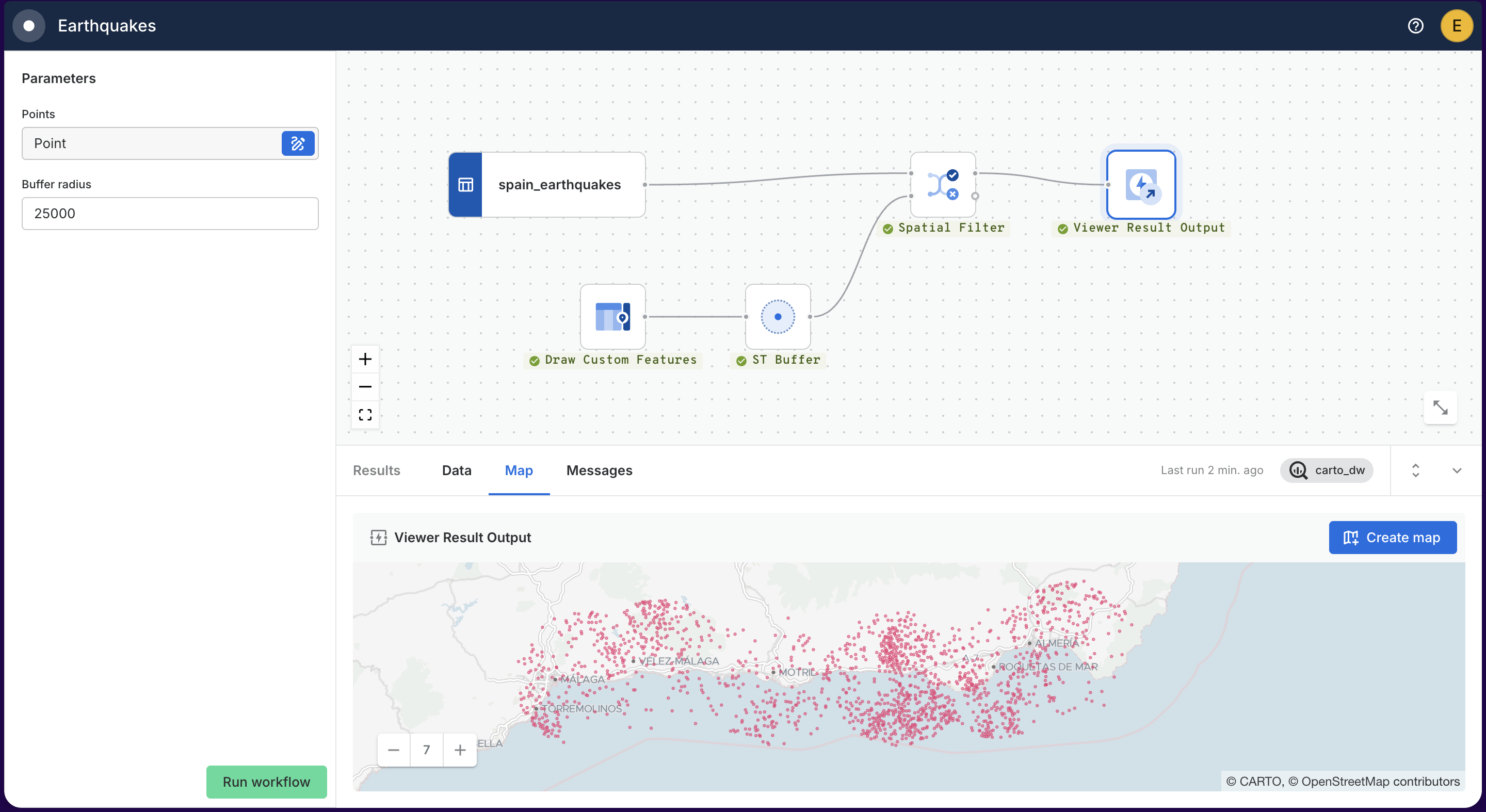
When a viewer opens a shared workflow, they see a simplified interface:
* A **parameter sidebar** on the left, where they can fill in values for each viewer parameter (number fields, text fields, or geo drawing for Geo parameters).
* A **Run** button to execute the workflow with their chosen parameter values (if allowed by the editor).
* A **results panel** showing the output defined by the Viewer Result Output component.
* A **read-only canvas** (if enabled by the editor) where they can hover over and select nodes, but cannot modify the workflow.
## Preview Mode for editors
Editors can preview how the workflow will look for viewers by clicking the **Preview** button in the workflow header. This opens the workflow in Viewer Mode, allowing editors to test the viewer experience, fill in parameters, and verify that the output and settings are configured correctly.
---
# Agent Instructions
This documentation is published with GitBook. GitBook is the documentation platform designed so that both humans and AI agents can read, navigate, and reason over technical content effectively. Learn more at gitbook.com.
## Querying This Documentation
If you need additional information that is not directly available in this page, you can query the documentation by asking a question.
Perform an HTTP GET request on the following URL with the `ask` and `goal` query parameters:
```
GET https://docs.carto.com/carto-user-manual/workflows/viewer-mode.md?ask=&goal=
```
`ask` is the immediate question: it should be specific, self-contained, and written in natural language.
`goal` is what the user is ultimately trying to achieve, the reason they need the answer. Sharing it helps GitBook give you a better, more relevant answer. A goal is most helpful when it describes the outcome the user wants rather than restating the question. For example, with `ask=how do I create an API token`, a goal like `automate deployments from our CI pipeline` lets GitBook tailor the answer to that use case.
The response will contain a direct answer to the question and relevant excerpts and sources from the documentation.
Use this mechanism when the answer is not explicitly present in the current page, you need clarification or additional context, or you want to retrieve related documentation sections.