> For the complete documentation index, see [llms.txt](https://docs.carto.com/llms.txt). Markdown versions of documentation pages are available by appending `.md` to page URLs; this page is available as [Markdown](https://docs.carto.com/carto-user-manual/workflows/version-history.md).
# Version history
Version history lets you track and manage different versions of your workflow. CARTO periodically saves versions as you work, and you can also manually save named versions to mark important milestones. Every time you publish your workflow through an execution method — a schedule, API endpoint, MCP Tool, or Viewer mode — that snapshot is also recorded. This gives you a complete audit trail and the ability to restore previous states.
#### Accessing version history
To open version history:
1. Open your workflow.
2. Click the actions menu in the workflow header.
3. Select **Version History**.
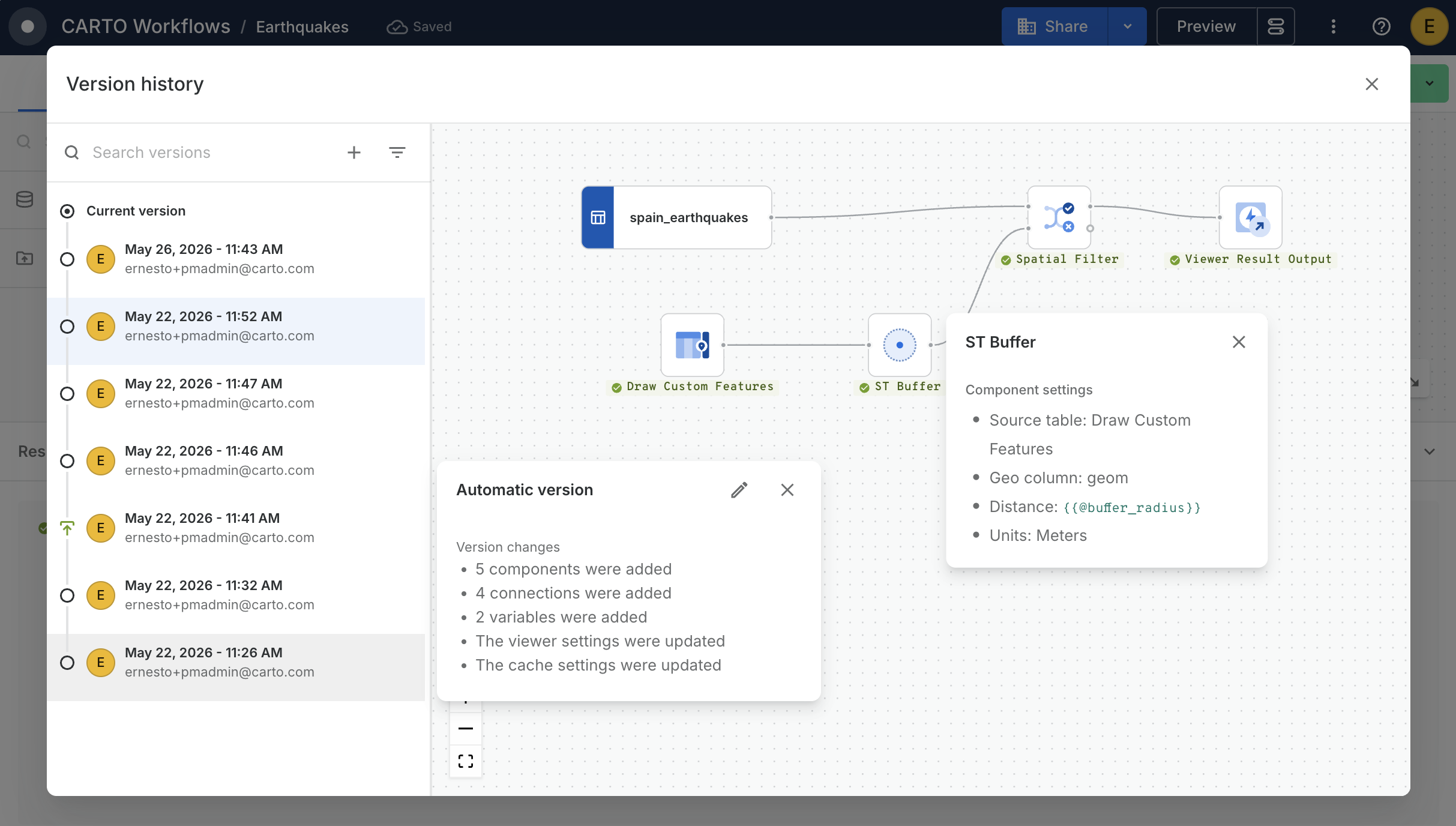
The Version History dialog opens with the version list on the left and a canvas preview of the selected version on the right.
#### Version list
The version list shows all versions of your workflow, with the most recent at the top. Each entry includes:
* Title (for named versions) or "Automatic version" (for auto-saved versions).
* Author who triggered the version.
* **Current version** badge for the active state of the workflow.
* **Published version** badge for versions that are currently powering an execution method, along with the method that published them (Schedule, API, MCP Tool, or Viewer).
#### Searching and filtering versions
Use the search bar at the top of the list to find versions by keyword. You can also filter the list:
* **All**: shows every version.
* **Named versions**: shows only versions with a custom title.
* **Published versions**: shows only versions published through an execution method.
You can additionally narrow the published list by execution method (Schedule, API, MCP Tool, Viewer) to quickly find the version currently running in a specific channel.
#### Viewing version details
Select any version in the list to inspect it. The right side of the dialog shows a preview of the workflow canvas as it existed at that point — including nodes, edges, and variables — so you can compare versions visually before deciding what to do with them.
The details panel for the selected version also shows its title, description (if provided), author, and timestamp, along with a **Version changes** summary describing what changed compared to the previous version, for example:
* "5 components were added"
* "1 component was updated"
* "2 variables were updated"
* "The viewer settings were updated"
#### Saving a named version
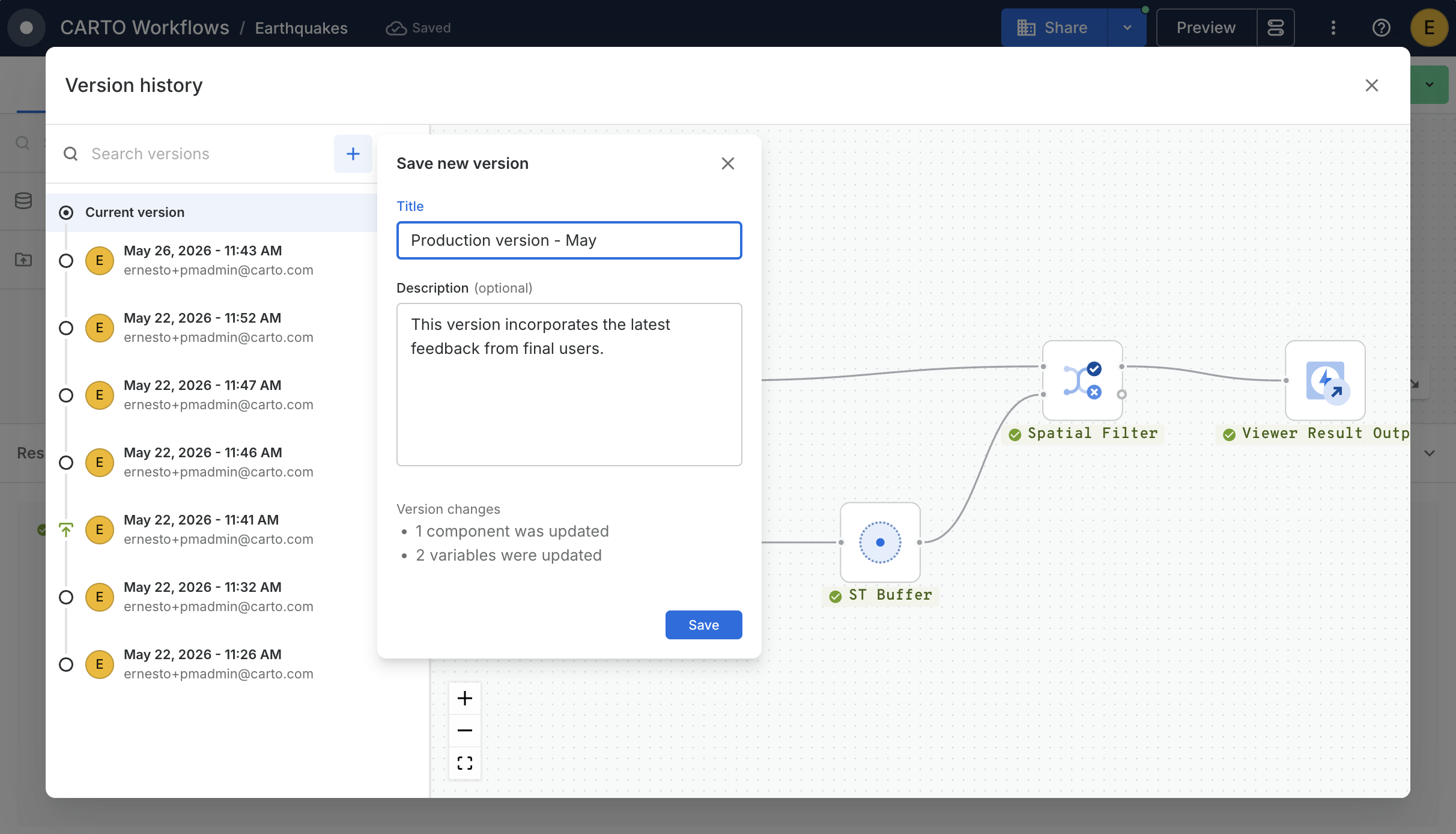
While CARTO saves versions automatically as you work, you can manually save a named version to mark a milestone:
1. Click the **+** button next to the search bar at the top of the Version History dialog.
2. In the **Save new version** dialog, enter a title.
3. Optionally add a description explaining what changed or why this version matters.
4. Click **Save**.
{% hint style="info" %}
Named versions are easier to find later using search and filters, and they help your team understand how the workflow has evolved.
{% endhint %}
#### Editing version title and description
You can update the title and description of any version:
1. Select the version in the list.
2. Click **Edit** in the details panel.
3. Update the title or description.
4. Click **Save**.
Alternatively, hover over a version in the list and use the context menu to edit or add a description.
#### Restoring a previous version
To roll your workflow back to an earlier state:
1. Select the version you want to restore.
2. Click **Restore this version**.
3. Review the confirmation dialog warning that unsaved changes to the current state may be lost.
4. Confirm to restore.
Restoring replaces the current workflow state — nodes, edges, variables, and execution settings — with the contents of the selected version.
{% hint style="info" %}
Restoring a version does not delete other versions. A new entry titled **Restored version - \[original title]** is added to the top of the history, preserving the complete audit trail.
{% endhint %}
#### Duplicating a workflow from a version
You can create a new workflow based on any historical version:
1. Select a version in the history.
2. Choose **Duplicate workflow** from the version actions menu.
3. A new workflow is created with the state captured in that version.
This is useful when you want to branch off from an earlier state without affecting the current workflow.
#### Published versions
Workflows can be executed through several methods: as a [scheduled job](/carto-user-manual/workflows/scheduling-workflows.md), as an [API endpoint](/carto-user-manual/workflows/executing-workflows-via-api.md), as an [MCP Tool](/carto-user-manual/workflows/workflows-as-mcp-tools.md), or in [Viewer mode](/carto-user-manual/workflows/viewer-mode.md). Each time you enable or update one of these methods, CARTO snapshots the current state of the workflow and marks that snapshot as the **published version** for that method.
The published version is what consumers of that method actually run against:
* The scheduler executes the workflow's published version on its configured cadence.
* API and MCP Tool calls execute the published version, not the in-progress draft.
* Viewer mode shows the published version to your audience.
This means you can keep editing your workflow without disrupting what's running in production. Changes only reach consumers the next time you publish through that method.
Each execution method tracks its published version independently. For example, you can publish a version to a schedule today and continue editing; later, when you republish to an API endpoint, that newer state becomes the API's published version while the schedule keeps running the earlier one. The version list shows badges indicating which methods each version is published to.
{% hint style="info" %}
Restoring a version does not automatically republish it. If you want a restored state to be used by your schedule, API endpoint, MCP Tool, or Viewer, you'll need to publish it through the corresponding method.
{% endhint %}
#### Automatic versions
In addition to the versions you save manually and the ones created when you publish, CARTO captures **automatic versions** as you work — for example, after a period of inactivity following edits. These automatic snapshots ensure you don't lose intermediate states between manual saves and make it easier to roll back to a recent point in time.
#### Version history and collaboration
Version history works seamlessly across collaborators:
* All collaborators with access to the workflow see the same complete history.
* Each version records the user who triggered it and when, so you can see who changed what.
* If a collaborator restores a version while another collaborator has the editor open, the open editor surfaces an out-of-sync notice prompting them to reload.
---
# Agent Instructions
This documentation is published with GitBook. GitBook is the documentation platform designed so that both humans and AI agents can read, navigate, and reason over technical content effectively. Learn more at gitbook.com.
## Querying This Documentation
If you need additional information that is not directly available in this page, you can query the documentation by asking a question.
Perform an HTTP GET request on the following URL with the `ask` and `goal` query parameters:
```
GET https://docs.carto.com/carto-user-manual/workflows/version-history.md?ask=&goal=
```
`ask` is the immediate question: it should be specific, self-contained, and written in natural language.
`goal` is what the user is ultimately trying to achieve, the reason they need the answer. Sharing it helps GitBook give you a better, more relevant answer. A goal is most helpful when it describes the outcome the user wants rather than restating the question. For example, with `ask=how do I create an API token`, a goal like `automate deployments from our CI pipeline` lets GitBook tailor the answer to that use case.
The response will contain a direct answer to the question and relevant excerpts and sources from the documentation.
Use this mechanism when the answer is not explicitly present in the current page, you need clarification or additional context, or you want to retrieve related documentation sections.