> For the complete documentation index, see [llms.txt](https://docs.carto.com/llms.txt). Markdown versions of documentation pages are available by appending `.md` to page URLs; this page is available as [Markdown](https://docs.carto.com/carto-user-manual/workflows/exporting-data.md).
# Exporting data
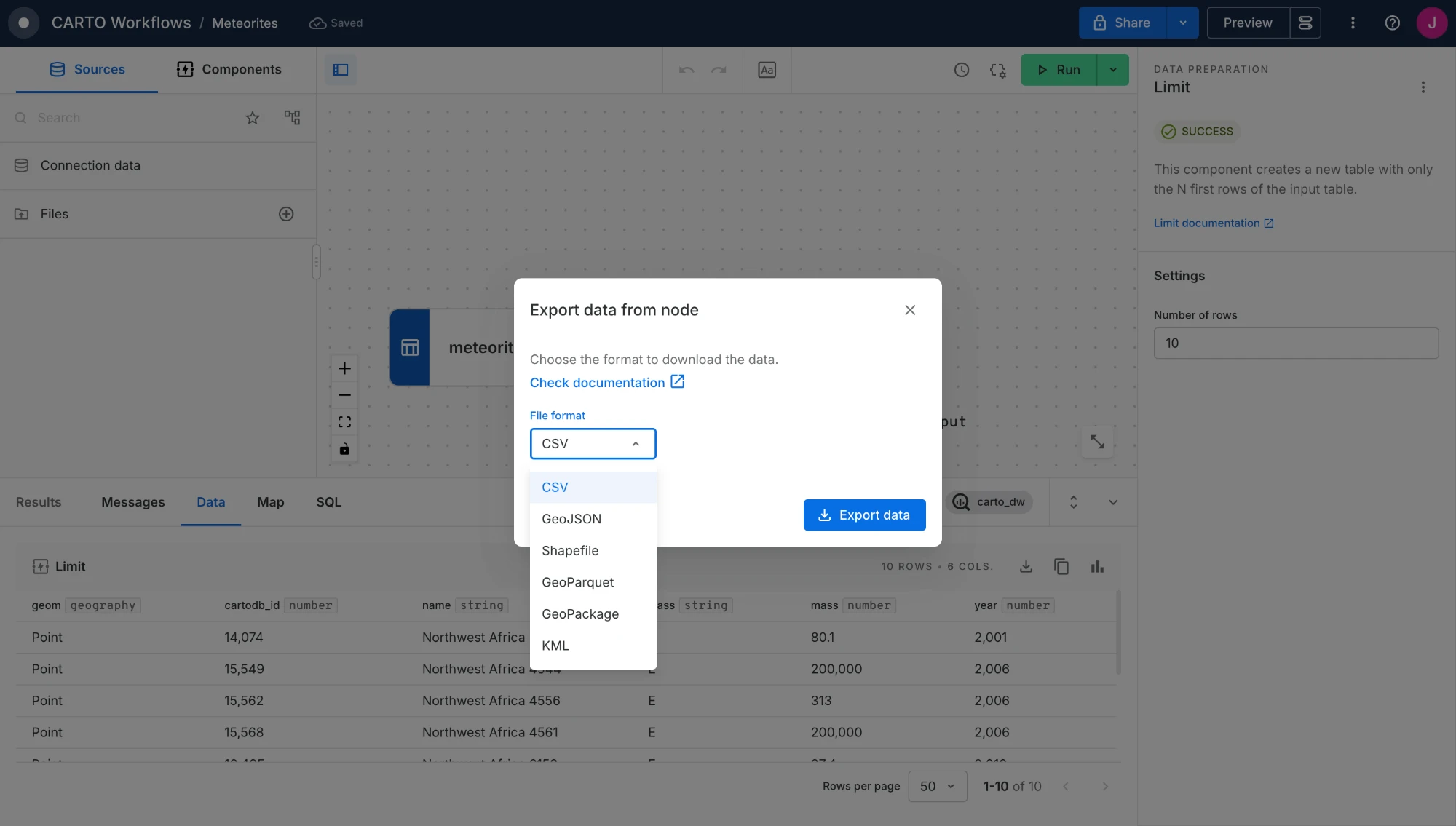
Export the result of any node in your workflow as a file you can open straight away in desktop GIS, spreadsheets or data pipelines, with no manual conversion. You can export to **CSV**, **GeoJSON**, **Shapefile**, **GeoParquet**, **GeoPackage** and **KML**, the same formats available when [exporting data from Builder](/carto-user-manual/maps/exporting-data.md).
## How to export
1. Run the workflow and select the node you want to export.
2. In the **Data** tab of the [Results panel](/carto-user-manual/workflows/results-panel.md), click the export button .
3. Choose a **File format** and click **Export data**. CSV is selected by default, and the dialog remembers your last choice during the session.
4. The export runs in the background and shows up in the activity panel in the top bar, named after the node. When it finishes, click **Download** to get the file.
The file contains every row of the node's result, not only the page shown in the Data tab. Shapefile exports download as a `.zip` file.
## Available formats
Outputs with a geometry column can be exported in any format. Outputs without one, such as a spatial index output (H3, Quadbin) or a Group by result, can only be exported as **CSV** or **Parquet**. The other formats are shown disabled, with a tooltip explaining why.
## Exporting as a Viewer
Viewers of a shared workflow get the same export options, as long as the Editor turns on **Export data from node** in the [Settings for viewers](/carto-user-manual/workflows/viewer-mode.md#configuring-viewer-settings) menu, next to the **Preview** button. This setting is off by default.
{% hint style="info" %}
To produce a file every time the workflow runs, for example on a [schedule](/carto-user-manual/workflows/scheduling-workflows.md) or when [executed via API](/carto-user-manual/workflows/executing-workflows-via-api.md), use the [Export as File](/carto-user-manual/workflows/components/input-output.md#export-as-file) component instead.
{% endhint %}
{% hint style="warning" %}
**Export limitations**
* GeoJSON, Shapefile, GeoPackage and KML exports fail if the file grows beyond **4 GB**. CSV and GeoParquet aren't subject to this limit, so use them for large results.
* Shapefile supports a single geometry type and files up to 2 GB. Use GeoPackage for results that mix points, lines and polygons, and GeoParquet for large results.
* Tileset and raster outputs can't be exported.
{% endhint %}
{% hint style="info" %}
**Bucket considerations**
For **CARTO Cloud**, CARTO automatically manages buckets and data exports. Be aware that for exports from Snowflake and Redshift sources, the AWS cluster needs to match the organization's CARTO Cloud region. Check your CARTO Cloud region in [Settings](/carto-user-manual/settings.md).
For **Self-Hosted** deployments, a bucket owned by the customer needs to be configured, and exports from BigQuery connections require it to be a Google Cloud Storage bucket. Learn more in [Configure your own buckets](/carto-self-hosted/configuration/data-and-storage/configure-your-own-buckets.md).
{% endhint %}
---
# Agent Instructions
This documentation is published with GitBook. GitBook is the documentation platform designed so that both humans and AI agents can read, navigate, and reason over technical content effectively. Learn more at gitbook.com.
## Querying This Documentation
If you need additional information that is not directly available in this page, you can query the documentation by asking a question.
Perform an HTTP GET request on the following URL with the `ask` and `goal` query parameters:
```
GET https://docs.carto.com/carto-user-manual/workflows/exporting-data.md?ask=&goal=
```
`ask` is the immediate question: it should be specific, self-contained, and written in natural language.
`goal` is what the user is ultimately trying to achieve, the reason they need the answer. Sharing it helps GitBook give you a better, more relevant answer. A goal is most helpful when it describes the outcome the user wants rather than restating the question. For example, with `ask=how do I create an API token`, a goal like `automate deployments from our CI pipeline` lets GitBook tailor the answer to that use case.
The response will contain a direct answer to the question and relevant excerpts and sources from the documentation.
Use this mechanism when the answer is not explicitly present in the current page, you need clarification or additional context, or you want to retrieve related documentation sections.
 .
3. Choose a **File format** and click **Export data**. CSV is selected by default, and the dialog remembers your last choice during the session.
4. The export runs in the background and shows up in the activity panel in the top bar, named after the node. When it finishes, click **Download** to get the file.
The file contains every row of the node's result, not only the page shown in the Data tab. Shapefile exports download as a `.zip` file.
## Available formats
Outputs with a geometry column can be exported in any format. Outputs without one, such as a spatial index output (H3, Quadbin) or a Group by result, can only be exported as **CSV** or **Parquet**. The other formats are shown disabled, with a tooltip explaining why.
## Exporting as a Viewer
Viewers of a shared workflow get the same export options, as long as the Editor turns on **Export data from node** in the [Settings for viewers](/carto-user-manual/workflows/viewer-mode.md#configuring-viewer-settings) menu, next to the **Preview** button. This setting is off by default.
{% hint style="info" %}
To produce a file every time the workflow runs, for example on a [schedule](/carto-user-manual/workflows/scheduling-workflows.md) or when [executed via API](/carto-user-manual/workflows/executing-workflows-via-api.md), use the [Export as File](/carto-user-manual/workflows/components/input-output.md#export-as-file) component instead.
{% endhint %}
{% hint style="warning" %}
**Export limitations**
* GeoJSON, Shapefile, GeoPackage and KML exports fail if the file grows beyond **4 GB**. CSV and GeoParquet aren't subject to this limit, so use them for large results.
* Shapefile supports a single geometry type and files up to 2 GB. Use GeoPackage for results that mix points, lines and polygons, and GeoParquet for large results.
* Tileset and raster outputs can't be exported.
{% endhint %}
{% hint style="info" %}
**Bucket considerations**
For **CARTO Cloud**, CARTO automatically manages buckets and data exports. Be aware that for exports from Snowflake and Redshift sources, the AWS cluster needs to match the organization's CARTO Cloud region. Check your CARTO Cloud region in [Settings](/carto-user-manual/settings.md).
For **Self-Hosted** deployments, a bucket owned by the customer needs to be configured, and exports from BigQuery connections require it to be a Google Cloud Storage bucket. Learn more in [Configure your own buckets](/carto-self-hosted/configuration/data-and-storage/configure-your-own-buckets.md).
{% endhint %}
---
# Agent Instructions
This documentation is published with GitBook. GitBook is the documentation platform designed so that both humans and AI agents can read, navigate, and reason over technical content effectively. Learn more at gitbook.com.
## Querying This Documentation
If you need additional information that is not directly available in this page, you can query the documentation by asking a question.
Perform an HTTP GET request on the following URL with the `ask` and `goal` query parameters:
```
GET https://docs.carto.com/carto-user-manual/workflows/exporting-data.md?ask=
.
3. Choose a **File format** and click **Export data**. CSV is selected by default, and the dialog remembers your last choice during the session.
4. The export runs in the background and shows up in the activity panel in the top bar, named after the node. When it finishes, click **Download** to get the file.
The file contains every row of the node's result, not only the page shown in the Data tab. Shapefile exports download as a `.zip` file.
## Available formats
Outputs with a geometry column can be exported in any format. Outputs without one, such as a spatial index output (H3, Quadbin) or a Group by result, can only be exported as **CSV** or **Parquet**. The other formats are shown disabled, with a tooltip explaining why.
## Exporting as a Viewer
Viewers of a shared workflow get the same export options, as long as the Editor turns on **Export data from node** in the [Settings for viewers](/carto-user-manual/workflows/viewer-mode.md#configuring-viewer-settings) menu, next to the **Preview** button. This setting is off by default.
{% hint style="info" %}
To produce a file every time the workflow runs, for example on a [schedule](/carto-user-manual/workflows/scheduling-workflows.md) or when [executed via API](/carto-user-manual/workflows/executing-workflows-via-api.md), use the [Export as File](/carto-user-manual/workflows/components/input-output.md#export-as-file) component instead.
{% endhint %}
{% hint style="warning" %}
**Export limitations**
* GeoJSON, Shapefile, GeoPackage and KML exports fail if the file grows beyond **4 GB**. CSV and GeoParquet aren't subject to this limit, so use them for large results.
* Shapefile supports a single geometry type and files up to 2 GB. Use GeoPackage for results that mix points, lines and polygons, and GeoParquet for large results.
* Tileset and raster outputs can't be exported.
{% endhint %}
{% hint style="info" %}
**Bucket considerations**
For **CARTO Cloud**, CARTO automatically manages buckets and data exports. Be aware that for exports from Snowflake and Redshift sources, the AWS cluster needs to match the organization's CARTO Cloud region. Check your CARTO Cloud region in [Settings](/carto-user-manual/settings.md).
For **Self-Hosted** deployments, a bucket owned by the customer needs to be configured, and exports from BigQuery connections require it to be a Google Cloud Storage bucket. Learn more in [Configure your own buckets](/carto-self-hosted/configuration/data-and-storage/configure-your-own-buckets.md).
{% endhint %}
---
# Agent Instructions
This documentation is published with GitBook. GitBook is the documentation platform designed so that both humans and AI agents can read, navigate, and reason over technical content effectively. Learn more at gitbook.com.
## Querying This Documentation
If you need additional information that is not directly available in this page, you can query the documentation by asking a question.
Perform an HTTP GET request on the following URL with the `ask` and `goal` query parameters:
```
GET https://docs.carto.com/carto-user-manual/workflows/exporting-data.md?ask=