> For the complete documentation index, see [llms.txt](https://docs.carto.com/llms.txt). Markdown versions of documentation pages are available by appending `.md` to page URLs; this page is available as [Markdown](https://docs.carto.com/carto-user-manual/settings/customizations/configuring-custom-markers.md).
# Configuring custom markers
Custom markers have always been available in Builder, but until now Editors uploaded and managed them map by map, re-adding the same icons everywhere they were needed. Admins can now manage a shared set of custom point markers for the whole organization from a single place, so icons are set up once and Editors pick from them instead of re-uploading. This keeps branding consistent and removes repetitive setup across large numbers of maps.
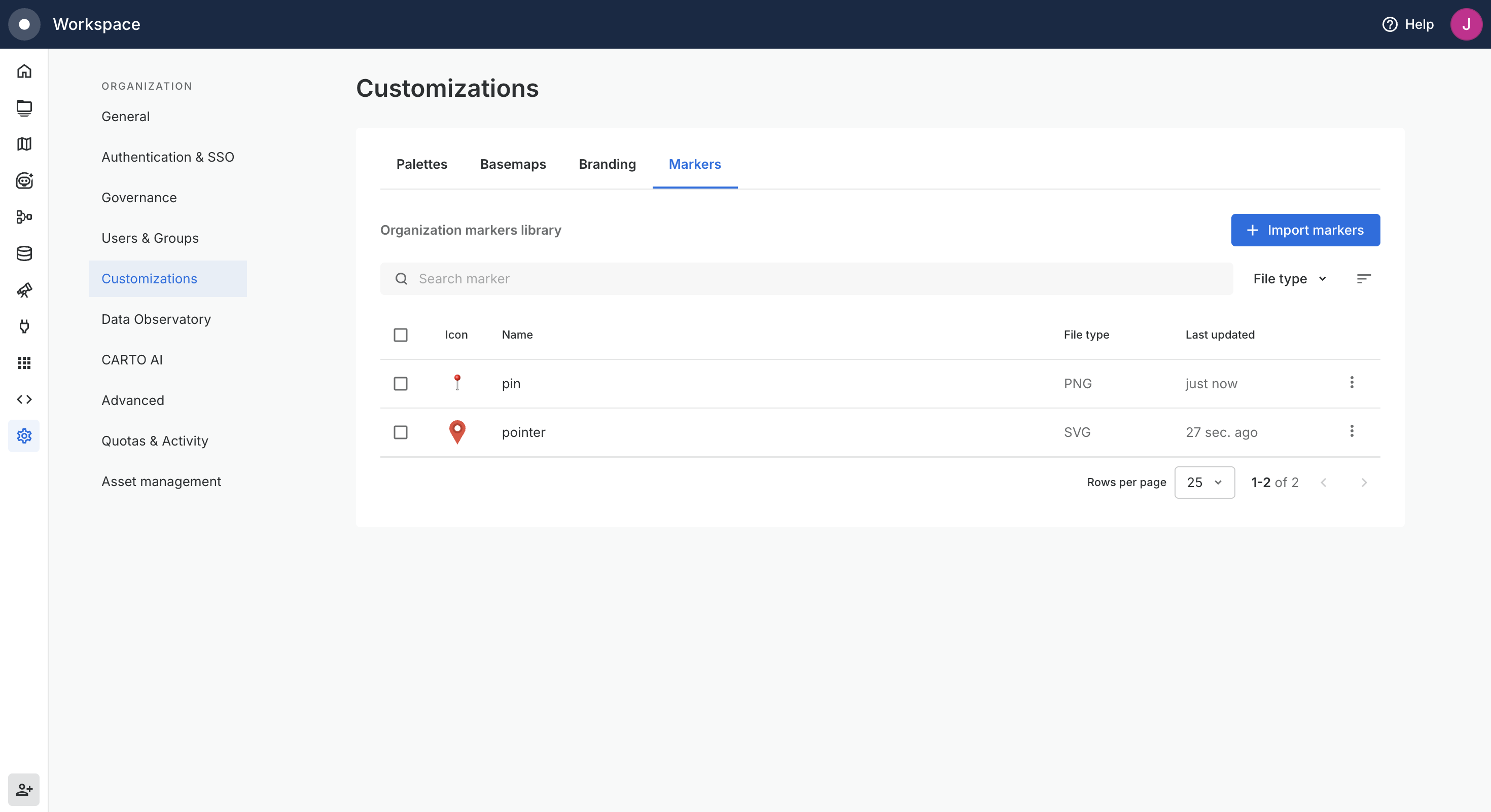
You manage the organization markers library from **Settings > Customizations > Markers**.
## Importing markers
Click **Import markers** to add icons from your computer. You can select several files at once and import them in a single operation. Supported formats are SVG and PNG, up to 2 MB per file, and you can import up to 150 markers at a time. CARTO resizes and compresses images on upload, so you can add artwork without preparing it first.
Each marker takes its file name as its name by default, and every marker name must be unique.
{% hint style="info" %}
If a file you are importing has the same name as a marker already in the library, CARTO warns you that importing it will replace the existing marker. If two files in the same batch share a name, you are asked to rename them before the import can continue.
{% endhint %}
## Renaming, replacing, and deleting markers
Each marker in the library has an actions menu with three options:
* **Rename** changes the marker's name. If you choose a name already used by another marker, the change is rejected and the conflicting marker is highlighted so you can pick a different name.
* **Replace marker icon** swaps the image while keeping the marker's name and every reference to it. Maps already using the marker pick up the new image automatically, with no per-map edits.
* **Delete** removes the marker from the library.
You can also select multiple markers and delete them together from the bulk actions toolbar.
{% hint style="warning" %}
Deleting a marker is permanent and cannot be undone. Any maps still using it lose the marker and revert to the default point styling, and Editors can no longer apply it.
{% endhint %}
## Using organization markers in Builder
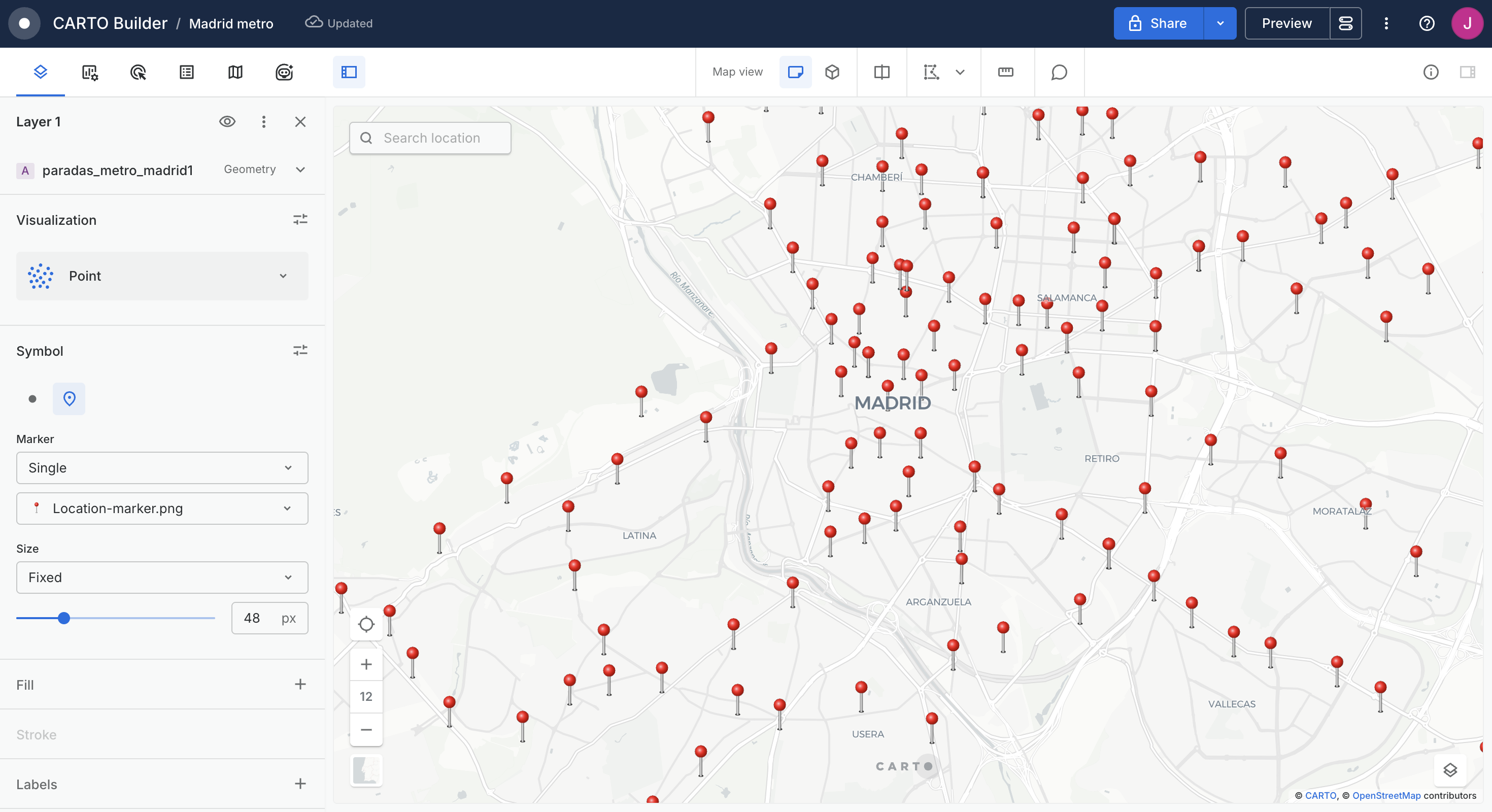
Once your organization has at least one marker, an **Organization markers library** appears in the point layer marker selector in Builder, alongside the built-in **CARTO markers library**. Editors select an approved marker without uploading anything.
By default a marker is applied with a Fill color, which tints the icon. To show a marker in its original colors, remove the Fill and reapply the marker.
For how Editors apply markers to a layer, see the [Point layer](/carto-user-manual/maps/layers/point.md#custom-markers) documentation.
---
# Agent Instructions
This documentation is published with GitBook. GitBook is the documentation platform designed so that both humans and AI agents can read, navigate, and reason over technical content effectively. Learn more at gitbook.com.
## Querying This Documentation
If you need additional information that is not directly available in this page, you can query the documentation by asking a question.
Perform an HTTP GET request on the following URL with the `ask` and `goal` query parameters:
```
GET https://docs.carto.com/carto-user-manual/settings/customizations/configuring-custom-markers.md?ask=&goal=
```
`ask` is the immediate question: it should be specific, self-contained, and written in natural language.
`goal` is what the user is ultimately trying to achieve, the reason they need the answer. Sharing it helps GitBook give you a better, more relevant answer. A goal is most helpful when it describes the outcome the user wants rather than restating the question. For example, with `ask=how do I create an API token`, a goal like `automate deployments from our CI pipeline` lets GitBook tailor the answer to that use case.
The response will contain a direct answer to the question and relevant excerpts and sources from the documentation.
Use this mechanism when the answer is not explicitly present in the current page, you need clarification or additional context, or you want to retrieve related documentation sections.