> For the complete documentation index, see [llms.txt](https://docs.carto.com/llms.txt). Markdown versions of documentation pages are available by appending `.md` to page URLs; this page is available as [Markdown](https://docs.carto.com/carto-user-manual/projects.md).

# Projects

Projects and folders let you organize your maps and workflows into a clear structure instead of a single flat list. A **project** is a top-level container, and a **folder** lives inside a project or another folder. With them you can:

* **Move maps and workflows into them** to keep related work together.
* **Manage sharing from the top.** Share a project or folder once and everything inside it inherits that access, so you set permissions in one place instead of item by item.
* **Add shortcuts** for maps or workflows that need to live in more than one place, or for assets you do not own.

Organize your work however suits you, and nest folders as deep as you need.

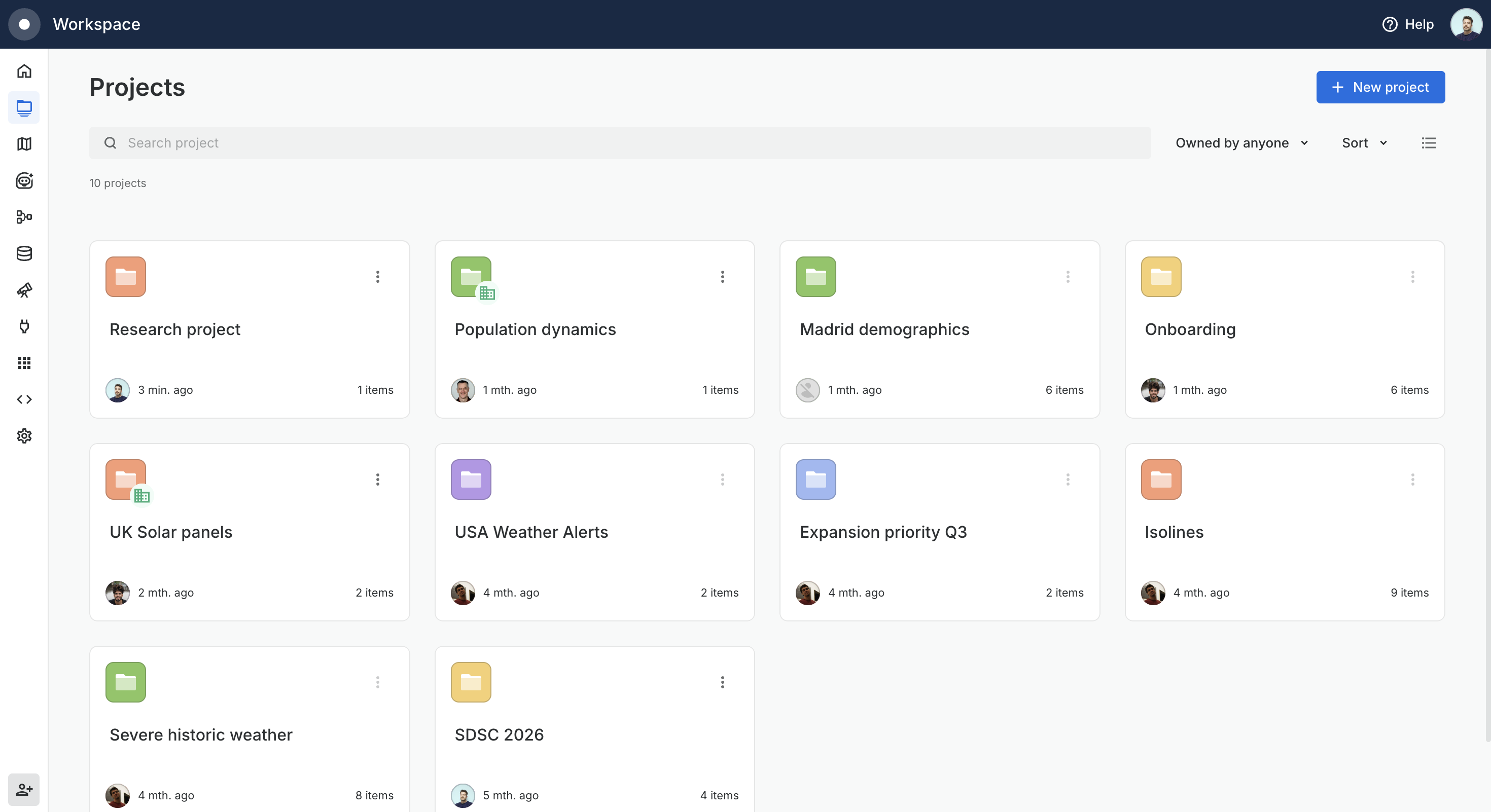
<figure><img src="/files/HIOyvpbvkPc1BrBgl67z" alt=""><figcaption><p>The Projects section, with a New project button and one card per project</p></figcaption></figure>

## Creating projects and folders

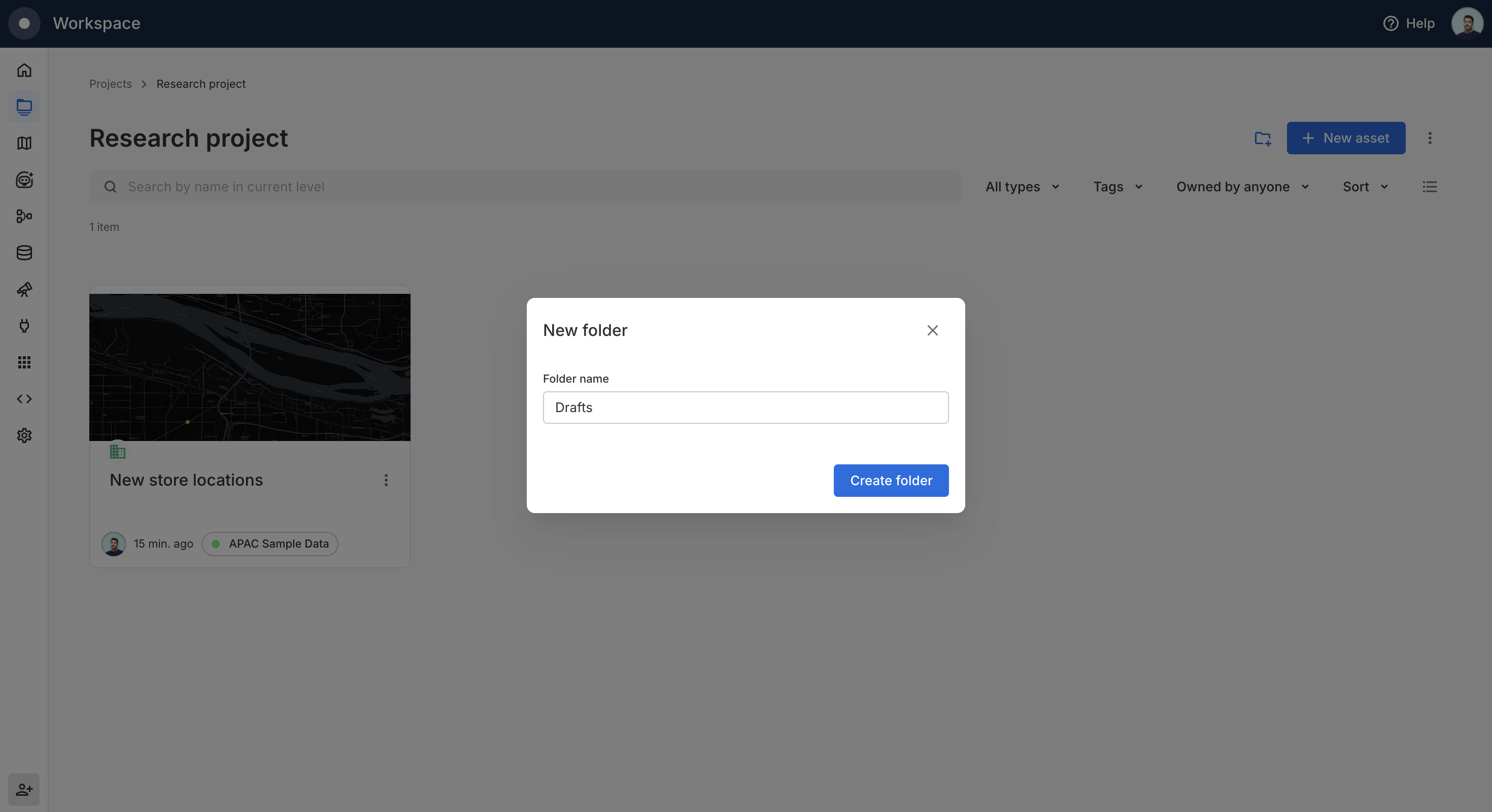
Projects live in the **Projects** section of the Workspace. Click **New project** and give it a name. Open the project and use the new-folder button to add folders inside it, nesting them as deep as you need.

To start something new right where it belongs, use **New asset** to create a map, workflow, or AI Agent (or a workflow from a template) directly inside a project or folder.

<figure><img src="/files/ndCnWxIJJmwX46LNooHc" alt=""><figcaption><p>Creating a folder inside a project</p></figcaption></figure>

## Organizing your maps and workflows

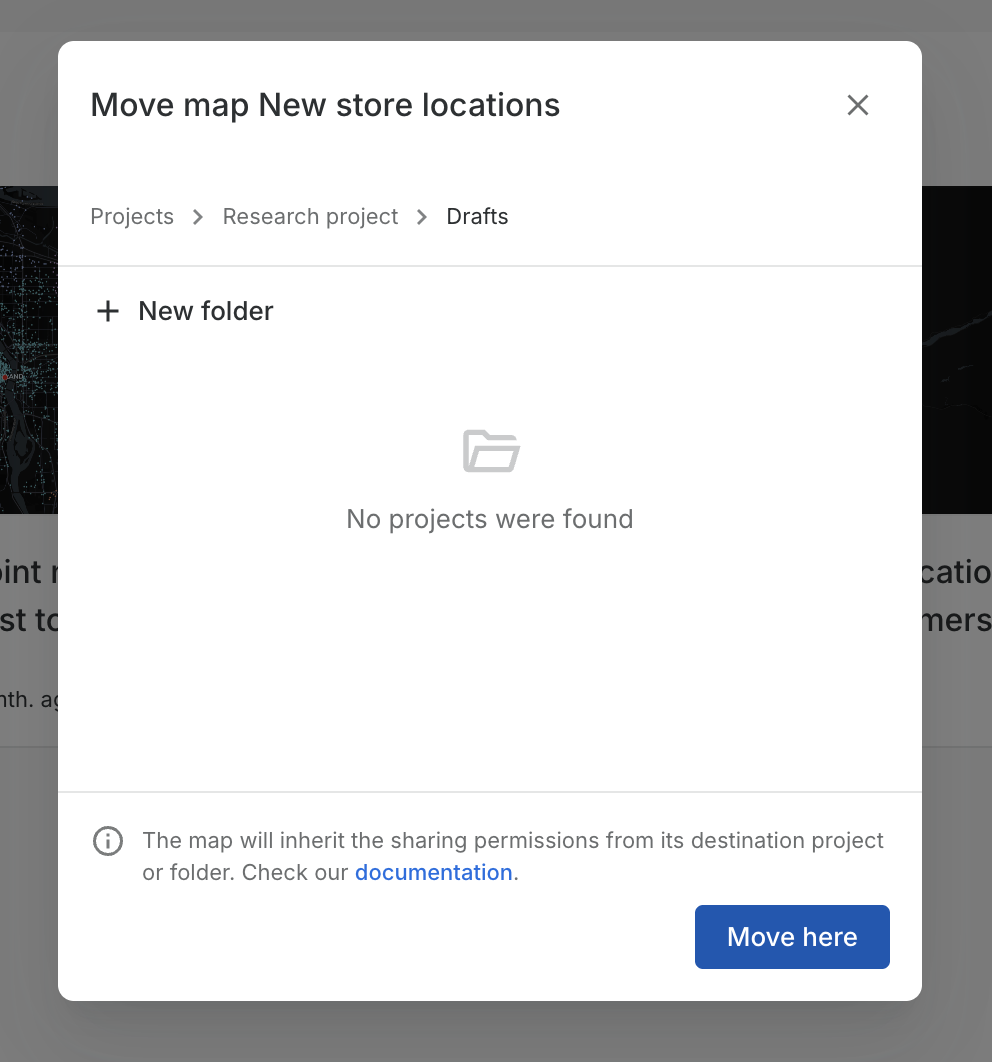
To bring existing work into a project or folder, move it in. In the Maps or Workflows section, open the three-dot menu on the card and select **Move to**. Pick a destination by switching between your own and others' projects, following the breadcrumb, and drilling into folders; you can also create a new project or folder without leaving the modal. Confirm with **Move here**. The map or workflow now lives in that project or folder and takes on its sharing (see [Sharing projects and folders](#sharing-projects-and-folders)). It lives in one project or folder at a time, and only maps, workflows, folders, and shortcuts can live inside one, so connections, datasets, and other resources stay in their own sections.

The same **Move to** flow relocates a map or workflow between projects and folders, and **Remove from project** (or **Remove from folder**) takes it back out. Moving or removing only changes where a map or workflow lives and the sharing it inherits; it never deletes the map or workflow itself.

<figure><img src="/files/1xj2vvet2pOp1Wlyx5VY" alt=""><figcaption><p>The Move to modal, where you pick the destination project or folder</p></figcaption></figure>

{% hint style="info" %}
Wherever a map or workflow lives, it is always accessible from the **Maps** and **Workflows** sections of your Workspace. Projects and folders organize your content, they do not hide it from those lists.
{% endhint %}

### Shortcuts

Moving is the usual way to place a map or workflow. When the same one needs to appear in more than one place, or you want to reference an asset you do not own, add a **shortcut** instead. Open the three-dot menu on the card and select **Create shortcut**. A shortcut is just a pointer: it does not move the original or make a copy.

Shortcuts inherit nothing. The map or workflow a shortcut points to keeps its own sharing, and a shortcut placed inside a shared project does not grant anyone access to it. Deleting a shortcut removes only the pointer, never the original.

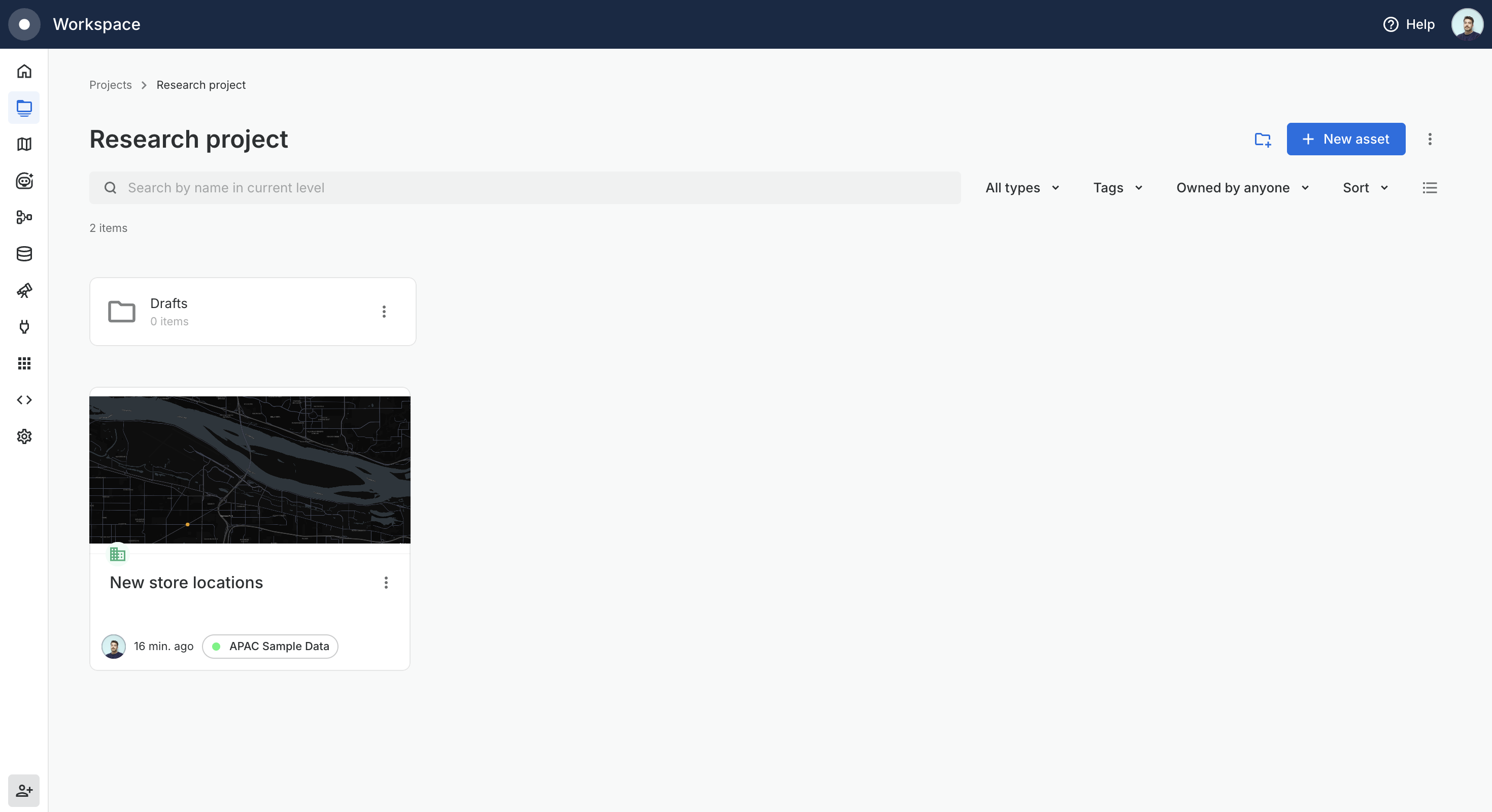
<figure><img src="/files/ogvIicpWnjwQaaysrDKV" alt=""><figcaption><p>A project holding a folder and a map</p></figcaption></figure>

## Sharing projects and folders

You share a project or folder the same way you share a single map or workflow: pick a mode (Restricted or Organization) and add the users or groups who should have access. Only the owner can change how a project or folder is shared. See [Sharing and collaboration](/carto-user-manual/maps/sharing-and-collaboration.md) for maps and [Sharing workflows](/carto-user-manual/workflows/sharing-workflows.md) for workflows.

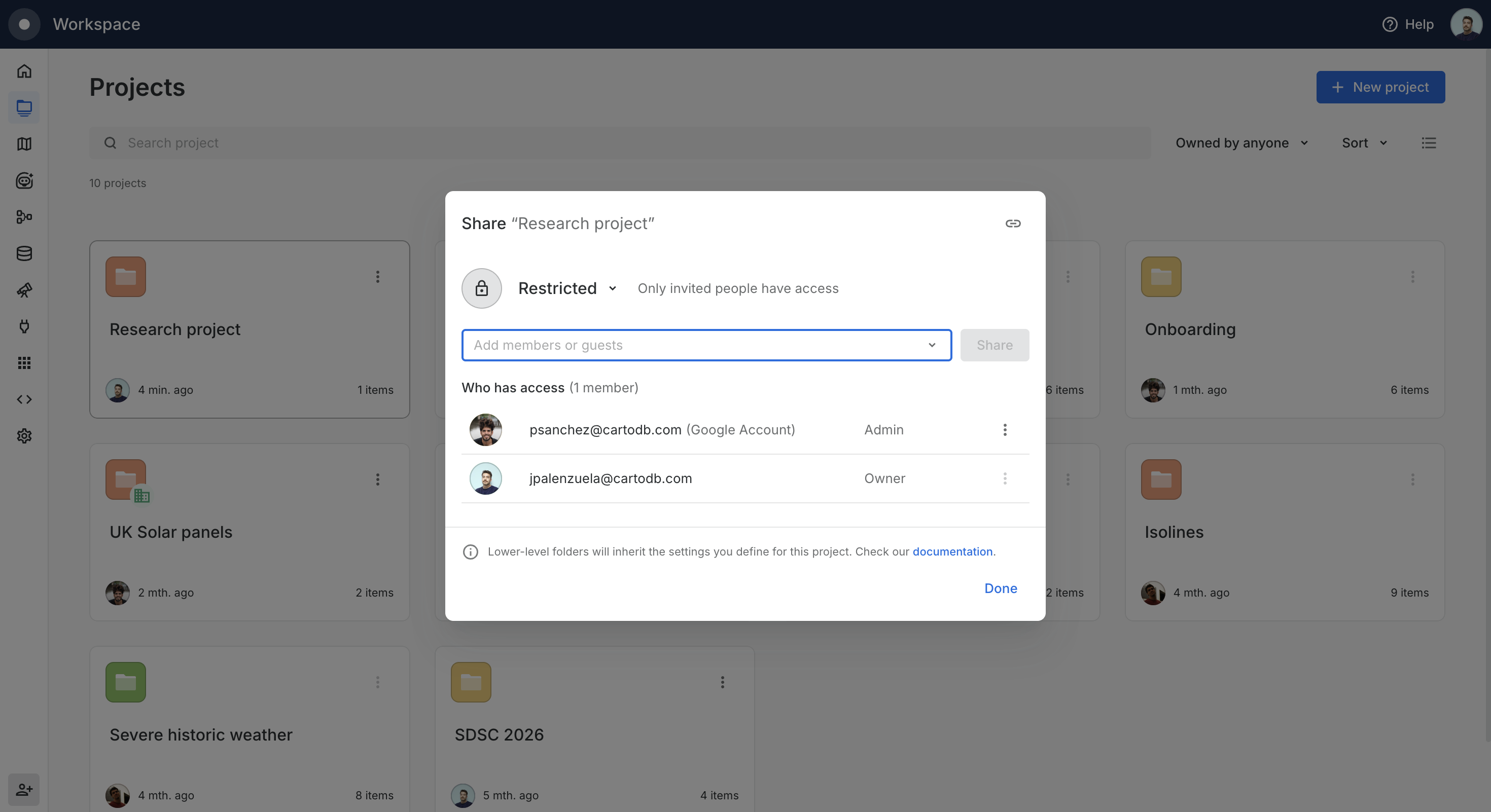
When you share a project or folder, everything inside inherits that access, so you set permissions once instead of item by item. Sharing a project covers its folders, maps, and workflows; sharing a folder covers everything in that folder.

<figure><img src="/files/tSbfvbMzyzXgujDtUZtx" alt=""><figcaption><p>Sharing a project. Lower-level folders and content inherit these settings</p></figcaption></figure>

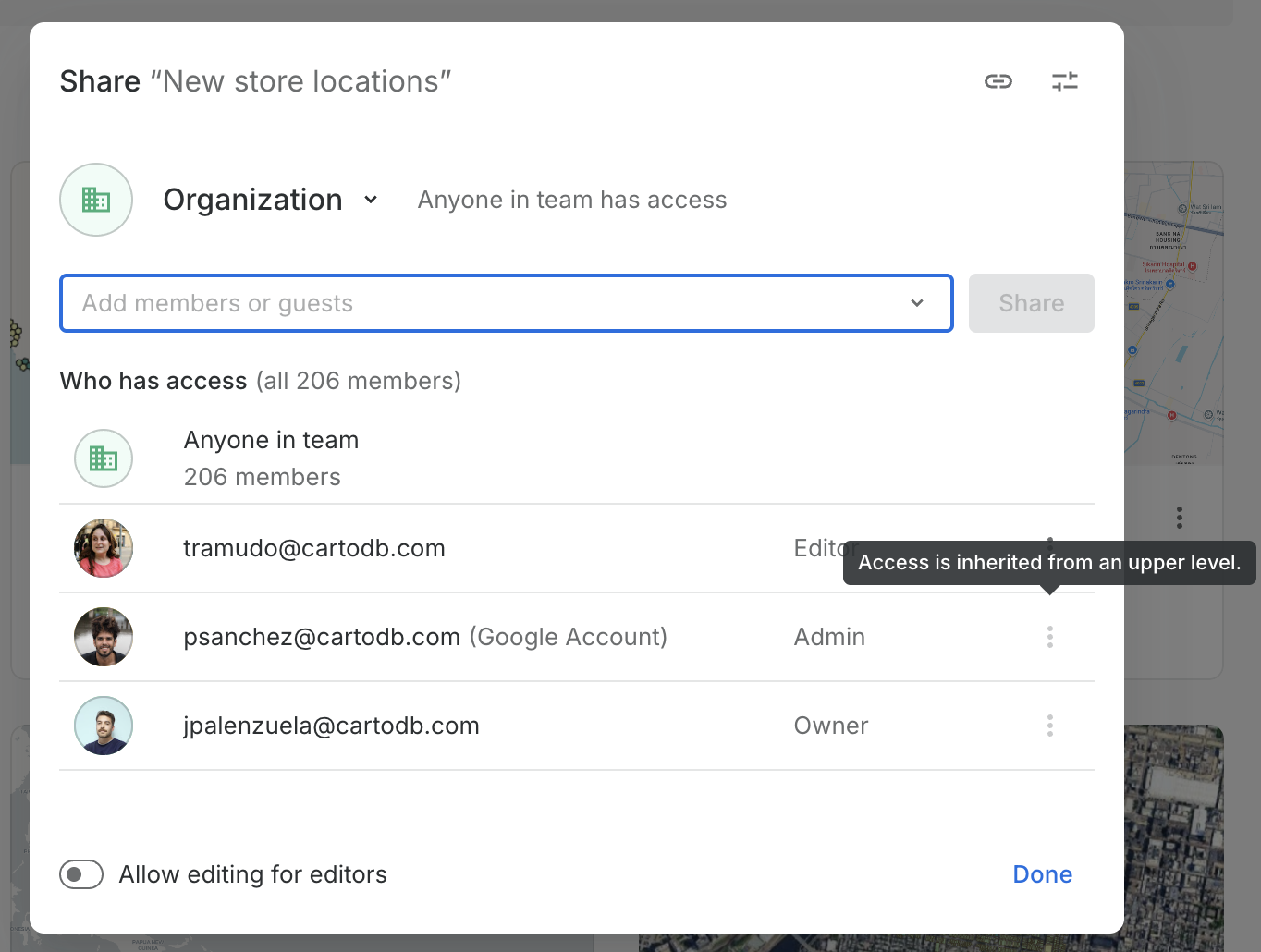
Inheritance is **additive**: a map or workflow keeps its own sharing and gains whatever it inherits from the project or folder above it. A map shared with person X that you move into a folder shared with team Y ends up accessible to both X and Y. In the map or workflow's own Share modal, inherited access is labeled **Access is inherited from an upper level**, so you can tell it apart from access set directly on the asset, and you can still add more people or groups on top.

<figure><img src="/files/IPVINF0idH5Xmf8o8iqo" alt=""><figcaption><p>On a map, access inherited from a parent project or folder is labeled in the Share modal</p></figcaption></figure>

{% hint style="warning" %}
**Shortcuts do not inherit sharing.** A shortcut inside a shared project stays a pointer. The map or workflow it points to keeps its own sharing settings, so someone who can open the project will only be able to open the target through the shortcut if that map or workflow has been shared with them directly.
{% endhint %}

{% hint style="info" %}
Projects and folders can only be Restricted or Organization; they cannot be made public. A map inside a project can still be shared publicly on its own, unless an admin has disabled public map sharing from the [Governance](/carto-user-manual/settings/organization-governance.md) settings.
{% endhint %}

## Managing projects and folders

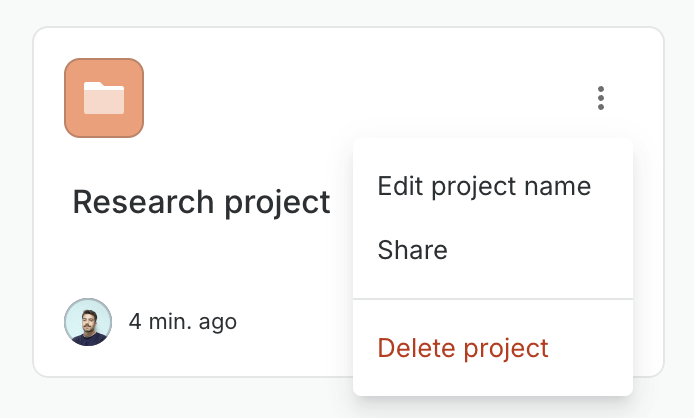
From the three-dot menu on a project or folder card, or the header when you are inside it, you can rename it, share it, move a folder into another project or folder, and delete it. Like the Maps and Workflows sections, the Projects section can be shown as a grid or a list, and you can search, sort, and filter by owner.

<figure><img src="/files/fBDrJXSbQ7QTfrreREaL" alt=""><figcaption><p>The project card menu: rename, share, or delete</p></figcaption></figure>

{% hint style="info" %}
**Deleting a project or folder never deletes the maps and workflows inside it.** They stay available from the Maps and Workflows sections and only lose the sharing they inherited from that project or folder. To delete a map or workflow, do it explicitly from its own card.
{% endhint %}

## Managing projects from the CLI

Projects and folders can also be created, browsed, and reorganized programmatically with the CARTO CLI. See the [`projects` command reference](/carto-for-agents/cli/command-reference/projects.md).


---

# Agent Instructions
This documentation is published with GitBook. GitBook is the documentation platform designed so that both humans and AI agents can read, navigate, and reason over technical content effectively. Learn more at gitbook.com.

## Querying This Documentation
If you need additional information that is not directly available in this page, you can query the documentation dynamically by asking a question.

Perform an HTTP GET request on the current page URL with the `ask` query parameter, and the optional `goal` query parameter:

```
GET https://docs.carto.com/carto-user-manual/projects.md?ask=<question>&goal=<endgoal>
```

`ask` is the immediate question: it should be specific, self-contained, and written in natural language.
`goal` is optional and describes the broader end goal you are ultimately trying to accomplish on behalf of the user. GitBook uses it to tailor the answer towards what is most useful for that goal.

The response will contain a direct answer to the question and relevant excerpts and sources from the documentation.

Use this mechanism when the answer is not explicitly present in the current page, you need clarification or additional context, or you want to retrieve related documentation sections.