> For the complete documentation index, see [llms.txt](https://docs.carto.com/llms.txt). Markdown versions of documentation pages are available by appending `.md` to page URLs; this page is available as [Markdown](https://docs.carto.com/carto-user-manual/maps/map-layout.md).

# Map layout

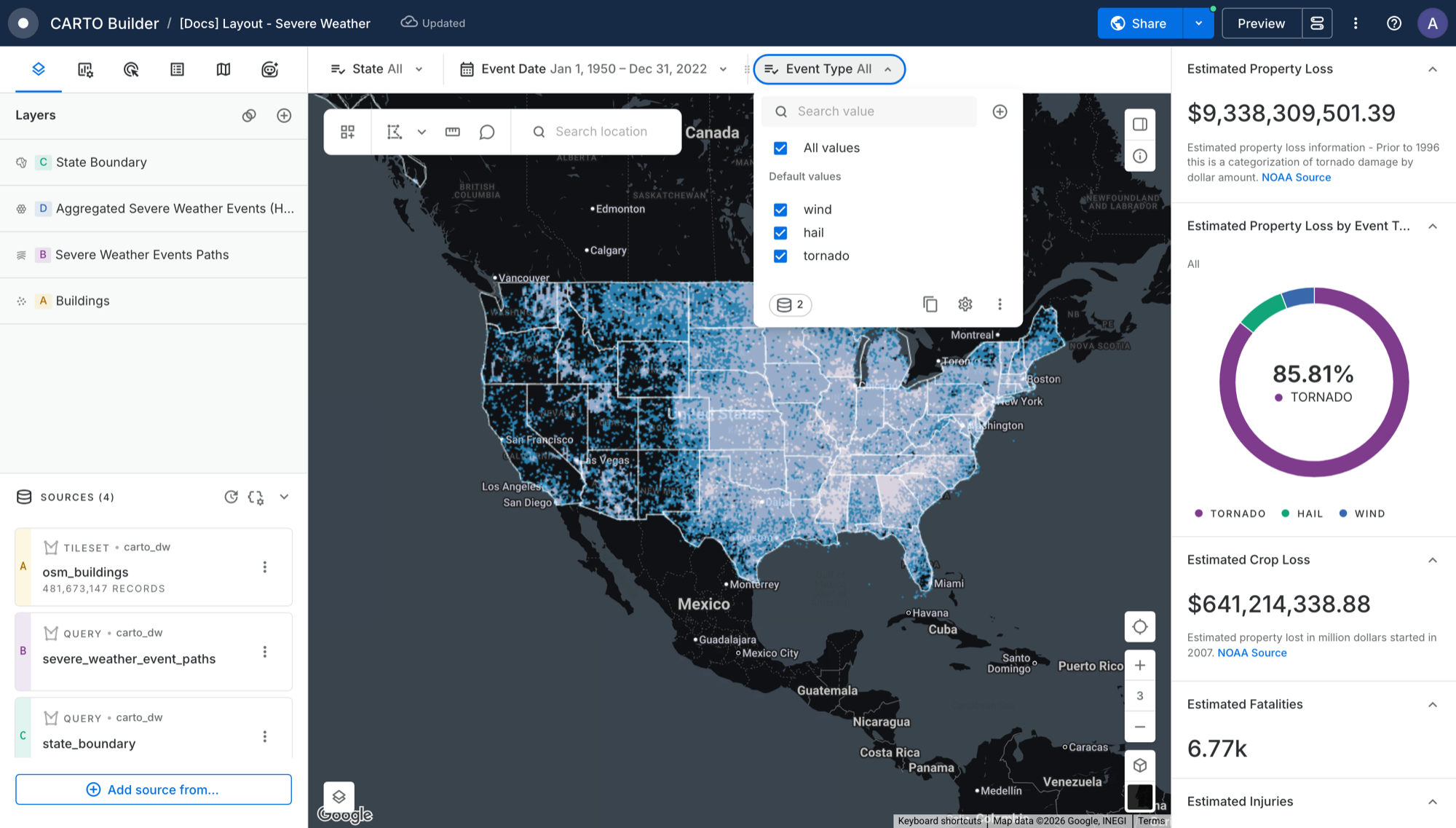
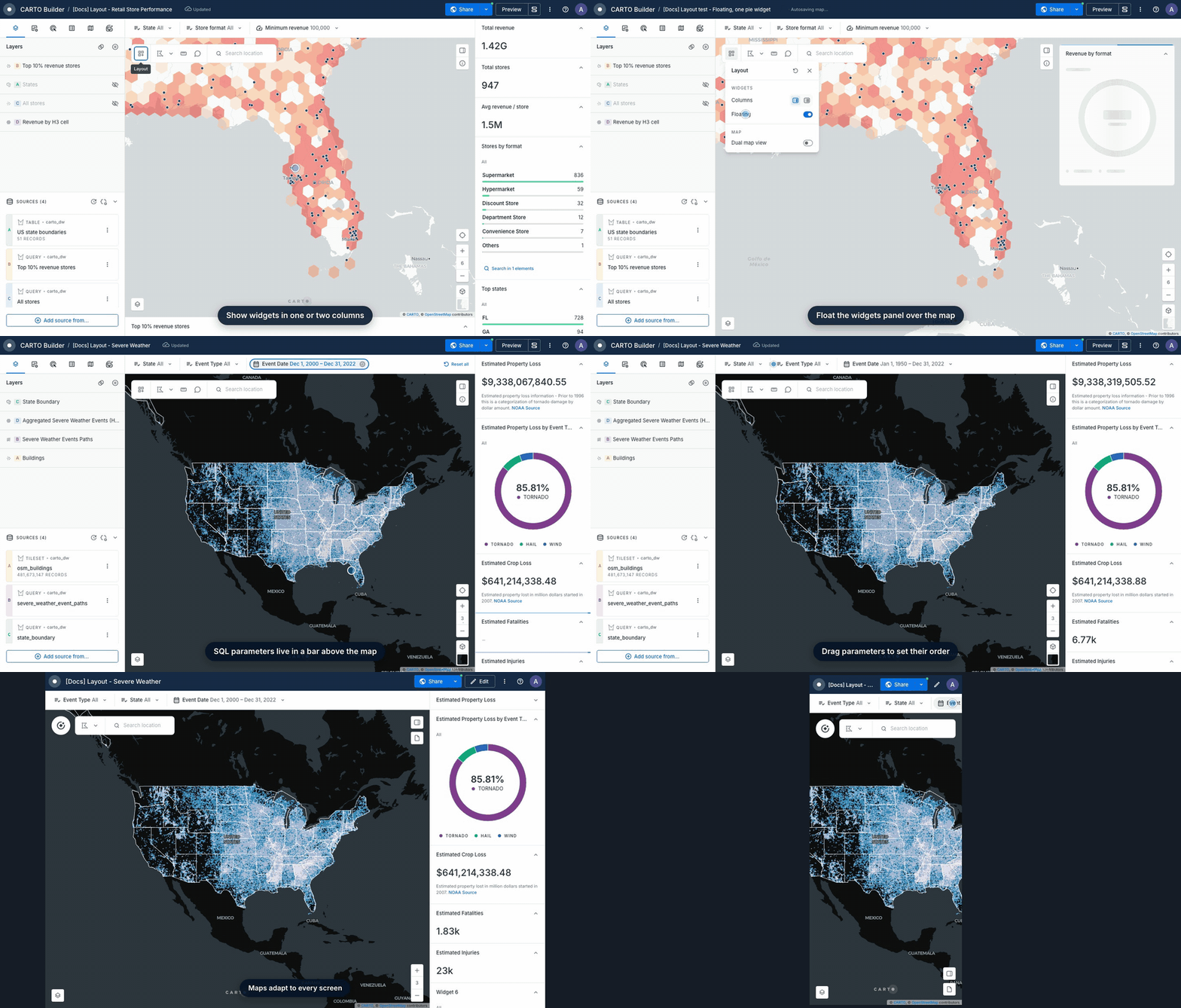
Every Builder map has a few dedicated areas, so you and your viewers always know where to find things:

* **Widgets panel** on the right, with the map's widgets and description.
* **Parameters bar** above the map, when the map has SQL parameters.
* **Map toolbar** at the top left of the map, with the map tools.
* **Map controls** in the bottom-right corner, with zoom, basemap and 3D.
* **Legend** in the bottom-left corner.

As an Editor, you choose how the widgets panel looks, and your choice is saved with the map. Viewers, guests and anyone with a public link see the map exactly as you set it up.

<figure><img src="https://3029946802-files.gitbook.io/~/files/v0/b/gitbook-x-prod.appspot.com/o/spaces%2FybPdpmLltPkzGFvz7m8A%2Fuploads%2Fgit-blob-4ca452d89894c10f5be532030c1ac52648b1c6e8%2Fbuilder-layout-tour.gif?alt=media" alt="A tour of the Builder layout"><figcaption><p><em>A tour of the Builder layout</em></p></figcaption></figure>

## Widgets panel

The widgets panel shows your [widgets](/carto-user-manual/maps/widgets.md) and the [map description](/carto-user-manual/maps/map-description.md). Use the buttons in the top-right corner of the map to show or hide them.

### Layout options

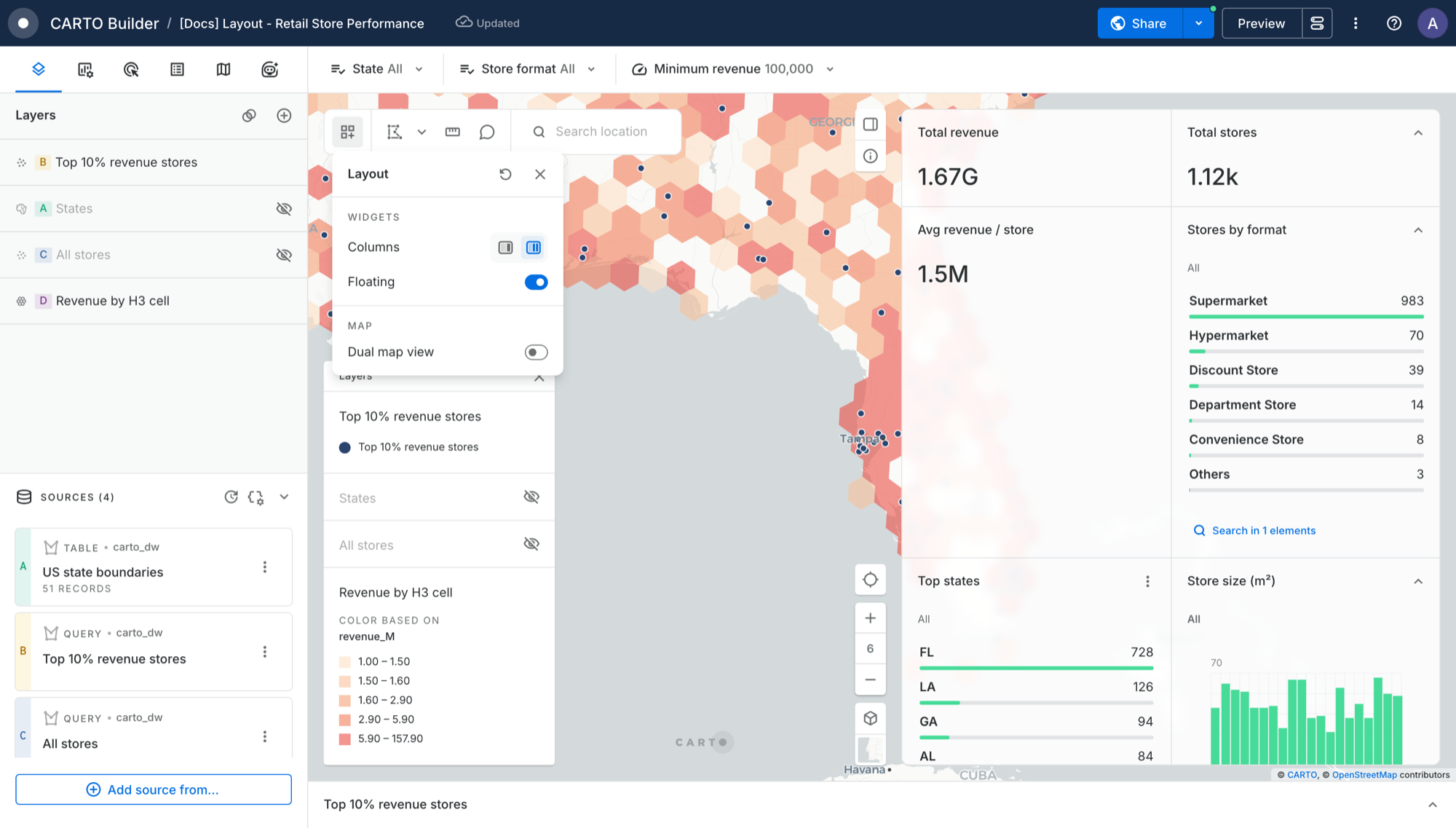
As an Editor, click the **Layout** button in the map toolbar to choose how the widgets panel appears:

* **Columns:** show widgets in **1 column** or **2 columns** side by side.
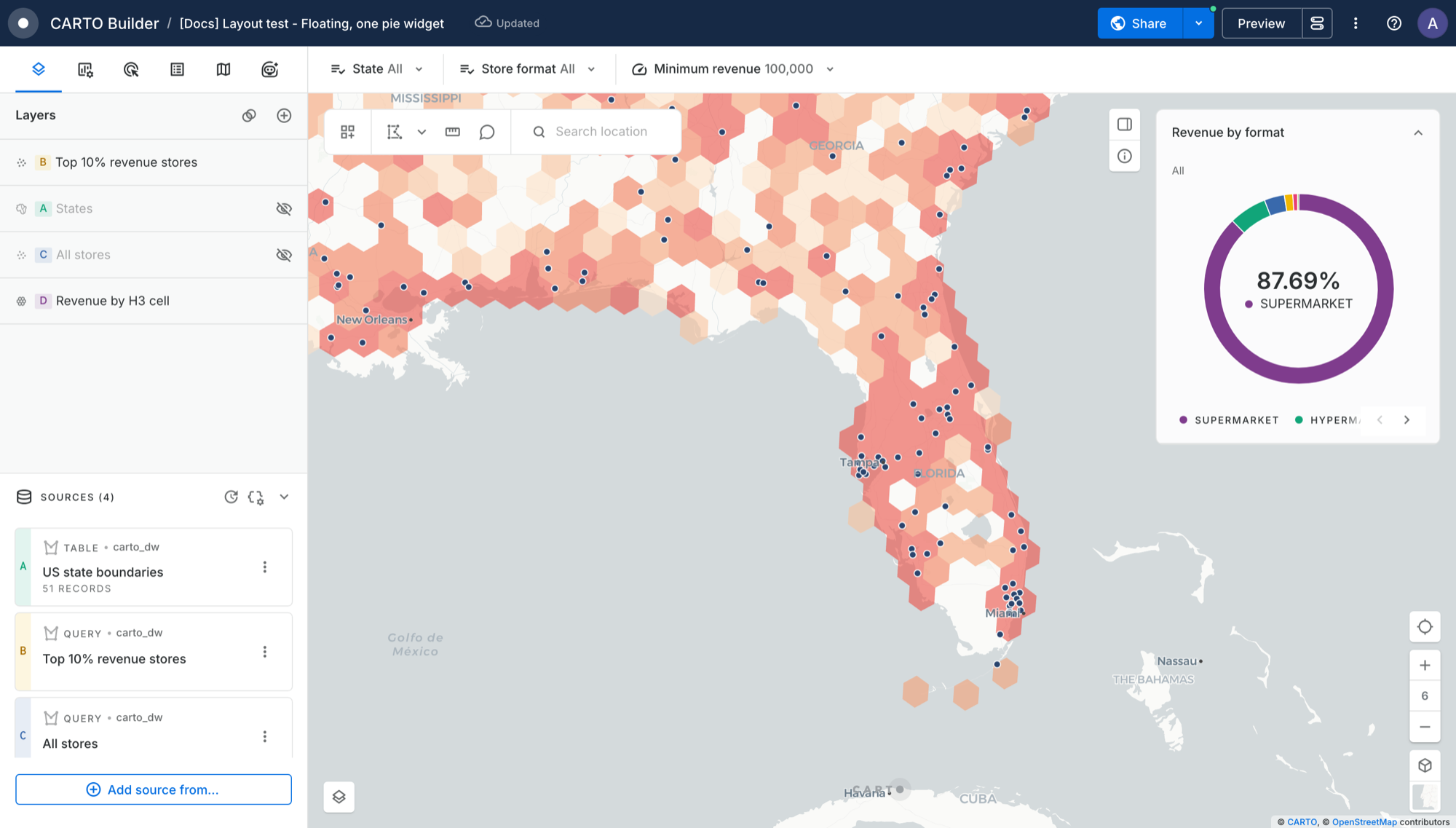
* **Floating:** turn it on to show the panel as a card over the map, so the map uses the full width. Turn it off to dock the panel next to the map.
* **Dual map view:** split the map in two to compare them. Learn more in [Map view modes](/carto-user-manual/maps/map-view-modes.md).
* **Reset layout:** goes back to the default layout, with one docked column. It also turns off dual map view and returns full-width widgets to column width. It appears once you change something.

<figure><img src="https://3029946802-files.gitbook.io/~/files/v0/b/gitbook-x-prod.appspot.com/o/spaces%2FybPdpmLltPkzGFvz7m8A%2Fuploads%2Fgit-blob-ab57e022603c4c0737b9323e0a2dbfb74dd97096%2Fbuilder-layout-popover.png?alt=media" alt="The Layout options"><figcaption><p><em>The Layout options</em></p></figcaption></figure>

<figure><img src="https://3029946802-files.gitbook.io/~/files/v0/b/gitbook-x-prod.appspot.com/o/spaces%2FybPdpmLltPkzGFvz7m8A%2Fuploads%2Fgit-blob-c6ef4bf065e1b6180a66e7b20baa6b3a17a0598b%2Fbuilder-layout-floating-single-widget.png?alt=media" alt="A single widget floating over the map"><figcaption><p><em>A single widget floating over the map</em></p></figcaption></figure>

By default, the widgets panel is docked with one column. Layout changes appear in the map's [version history](/carto-user-manual/maps/version-history.md), so you can go back to an earlier layout.

{% hint style="info" %}
You can't float the widgets panel while dual map view is on. Turning on dual map view docks the panel, and it floats again on its own when you turn dual map view off.
{% endhint %}

### Full width widgets

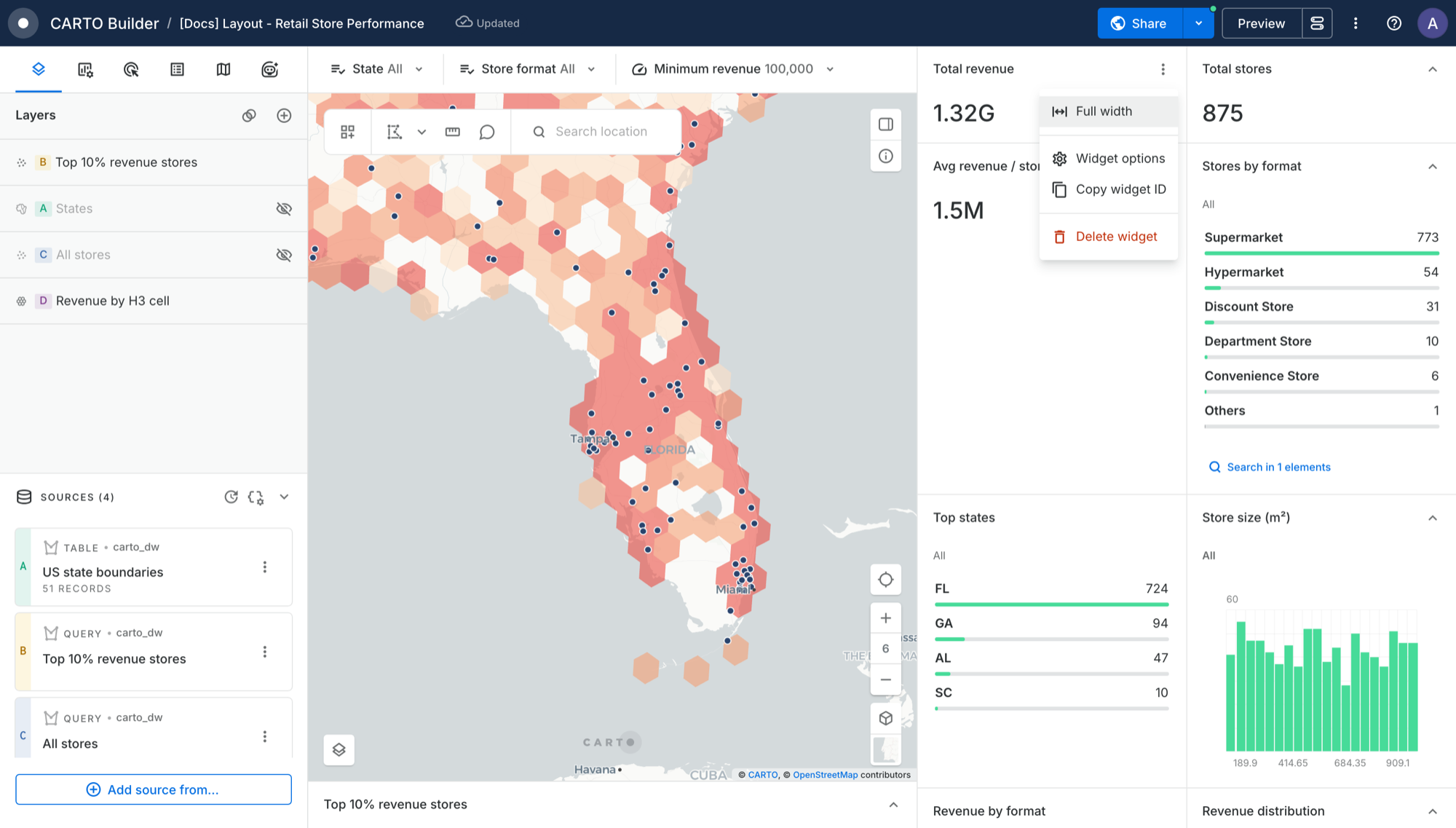
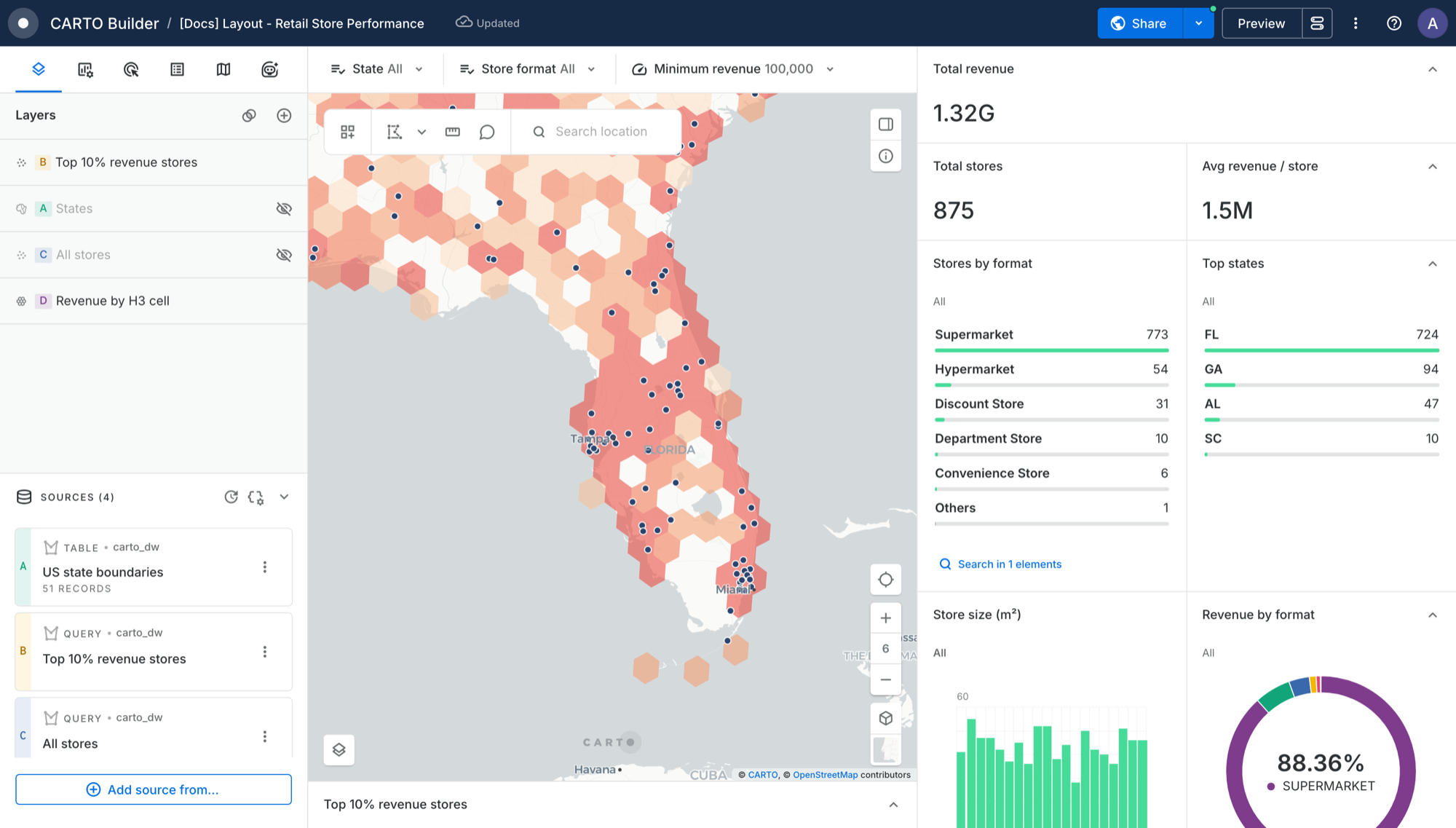
With two columns, you can give a widget the full width of the panel, for example to make a key number stand out on its own row. Open the widget's more options menu and choose **Full width**. Choose **Column width** to put it back in a single column.

<figure><img src="https://3029946802-files.gitbook.io/~/files/v0/b/gitbook-x-prod.appspot.com/o/spaces%2FybPdpmLltPkzGFvz7m8A%2Fuploads%2Fgit-blob-ebb4b25c339215fba3b4f3e0a4781c5c69585847%2Fbuilder-widget-full-width-menu.png?alt=media" alt="The Full width option in a widget&#x27;s more options menu"><figcaption><p><em>The Full width option in a widget's more options menu</em></p></figcaption></figure>

<figure><img src="https://3029946802-files.gitbook.io/~/files/v0/b/gitbook-x-prod.appspot.com/o/spaces%2FybPdpmLltPkzGFvz7m8A%2Fuploads%2Fgit-blob-23a637d8d8699330196fa442c2c9fafb209d3a5f%2Fbuilder-widget-full-width-result.png?alt=media" alt="A formula widget taking the full first row"><figcaption><p><em>A formula widget taking the full first row</em></p></figcaption></figure>

If a widget ends up alone in a row, it fills the whole row, so there are no empty gaps.

### Collapsing widgets

Anyone viewing the map can collapse a widget from its header to hide it. With two columns, the two widgets in a row collapse and expand together.

Widgets can also collapse automatically. In the widget's Behavior settings, turn on **Collapse when no layers are visible**. The widget stays in the panel, collapsed to its header, until one of its layers is visible again.

Widgets at the bottom of the map, such as the Table widget, have their own collapse control. You can keep them open while the widgets panel is hidden.

## Parameters bar

When a map has [SQL parameters](/carto-user-manual/maps/sql-parameters.md), they appear in a bar above the map. Each one shows its name and current value, so it's clear at a glance what the map is showing.

<figure><img src="https://3029946802-files.gitbook.io/~/files/v0/b/gitbook-x-prod.appspot.com/o/spaces%2FybPdpmLltPkzGFvz7m8A%2Fuploads%2Fgit-blob-0c102c531995c78ee06ae06b3bfb226ace5fd14f%2Fbuilder-layout-parameters-bar.png?alt=media" alt="The parameters bar, with a Text parameter open"><figcaption><p><em>The parameters bar, with a Text parameter open</em></p></figcaption></figure>

* **Reorder parameters:** as an Editor, drag a parameter by its handle to a new position. Put the most useful ones first, since they stay visible when the bar is full.
* **When the bar is full:** use the arrows at the edges of the bar to see the rest.

The bar only appears when the map has parameters. As an Editor, you can also hide parameter controls from viewers in [Map settings for viewers](/carto-user-manual/maps/sql-parameters/publishing-sql-parameters.md).

## Map toolbar

The map tools are grouped in one toolbar at the top left of the map:

* [Feature selection tool](/carto-user-manual/maps/feature-selection-tool.md)
* [Measure distances](/carto-user-manual/maps/measure-distances.md)
* [Comments](/carto-user-manual/maps/sharing-and-collaboration/comments.md)
* [Search locations](/carto-user-manual/maps/search-locations.md)

Editors also see the **Layout** button. Viewers see the tools you turn on in [Map settings for viewers](/carto-user-manual/maps/sharing-and-collaboration/map-settings-for-viewers.md), plus a button to chat with the map's [AI Agent](/carto-user-manual/ai-agents.md) when it has one.

## Map controls and legend

Zoom, your location and the [basemap selector](/carto-user-manual/maps/basemaps/basemap-selector.md) are grouped in the bottom-right corner of the map. As an Editor, you'll find the 3D toggle in the basemap selector. Learn more in [Map view modes](/carto-user-manual/maps/map-view-modes.md).

The [legend](/carto-user-manual/maps/legend.md) is in the bottom-left corner. Click the layers button to open it.

## Hiding the left panel

As an Editor, press **Ctrl + B** (**⌘ + B** on Mac) to hide the Layers and Sources panel and give its space to the map. Press it again to bring the panel back on the tab you were using.

## Tablets and phones

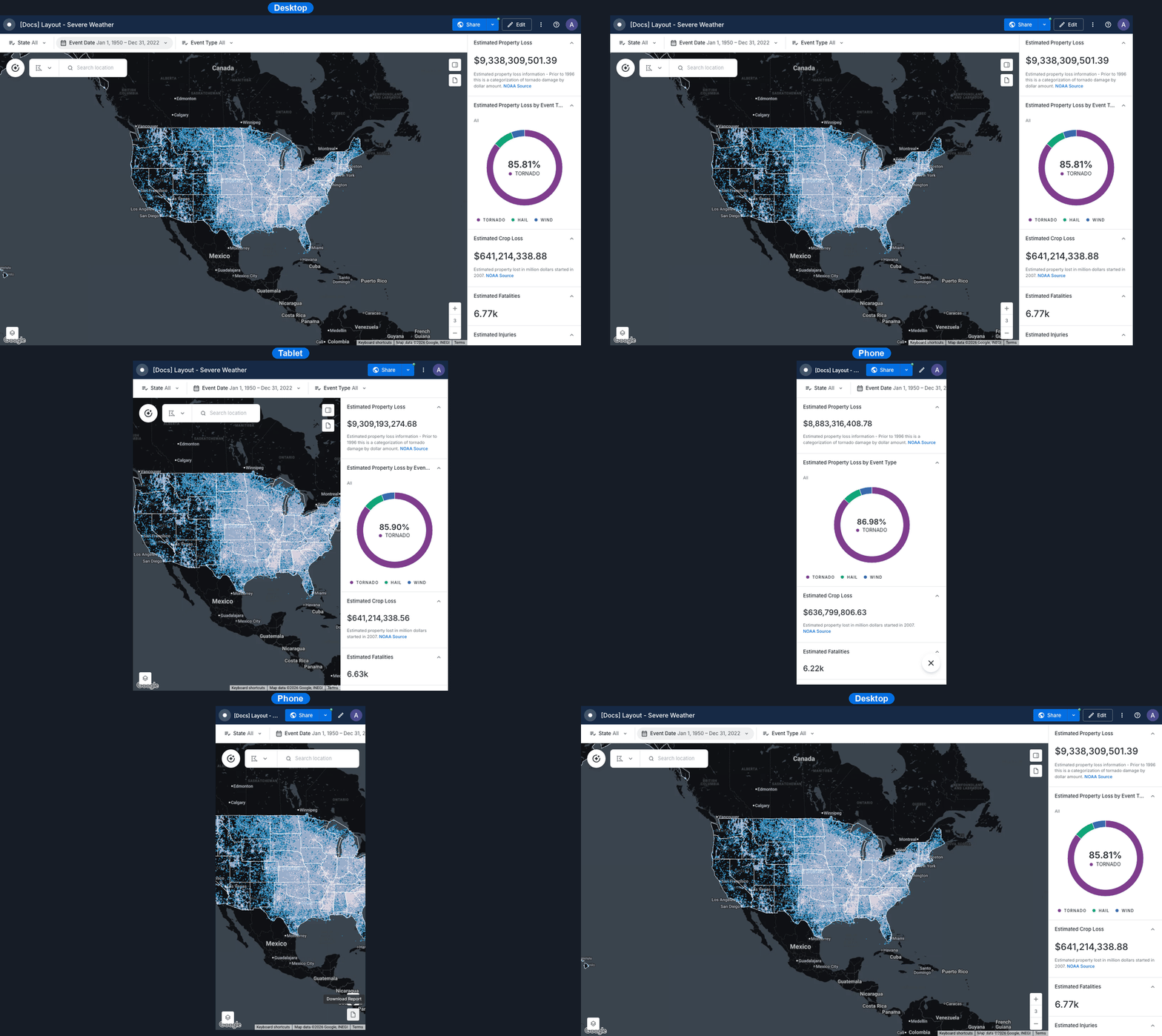
Maps adapt to tablets, phones and narrow embeds, keeping the map front and center. On these screens you can view and explore maps. To edit a map, use a computer.

<figure><img src="https://3029946802-files.gitbook.io/~/files/v0/b/gitbook-x-prod.appspot.com/o/spaces%2FybPdpmLltPkzGFvz7m8A%2Fuploads%2Fgit-blob-b71fb8fbab98b5fd425c802ce8038334ec717fa8%2Fbuilder-responsive-layout.gif?alt=media" alt="A map adapting from desktop to tablet to phone"><figcaption><p><em>A map adapting from desktop to tablet to phone</em></p></figcaption></figure>

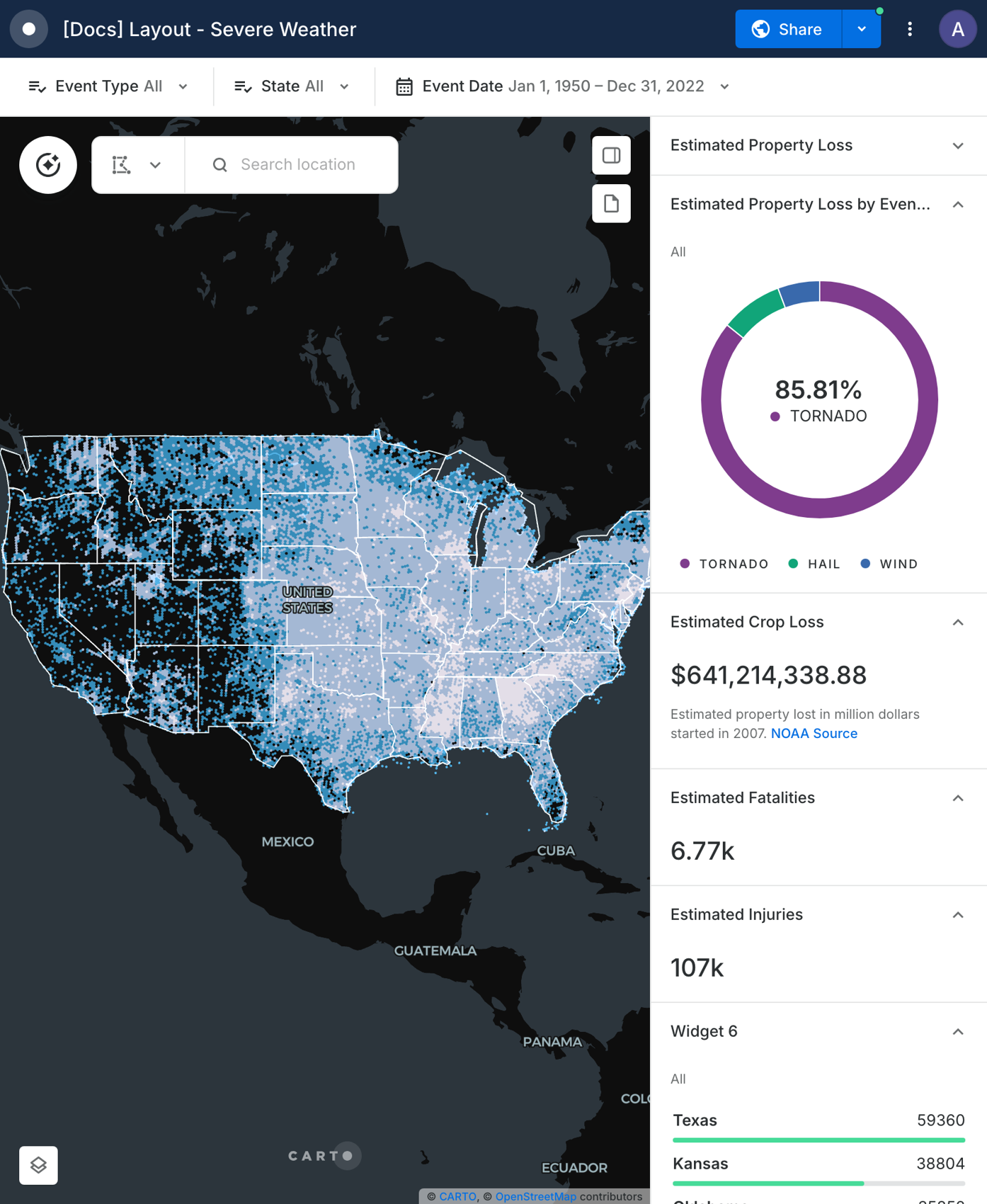
* **Tablets:** the widgets panel keeps the docked or floating layout you chose, in one column.
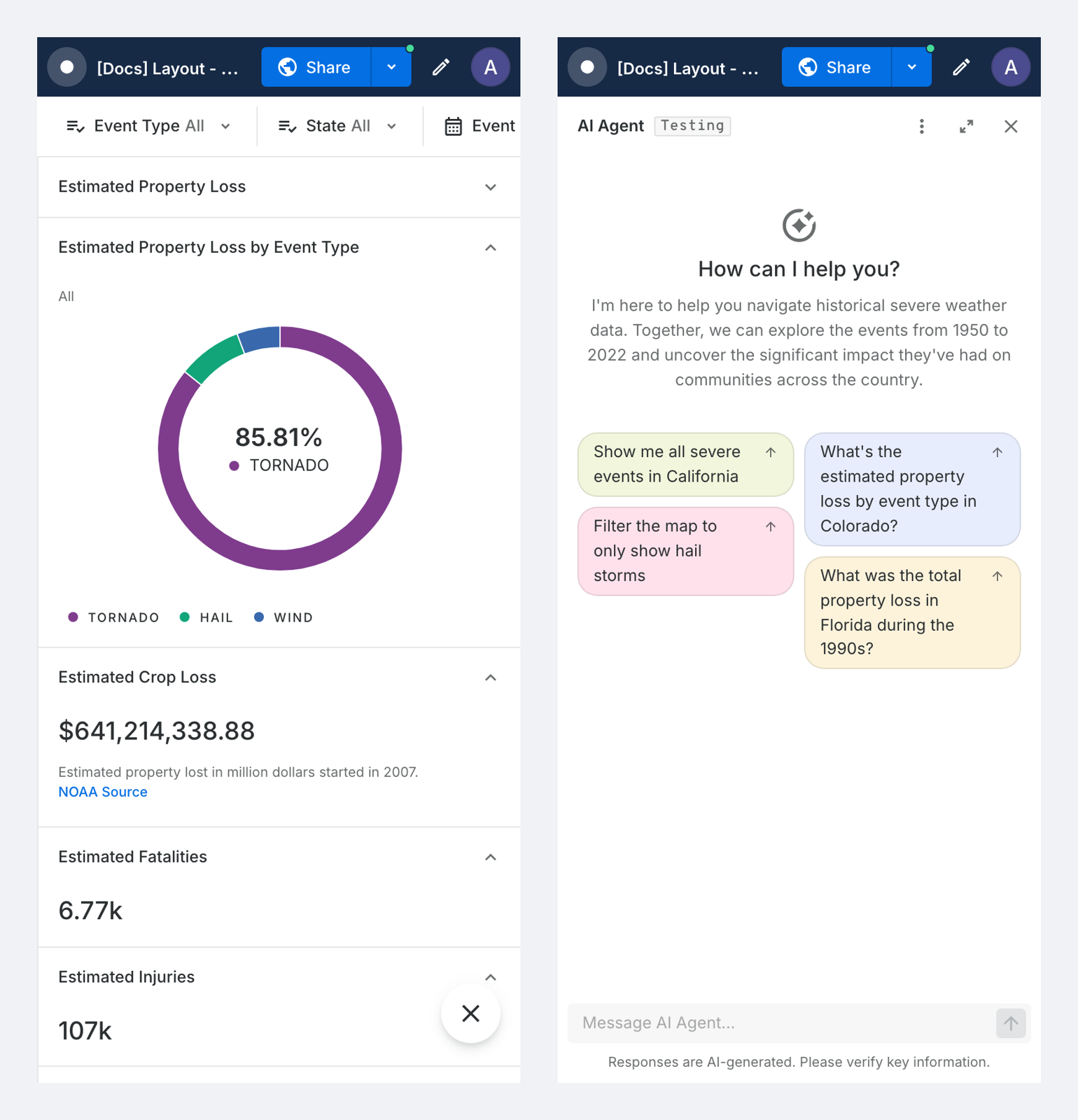
* **Phones:** widgets and the map description open full width over the map. With dual map view, the two maps are shown one above the other.
* **AI Agents:** viewers can chat with the map's [AI Agent](/carto-user-manual/ai-agents.md) on tablets and phones too. On a phone, the agent opens full screen with its conversation starters.

<figure><img src="https://3029946802-files.gitbook.io/~/files/v0/b/gitbook-x-prod.appspot.com/o/spaces%2FybPdpmLltPkzGFvz7m8A%2Fuploads%2Fgit-blob-59ebc628a1c5453f795c2691b5284cbdc111d29e%2Fbuilder-tablet-layout.png?alt=media" alt="A map on a tablet"><figcaption><p><em>A map on a tablet</em></p></figcaption></figure>

<figure><img src="https://3029946802-files.gitbook.io/~/files/v0/b/gitbook-x-prod.appspot.com/o/spaces%2FybPdpmLltPkzGFvz7m8A%2Fuploads%2Fgit-blob-1712e812d123ad7e1feffd249777c457219a866b%2Fbuilder-phone-widgets-and-agent.png?alt=media" alt="A map on a phone, with the widgets and the AI Agent"><figcaption><p><em>A map on a phone, with the widgets and the AI Agent</em></p></figcaption></figure>

Editing options, such as the Layers and Sources panel and widget settings, aren't shown on these screens. A notice explains this the first time you open a map, and you can choose **Do not show again**.


---

# Agent Instructions
This documentation is published with GitBook. GitBook is the documentation platform designed so that both humans and AI agents can read, navigate, and reason over technical content effectively. Learn more at gitbook.com.

## Querying This Documentation
If you need additional information that is not directly available in this page, you can query the documentation by asking a question.

Perform an HTTP GET request on the following URL with the `ask` and `goal` query parameters:

```
GET https://docs.carto.com/carto-user-manual/maps/map-layout.md?ask=<question>&goal=<user_goal>
```

`ask` is the immediate question: it should be specific, self-contained, and written in natural language.
`goal` is what the user is ultimately trying to achieve, the reason they need the answer. Sharing it helps GitBook give you a better, more relevant answer. A goal is most helpful when it describes the outcome the user wants rather than restating the question. For example, with `ask=how do I create an API token`, a goal like `automate deployments from our CI pipeline` lets GitBook tailor the answer to that use case.

The response will contain a direct answer to the question and relevant excerpts and sources from the documentation.

Use this mechanism when the answer is not explicitly present in the current page, you need clarification or additional context, or you want to retrieve related documentation sections.