> For the complete documentation index, see [llms.txt](https://docs.carto.com/llms.txt). Markdown versions of documentation pages are available by appending `.md` to page URLs; this page is available as [Markdown](https://docs.carto.com/carto-self-hosted/configuration/basemaps/enable-google-basemaps.md).
# Enable Google Basemaps
For CARTO Self-Hosted
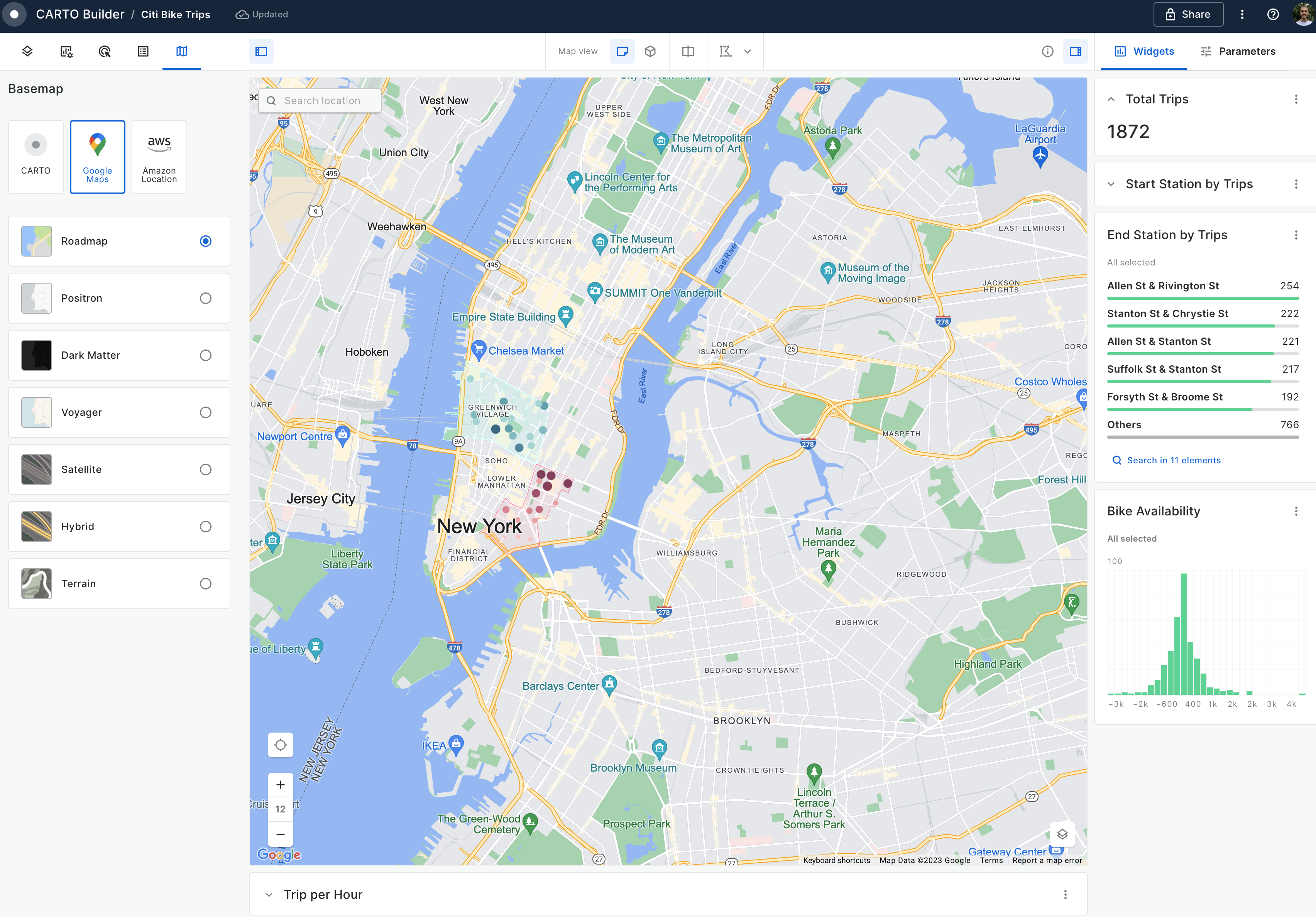
CARTO Self-hosted can be configured to use [Google Basemaps](https://docs.carto.com/carto-user-manual/maps/basemaps#google-maps) in Builder, allowing you to choose between different Basemap styles provided by Google. All you need is a Google Maps API key and a few simple configuration steps.
## Generate Google Maps API key
The CARTO Self-hosted deployment requires a Google Maps API key with the [Google Maps JavaScript API](https://developers.google.com/maps/documentation/javascript) enabled in order to use Google Basemaps from Builder. If you also want the **Photorealistic 3D Tiles** basemap, the [Map Tiles API](https://developers.google.com/maps/documentation/tile) must be enabled on the same key. You can follow these steps to generate a new key:
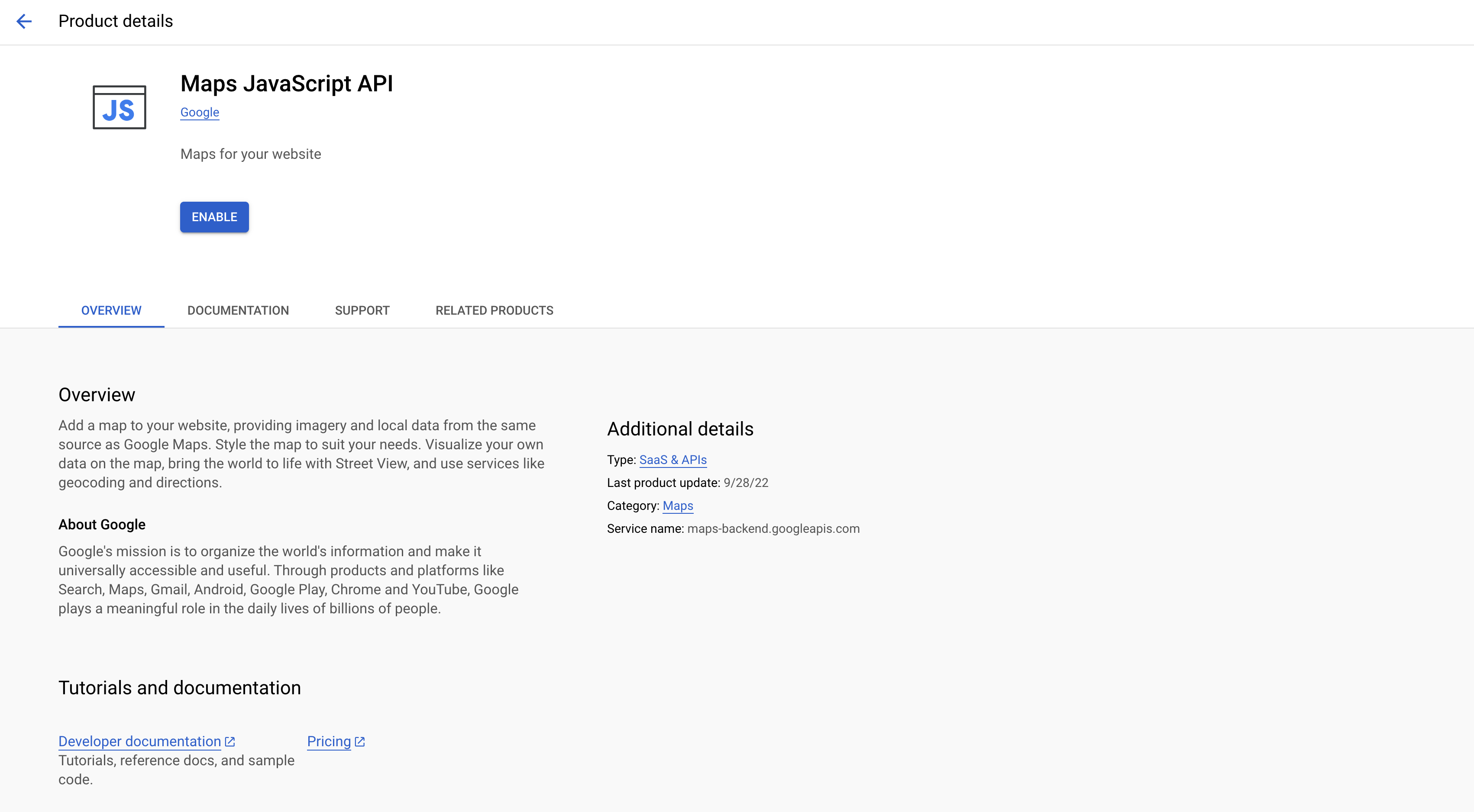
1. **Enable the Google Maps JavaScript API:**
* In the [Google Cloud Console](https://console.cloud.google.com/), navigate to the **APIs & Services** section and go to the **Library** tab
* Click on the **Enable APIs & Services** button
* Search for **Google Maps JavaScript API** and enable it. This API powers all 2D Google Basemaps (Roadmap, Satellite, Hybrid, Terrain, and the Google Maps versions of Positron, Voyager, and Dark Matter).
* **(Optional)** Search for **Map Tiles API** and enable it only if you want the **Photorealistic 3D Tiles** basemap. Without it, the 3D Tiles option will fail to load in Builder; all other basemaps work without it.
2. **Create Credentials:**
* After enabling the APIs, navigate to **Credentials tab**
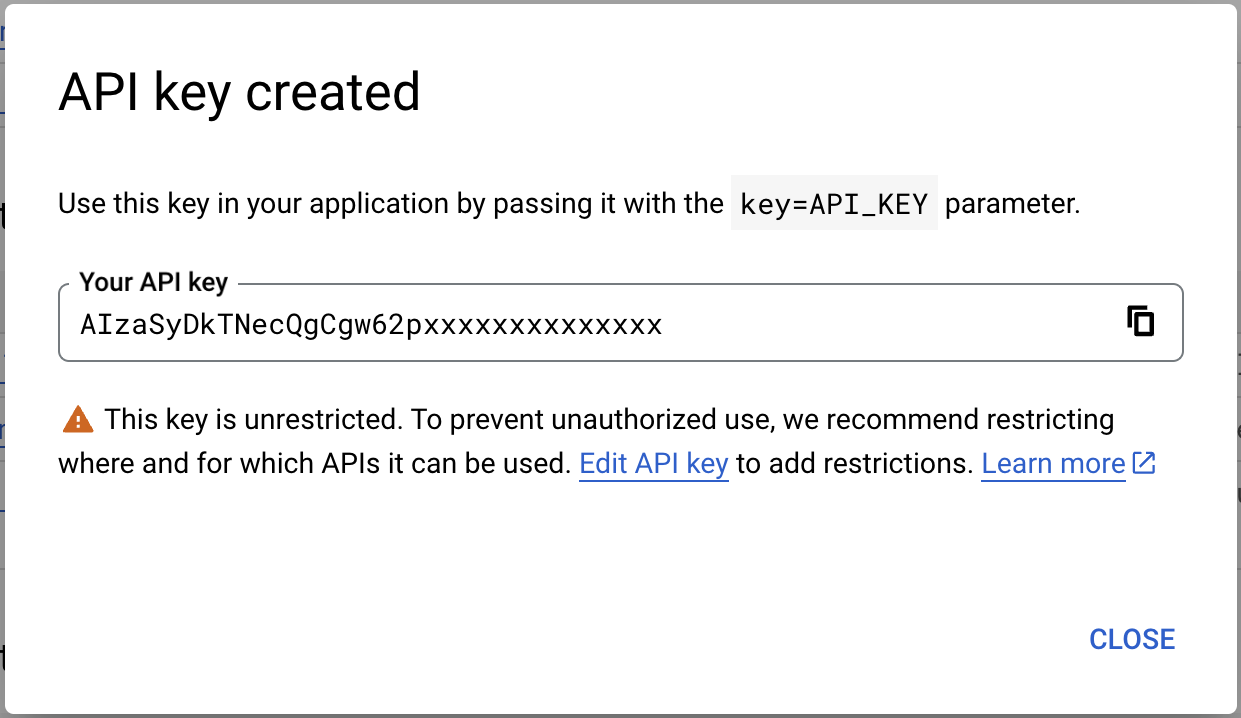
* Click on **Create Credentials** and pick **API key**. Your new API key should appear as soon as it's generated!
3. **Copy Your API Key:** This is the API Key that the CARTO Selfhosted instance will use to load the different Google Basemaps in Builder.
{% hint style="warning" %}
**Already using Google Basemaps?** If you previously configured a Google Maps API key that only has the **Google Maps JavaScript API** enabled, the **Photorealistic 3D Tiles** basemap will not work with it. You must additionally enable the **Map Tiles API** on the same key (or generate a new key with both APIs enabled and update your configuration).
{% endhint %}
{% hint style="danger" %}
Ensure the security of your API key by applying a restrictive usage policy. After setting up your API key, consider configuring key restrictions such as restricting it to the **Google Maps JavaScript API** (and the **Map Tiles API**, if you enabled it for 3D Tiles), and limiting its usage to your domain.
{% endhint %}
## **Configure your API Key in CARTO platform**
In order to enable Google Maps basemaps inside CARTO Self Hosted, you need to own a Google Maps API key and add it to your configuration:
{% tabs %}
{% tab title="Kots" %}
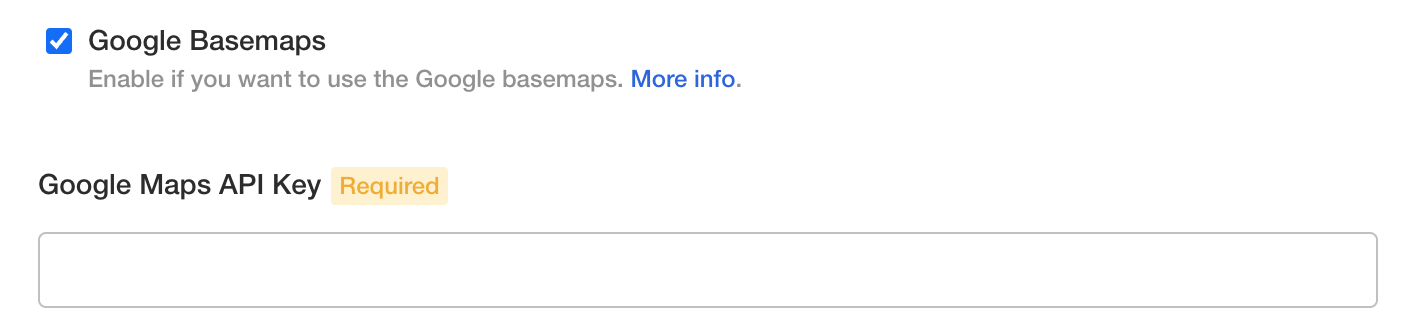
Add your Google Maps API key via the Admin Console:
Once you've applied the new API Key, Google Basemaps should be available in Builder!
{% endtab %}
{% tab title="Helm" %}
Add one of the options below to your customizations file.
* **Option 1: Automatically create the secret**
Automatically create a secret based on the plain text value specified in your customizations.yaml file.
```yaml
appSecrets:
googleMapsApiKey:
value: ""
```
* **Option 2: Manually create a secret:**
Create a secret running the command below, after replacing the `` values with your key values:
```bash
kubectl create secret generic \
[-n my-namespace] \
mycarto-google-maps-api-key \
--from-literal=googleMapsApiKey=
```
Add the following lines to your customizations.yaml, without replacing any value:
```
appSecrets:
googleMapsApiKey:
existingSecret:
name: mycarto-google-maps-api-key
key: googleMapsApiKey
```
{% endtab %}
{% endtabs %}
---
# Agent Instructions
This documentation is published with GitBook. GitBook is the documentation platform designed so that both humans and AI agents can read, navigate, and reason over technical content effectively. Learn more at gitbook.com.
## Querying This Documentation
If you need additional information that is not directly available in this page, you can query the documentation by asking a question.
Perform an HTTP GET request on the following URL with the `ask` and `goal` query parameters:
```
GET https://docs.carto.com/carto-self-hosted/configuration/basemaps/enable-google-basemaps.md?ask=&goal=
```
`ask` is the immediate question: it should be specific, self-contained, and written in natural language.
`goal` is what the user is ultimately trying to achieve, the reason they need the answer. Sharing it helps GitBook give you a better, more relevant answer. A goal is most helpful when it describes the outcome the user wants rather than restating the question. For example, with `ask=how do I create an API token`, a goal like `automate deployments from our CI pipeline` lets GitBook tailor the answer to that use case.
The response will contain a direct answer to the question and relevant excerpts and sources from the documentation.
Use this mechanism when the answer is not explicitly present in the current page, you need clarification or additional context, or you want to retrieve related documentation sections.
 Add your Google Maps API key via the Admin Console:
 Add one of the options below to your customizations file.
* **Option 1: Automatically create the secret**
Automatically create a secret based on the plain text value specified in your customizations.yaml file.
```yaml
appSecrets:
googleMapsApiKey:
value: "
Add one of the options below to your customizations file.
* **Option 1: Automatically create the secret**
Automatically create a secret based on the plain text value specified in your customizations.yaml file.
```yaml
appSecrets:
googleMapsApiKey:
value: "