# Connecting with API Access Tokens
CLI-based agents such as Gemini CLI connect to the CARTO MCP Server using API Access Tokens. You create a token in CARTO Workspace, then pass it as an authorization header when registering the MCP Server in your agent.
{% hint style="info" %}
For web-based AI platforms like Claude.ai that support OAuth, see [Connecting with OAuth](https://docs.carto.com/carto-mcp-server/carto-mcp-server/connecting-with-oauth).
{% endhint %}
## Prerequisites
* A CARTO organization with access to the Developers section.
* At least one Workflow exposed as an MCP Tool. See [Workflows as MCP Tools](https://docs.carto.com/carto-user-manual/workflows/workflows-as-mcp-tools) for setup instructions.
## Step 1: Create an API Access Token
The MCP Server requires authentication via an [API Access Token](https://docs.carto.com/carto-user-manual/developers/managing-credentials/api-access-tokens):
1. In CARTO Workspace, [create a new token](https://docs.carto.com/carto-user-manual/developers/managing-credentials/api-access-tokens#creating-an-api-access-token).
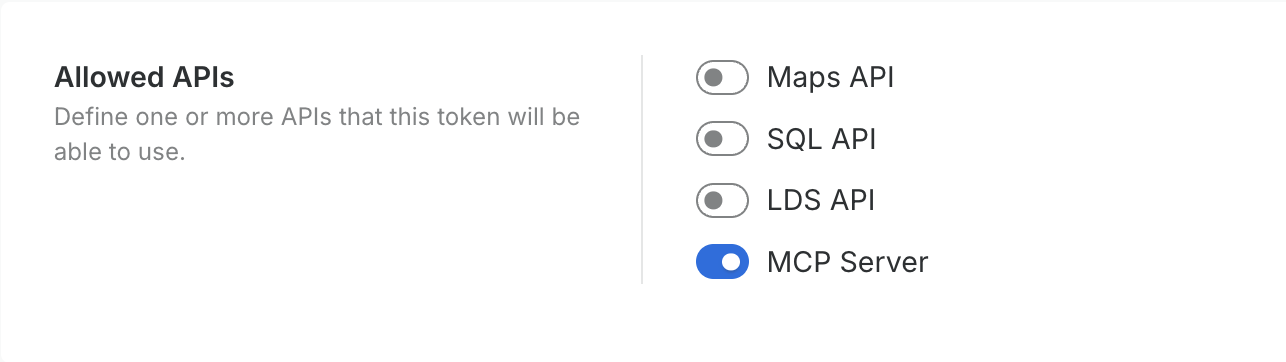
2. In Allowed APIs, select the **MCP Server** permission scope.
3. Copy the token securely, as it will be required to connect the agent to the server.
## Step 2: Add MCP Server to your agent
Use the **MCP Server URL** (from the [overview page](https://docs.carto.com/carto-mcp-server/carto-mcp-server/..#get-the-mcp-server-url)) and the API Access Token to register the server in your agent. For example, with Gemini CLI:
```bash
gemini mcp add carto-pm-org \
https://gcp-us-east1.api.carto.com/mcp/ \
-H 'Authorization: Bearer ' \
-t http
```
* `-t http` specifies the transport protocol.
* The `Authorization` header includes the API Access Token created in the previous step.
After this setup, the agent will be able to call the MCP Tools you created with Workflows and return geospatial results in response to questions.
---
# Agent Instructions: Querying This Documentation
If you need additional information that is not directly available in this page, you can query the documentation dynamically by asking a question.
Perform an HTTP GET request on the current page URL with the `ask` query parameter:
```
GET https://docs.carto.com/carto-mcp-server/carto-mcp-server/connecting-with-api-tokens.md?ask=
```
The question should be specific, self-contained, and written in natural language.
The response will contain a direct answer to the question and relevant excerpts and sources from the documentation.
Use this mechanism when the answer is not explicitly present in the current page, you need clarification or additional context, or you want to retrieve related documentation sections.