> For the complete documentation index, see [llms.txt](https://docs.carto.com/llms.txt). Markdown versions of documentation pages are available by appending `.md` to page URLs; this page is available as [Markdown](https://docs.carto.com/carto-for-agents/mcp-server/tools-reference/workflow-tools.md).
# Workflow tools
Workflow tools let your agent author analytical Workflows (DAGs of components), validate and compile them, run them in sync or async mode, schedule them, and inspect the component catalog. They also cover the Workflows your team publishes as reusable MCP tools.
 ## `create_workflow`
**Title:** Create Workflow
**Creates a new Workflow** from a full definition. The agent validates the DAG's components and parameters against the connection before creating it.
| Parameter | Type | Required | Description |
| ------------ | ------ | -------- | ----------------------------------------------------------------------------------------- |
| `bundle` | object | Yes | The Workflow definition: title, connection, privacy, and a `config` with nodes and edges. |
| `connection` | string | No | Connection to validate against, overriding the bundle's. |
*Can modify data: creates a new Workflow.*
## `update_workflow`
**Title:** Update Workflow
**Changes an existing Workflow**, sets sharing, or publishes it as a callable MCP tool.
**Method:** `update` · `share` · `unshare` · `publish` · `unpublish`
| Parameter | Type | Required | Description |
| ---------------------------- | ------------------------- | ---------------------- | --------------------------------------------------- |
| `id` | string | Yes | The Workflow to change. |
| `bundle` | object | For `update` | A partial definition; unmentioned fields are kept. |
| `org` / `emails` / `canEdit` | boolean / array / boolean | For `share`, `unshare` | Who to share with, and whether they can edit. |
| `name` / `description` | string | For `publish` | Override the published tool's name and description. |
*Can modify data.*
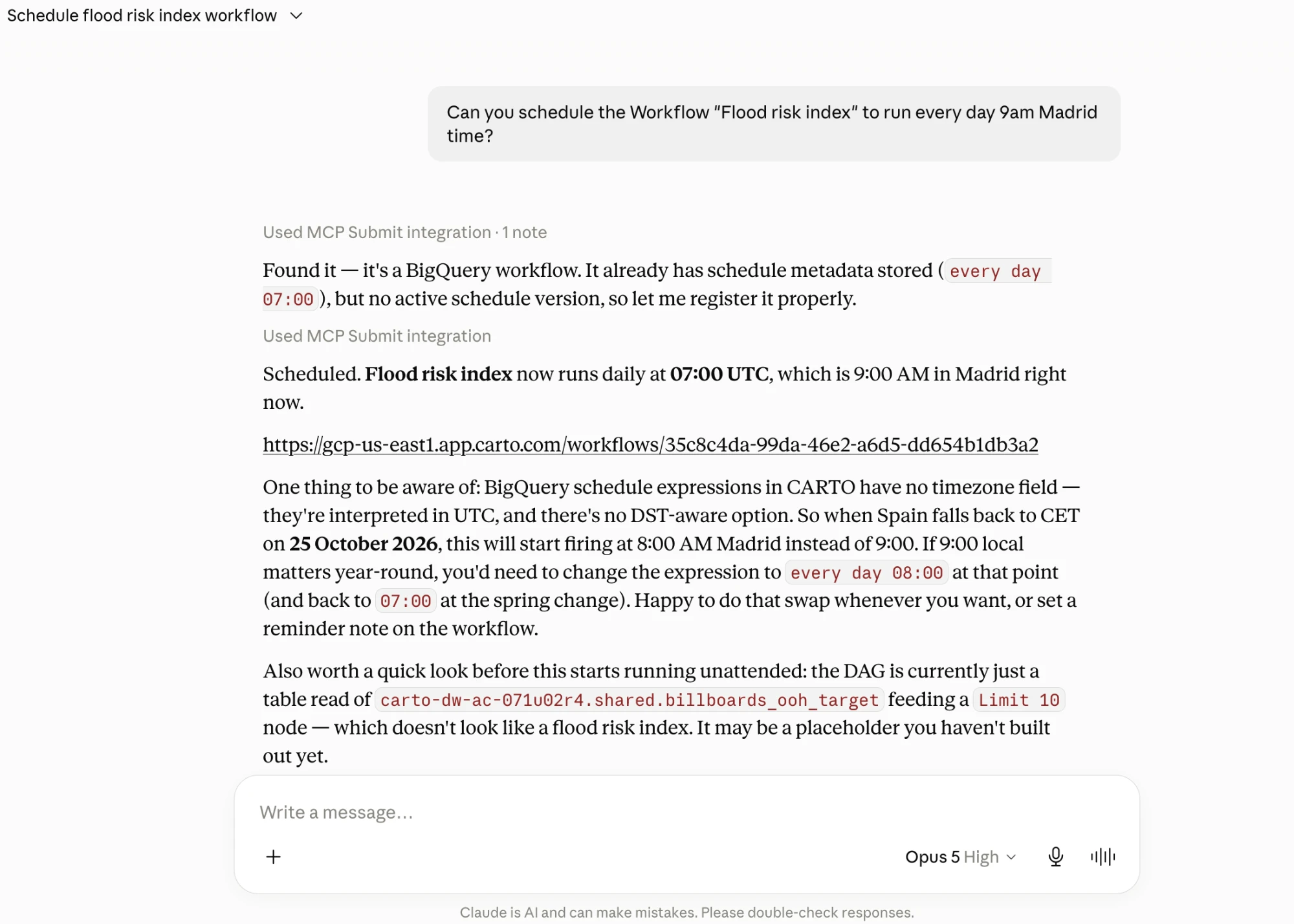
## `schedule_workflow`
**Title:** Schedule Workflow
**Adds, replaces, or removes a Workflow's schedule.** Compiles the DAG to SQL and registers a warehouse cron.
**Method:** `add` · `update` · `remove`
| Parameter | Type | Required | Description |
| ------------ | ------ | ------------------- | ------------------------------------------------------------------------------------------------------------------------------ |
| `id` | string | Yes | The Workflow to schedule. |
| `expression` | string | For `add`, `update` | The schedule expression (provider-specific: BigQuery natural language; Snowflake, Postgres, Redshift cron; Databricks Quartz). |
*Can modify data.*
## `validate_workflow`
**Title:** Validate Workflow
**Checks a Workflow without creating or running it.** Validates structure and components, deep-verifies against the live connection, or compiles the DAG to SQL for inspection.
**Method:** `validate` · `verify` · `to_sql`
| Parameter | Type | Required | Description |
| ------------ | ------ | -------- | -------------------------------------------------------- |
| `bundle` | object | Yes | The Workflow definition to check. |
| `connection` | string | No | Connection to validate against, overriding the bundle's. |
*Read-only.*
## `read_workflows`
**Title:** Browse Workflows
**Finds and inspects Workflows** and the Workflows published as MCP tools.
**Method:** `list` · `get` · `list_mcp_tools` · `get_mcp_tool`
| Parameter | Type | Required | Description |
| --------- | ------ | ------------------------- | ------------------------------------ |
| `id` | string | For `get`, `get_mcp_tool` | The Workflow to read. |
| `search` | string | No | Title substring search (for `list`). |
*Read-only.*
## `run_workflow`
**Title:** Run Workflow
**Runs a Workflow and collects its output.** Compiles the DAG to SQL, submits it, reports status, and fetches result rows.
**Method:** `run` · `status` · `results`
{% hint style="info" %}
Over a [token session](/carto-for-agents/mcp-server/connecting-with-api-tokens.md#what-a-token-unlocks), only `status` is available (with the **SQL** API on the token) — the agent can poll a run it did not start. Starting a run (`run`) and fetching `results` need OAuth.
{% endhint %}
| Parameter | Type | Required | Description |
| ---------------------- | ------ | -------------------- | -------------------------------------------------------------- |
| `id` | string | For `run`, `results` | The Workflow to run. |
| `connection` / `jobId` | string | For `status` | The connection the run was submitted on, and the job to check. |
| `node` | string | For `results` | Which node's output to return. |
| `limit` | number | No | Max rows to return (default 100). |
*Can modify data: a run executes the compiled SQL.*
## `read_workflow_components`
**Title:** Browse Workflow Components
**Lists the available Workflow components** on a connection, or gets one component's full detail — inputs, outputs, and parameters.
**Method:** `list` · `get`
| Parameter | Type | Required | Description |
| ------------ | ------ | --------- | ----------------------------------------------- |
| `connection` | string | Yes | The connection whose component catalog to read. |
| `search` | string | No | Free-text filter (for `list`). |
| `names` | string | For `get` | Component name(s), comma-separated. |
*Read-only.*
***
## Your published workflows
Any Workflow your organization publishes as an MCP tool registers alongside the built-in tools, exposing organization-specific logic (site selection, trade-area analysis, demand modeling) in a form the agent can call directly. Published tools run in two modes:
* **Sync.** The tool returns results immediately. Best for lightweight, fast queries.
* **Async.** The tool launches a job and returns a `jobId`. The agent then polls the [async job tools](#async-job-tools) below and retrieves the output when the job completes. Best for long-running pipelines.
Workflows on Redshift and Oracle connections always publish as Async tools, because stored procedures in these data warehouses can't return rows directly.
For step-by-step guidance on publishing, see [Workflows as MCP Tools](/carto-user-manual/workflows/workflows-as-mcp-tools.md).
### How published tools are governed
Publishing a Workflow as an MCP tool is a deliberate act by a workflow editor, and it comes with a few properties worth knowing if you are responsible for what agents can run:
* **Pinned to a version.** Publishing captures the Workflow as it is at that moment. Editing the Workflow afterwards does not change what the agent runs until someone republishes it (see [Propagating changes](/carto-user-manual/workflows/workflows-as-mcp-tools.md#propagating-changes)).
* **Inputs are defined by the editor.** The editor names and describes every parameter the agent may pass. Nothing else reaches the Workflow.
* **Enabling and disabling are recorded.** Both appear in your [Activity Data](/carto-user-manual/settings/activity-data/activity-data-reference.md) as their own events.
* **Runs under the Workflow's connection.** Publishing deploys a stored procedure in your warehouse under that Workflow's connection.
The tool's description is free text the model reads to decide when to call it, so editor rights in your organization are the control over what agents are told. See [Which tools an agent can use](/carto-for-agents/mcp-server/tools-reference.md#which-tools-an-agent-can-use).
### Best practices
* **Keep tool descriptions clear and specific**, so the agent chooses the right tool.
* **Define inputs precisely** — descriptive names and types for every parameter.
* **Test the way an agent will call it.** Use **Run MCP Tool test** in the workflow editor to preview the exact response, including sync/async timing. See [Test your MCP Tool](/carto-user-manual/workflows/workflows-as-mcp-tools.md#test-your-mcp-tool).
* **Choose the right output mode** — Sync for fast queries, Async for long-running processes.
* **Version and update carefully.** Sync updates promptly and communicate changes to users.
{% hint style="info" %}
In **Async** mode, the agent must poll for status and make an extra call to retrieve results. Web-based hosts enforce short request timeouts (around 10 seconds), so use Async for anything that can't finish inside that window.
{% endhint %}
***
## Async job tools
When you run a workflow with the built-in [`run_workflow`](#run_workflow) tool, its own `status` and `results` methods handle polling — you don't need anything else. The two tools below are for **published workflow tools** running in async mode: they register automatically alongside your published workflows (only when your account has them), so the agent can poll a published async job. You don't configure them.
### `async_workflow_job_get_status_v1_0_0`
Gets the status of an async workflow job. The agent calls this after an async workflow tool returns a job ID, and polls until the status is `success` or `failure`.
| Parameter | Type | Required | Description |
| ---------------- | ------ | -------- | ---------------------------------------------------------------- |
| `jobId` | string | Yes | The async workflow job ID returned by the tool that launched it. |
| `connectionName` | string | Yes | The connection used by the workflow. |
Possible `status` values: `pending`, `running`, `success`, `failure`, `cancelled`.
### `async_workflow_job_get_results_v1_0_0`
Retrieves the results of an async workflow job after it completes with `success` status. The agent calls this only after the status tool confirms the job is done.
| Parameter | Type | Required | Description |
| ------------------------- | ------ | -------- | -------------------------------------------------------------------------------------------------------- |
| `jobId` | string | Yes | The async workflow job ID. |
| `providerId` | string | Yes | The data warehouse provider: `bigquery`, `snowflake`, `databricks`, `postgres`, `redshift`, or `oracle`. |
| `connectionName` | string | Yes | The connection used by the workflow. |
| `workflowOutputTableName` | string | Yes | The fully-qualified name of the workflow output table. |
The result is a JSON object with a `rows` array of the output data and a `schema` describing the column types.
---
# Agent Instructions
This documentation is published with GitBook. GitBook is the documentation platform designed so that both humans and AI agents can read, navigate, and reason over technical content effectively. Learn more at gitbook.com.
## Querying This Documentation
If you need additional information that is not directly available in this page, you can query the documentation by asking a question.
Perform an HTTP GET request on the following URL with the `ask` and `goal` query parameters:
```
GET https://docs.carto.com/carto-for-agents/mcp-server/tools-reference/workflow-tools.md?ask=&goal=
```
`ask` is the immediate question: it should be specific, self-contained, and written in natural language.
`goal` is what the user is ultimately trying to achieve, the reason they need the answer. Sharing it helps GitBook give you a better, more relevant answer. A goal is most helpful when it describes the outcome the user wants rather than restating the question. For example, with `ask=how do I create an API token`, a goal like `automate deployments from our CI pipeline` lets GitBook tailor the answer to that use case.
The response will contain a direct answer to the question and relevant excerpts and sources from the documentation.
Use this mechanism when the answer is not explicitly present in the current page, you need clarification or additional context, or you want to retrieve related documentation sections.
## `create_workflow`
**Title:** Create Workflow
**Creates a new Workflow** from a full definition. The agent validates the DAG's components and parameters against the connection before creating it.
| Parameter | Type | Required | Description |
| ------------ | ------ | -------- | ----------------------------------------------------------------------------------------- |
| `bundle` | object | Yes | The Workflow definition: title, connection, privacy, and a `config` with nodes and edges. |
| `connection` | string | No | Connection to validate against, overriding the bundle's. |
*Can modify data: creates a new Workflow.*
## `update_workflow`
**Title:** Update Workflow
**Changes an existing Workflow**, sets sharing, or publishes it as a callable MCP tool.
**Method:** `update` · `share` · `unshare` · `publish` · `unpublish`
| Parameter | Type | Required | Description |
| ---------------------------- | ------------------------- | ---------------------- | --------------------------------------------------- |
| `id` | string | Yes | The Workflow to change. |
| `bundle` | object | For `update` | A partial definition; unmentioned fields are kept. |
| `org` / `emails` / `canEdit` | boolean / array / boolean | For `share`, `unshare` | Who to share with, and whether they can edit. |
| `name` / `description` | string | For `publish` | Override the published tool's name and description. |
*Can modify data.*
## `schedule_workflow`
**Title:** Schedule Workflow
**Adds, replaces, or removes a Workflow's schedule.** Compiles the DAG to SQL and registers a warehouse cron.
**Method:** `add` · `update` · `remove`
| Parameter | Type | Required | Description |
| ------------ | ------ | ------------------- | ------------------------------------------------------------------------------------------------------------------------------ |
| `id` | string | Yes | The Workflow to schedule. |
| `expression` | string | For `add`, `update` | The schedule expression (provider-specific: BigQuery natural language; Snowflake, Postgres, Redshift cron; Databricks Quartz). |
*Can modify data.*
## `validate_workflow`
**Title:** Validate Workflow
**Checks a Workflow without creating or running it.** Validates structure and components, deep-verifies against the live connection, or compiles the DAG to SQL for inspection.
**Method:** `validate` · `verify` · `to_sql`
| Parameter | Type | Required | Description |
| ------------ | ------ | -------- | -------------------------------------------------------- |
| `bundle` | object | Yes | The Workflow definition to check. |
| `connection` | string | No | Connection to validate against, overriding the bundle's. |
*Read-only.*
## `read_workflows`
**Title:** Browse Workflows
**Finds and inspects Workflows** and the Workflows published as MCP tools.
**Method:** `list` · `get` · `list_mcp_tools` · `get_mcp_tool`
| Parameter | Type | Required | Description |
| --------- | ------ | ------------------------- | ------------------------------------ |
| `id` | string | For `get`, `get_mcp_tool` | The Workflow to read. |
| `search` | string | No | Title substring search (for `list`). |
*Read-only.*
## `run_workflow`
**Title:** Run Workflow
**Runs a Workflow and collects its output.** Compiles the DAG to SQL, submits it, reports status, and fetches result rows.
**Method:** `run` · `status` · `results`
{% hint style="info" %}
Over a [token session](/carto-for-agents/mcp-server/connecting-with-api-tokens.md#what-a-token-unlocks), only `status` is available (with the **SQL** API on the token) — the agent can poll a run it did not start. Starting a run (`run`) and fetching `results` need OAuth.
{% endhint %}
| Parameter | Type | Required | Description |
| ---------------------- | ------ | -------------------- | -------------------------------------------------------------- |
| `id` | string | For `run`, `results` | The Workflow to run. |
| `connection` / `jobId` | string | For `status` | The connection the run was submitted on, and the job to check. |
| `node` | string | For `results` | Which node's output to return. |
| `limit` | number | No | Max rows to return (default 100). |
*Can modify data: a run executes the compiled SQL.*
## `read_workflow_components`
**Title:** Browse Workflow Components
**Lists the available Workflow components** on a connection, or gets one component's full detail — inputs, outputs, and parameters.
**Method:** `list` · `get`
| Parameter | Type | Required | Description |
| ------------ | ------ | --------- | ----------------------------------------------- |
| `connection` | string | Yes | The connection whose component catalog to read. |
| `search` | string | No | Free-text filter (for `list`). |
| `names` | string | For `get` | Component name(s), comma-separated. |
*Read-only.*
***
## Your published workflows
Any Workflow your organization publishes as an MCP tool registers alongside the built-in tools, exposing organization-specific logic (site selection, trade-area analysis, demand modeling) in a form the agent can call directly. Published tools run in two modes:
* **Sync.** The tool returns results immediately. Best for lightweight, fast queries.
* **Async.** The tool launches a job and returns a `jobId`. The agent then polls the [async job tools](#async-job-tools) below and retrieves the output when the job completes. Best for long-running pipelines.
Workflows on Redshift and Oracle connections always publish as Async tools, because stored procedures in these data warehouses can't return rows directly.
For step-by-step guidance on publishing, see [Workflows as MCP Tools](/carto-user-manual/workflows/workflows-as-mcp-tools.md).
### How published tools are governed
Publishing a Workflow as an MCP tool is a deliberate act by a workflow editor, and it comes with a few properties worth knowing if you are responsible for what agents can run:
* **Pinned to a version.** Publishing captures the Workflow as it is at that moment. Editing the Workflow afterwards does not change what the agent runs until someone republishes it (see [Propagating changes](/carto-user-manual/workflows/workflows-as-mcp-tools.md#propagating-changes)).
* **Inputs are defined by the editor.** The editor names and describes every parameter the agent may pass. Nothing else reaches the Workflow.
* **Enabling and disabling are recorded.** Both appear in your [Activity Data](/carto-user-manual/settings/activity-data/activity-data-reference.md) as their own events.
* **Runs under the Workflow's connection.** Publishing deploys a stored procedure in your warehouse under that Workflow's connection.
The tool's description is free text the model reads to decide when to call it, so editor rights in your organization are the control over what agents are told. See [Which tools an agent can use](/carto-for-agents/mcp-server/tools-reference.md#which-tools-an-agent-can-use).
### Best practices
* **Keep tool descriptions clear and specific**, so the agent chooses the right tool.
* **Define inputs precisely** — descriptive names and types for every parameter.
* **Test the way an agent will call it.** Use **Run MCP Tool test** in the workflow editor to preview the exact response, including sync/async timing. See [Test your MCP Tool](/carto-user-manual/workflows/workflows-as-mcp-tools.md#test-your-mcp-tool).
* **Choose the right output mode** — Sync for fast queries, Async for long-running processes.
* **Version and update carefully.** Sync updates promptly and communicate changes to users.
{% hint style="info" %}
In **Async** mode, the agent must poll for status and make an extra call to retrieve results. Web-based hosts enforce short request timeouts (around 10 seconds), so use Async for anything that can't finish inside that window.
{% endhint %}
***
## Async job tools
When you run a workflow with the built-in [`run_workflow`](#run_workflow) tool, its own `status` and `results` methods handle polling — you don't need anything else. The two tools below are for **published workflow tools** running in async mode: they register automatically alongside your published workflows (only when your account has them), so the agent can poll a published async job. You don't configure them.
### `async_workflow_job_get_status_v1_0_0`
Gets the status of an async workflow job. The agent calls this after an async workflow tool returns a job ID, and polls until the status is `success` or `failure`.
| Parameter | Type | Required | Description |
| ---------------- | ------ | -------- | ---------------------------------------------------------------- |
| `jobId` | string | Yes | The async workflow job ID returned by the tool that launched it. |
| `connectionName` | string | Yes | The connection used by the workflow. |
Possible `status` values: `pending`, `running`, `success`, `failure`, `cancelled`.
### `async_workflow_job_get_results_v1_0_0`
Retrieves the results of an async workflow job after it completes with `success` status. The agent calls this only after the status tool confirms the job is done.
| Parameter | Type | Required | Description |
| ------------------------- | ------ | -------- | -------------------------------------------------------------------------------------------------------- |
| `jobId` | string | Yes | The async workflow job ID. |
| `providerId` | string | Yes | The data warehouse provider: `bigquery`, `snowflake`, `databricks`, `postgres`, `redshift`, or `oracle`. |
| `connectionName` | string | Yes | The connection used by the workflow. |
| `workflowOutputTableName` | string | Yes | The fully-qualified name of the workflow output table. |
The result is a JSON object with a `rows` array of the output data and a `schema` describing the column types.
---
# Agent Instructions
This documentation is published with GitBook. GitBook is the documentation platform designed so that both humans and AI agents can read, navigate, and reason over technical content effectively. Learn more at gitbook.com.
## Querying This Documentation
If you need additional information that is not directly available in this page, you can query the documentation by asking a question.
Perform an HTTP GET request on the following URL with the `ask` and `goal` query parameters:
```
GET https://docs.carto.com/carto-for-agents/mcp-server/tools-reference/workflow-tools.md?ask=&goal=
```
`ask` is the immediate question: it should be specific, self-contained, and written in natural language.
`goal` is what the user is ultimately trying to achieve, the reason they need the answer. Sharing it helps GitBook give you a better, more relevant answer. A goal is most helpful when it describes the outcome the user wants rather than restating the question. For example, with `ask=how do I create an API token`, a goal like `automate deployments from our CI pipeline` lets GitBook tailor the answer to that use case.
The response will contain a direct answer to the question and relevant excerpts and sources from the documentation.
Use this mechanism when the answer is not explicitly present in the current page, you need clarification or additional context, or you want to retrieve related documentation sections.