> For the complete documentation index, see [llms.txt](https://docs.carto.com/llms.txt). Markdown versions of documentation pages are available by appending `.md` to page URLs; this page is available as [Markdown](https://docs.carto.com/carto-for-agents/mcp-server/connecting-with-api-tokens.md).
# Connecting with API Access Tokens
An API Access Token is the quickest way to connect an agent for **read and discovery** work — browsing connections, querying data, and searching the Data Observatory. It's also the only option on hosts that don't run an interactive OAuth flow (such as Oracle OCI). You create a token in CARTO Workspace, then pass it as an authorization header when registering the MCP Server in your agent.
{% hint style="info" %}
A token session reaches a **read-and-discovery subset** of the tools — it can't create or edit maps, author Workflows, or reach admin. For the full surface, use [OAuth](/carto-for-agents/mcp-server/connecting-with-oauth.md).
{% endhint %}
{% hint style="warning" %}
**The token's Allowed APIs decide which tools appear** — and the MCP Server scope alone unlocks only four. See [What a token unlocks](#what-a-token-unlocks) below before you create the token; the difference between four tools and fourteen is which data APIs you add.
{% endhint %}
## Step 1: Create an API Access Token
The MCP Server requires authentication via an [API Access Token](/carto-user-manual/developers/managing-credentials/api-access-tokens.md):
1. In CARTO Workspace, [create a new token](/carto-user-manual/developers/managing-credentials/api-access-tokens.md#creating-an-api-access-token).
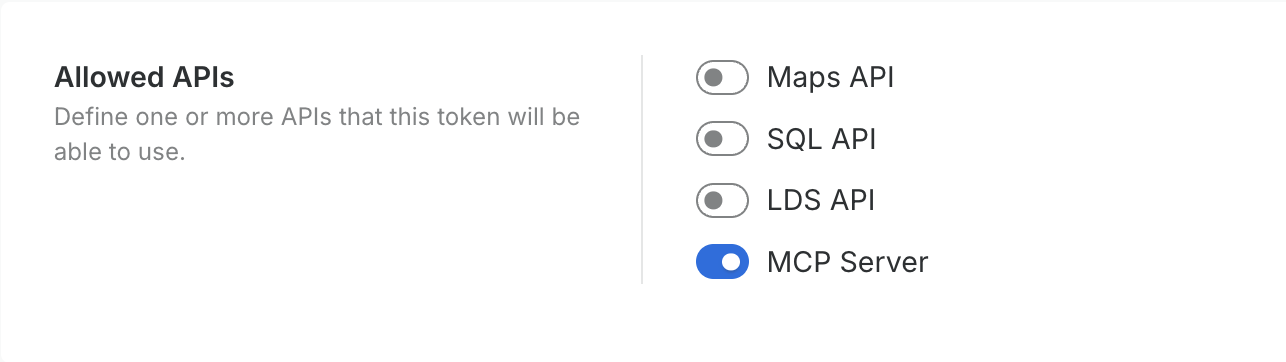
2. In **Allowed APIs**, switch on the **MCP Server** scope — this admits the token to the server. Then add the data APIs the agent actually needs: **SQL** to query at all, **Maps** for table stats (`describe`), **LDS** for geocoding and routing, **Imports/Exports** to load and export data. See [What a token unlocks](#what-a-token-unlocks) — the MCP Server scope on its own reaches only four tools.
3. Under **Grants**, add at least one grant naming a connection.
4. Optionally, set an **expiration date**. Tokens don't expire unless you set one, so pick a date that matches how long the agent needs access. You can revoke a token at any time by deleting it.
5. Copy the token securely, using the copy button — you'll need it to connect the agent.
{% hint style="warning" %}
**Get the SQL grant `source` right, or queries will fail.** A grant is a `{connection, source}` pair, and what `source` must contain depends on the API:
* For the **SQL API** (`execute_query`), `source` must be the **query text itself**, or `*` for any query — *not* a table name. A table-scoped grant returns `403` for a `SELECT` against that table.
* For **map and table reads**, `source` is a fully-qualified table name.
For an agent that composes its own SQL, granting `*` is usually the practical choice.
{% endhint %}
## What a token unlocks
Which tools a token session sees depends entirely on its **Allowed APIs**. The MCP Server scope is only the admission ticket — on its own it reaches **four tools**. Each additional data API adds more:
| Allowed API | Tools it unlocks |
| ----------------------- | -------------------------------------------------------------------------------------------------------------------------------------------------------------------------------------------------- |
| **MCP Server** (alone) | `explore_data` (list connections, browse and search resources — **not** `describe`), `search_data_observatory`, `validate_map`, `validate_workflow`. Four tools. |
| **+ SQL** | `execute_query` and `execute_async_query` (the agent can't query at all without this), plus `run_workflow` **status only** — it can poll a run, but starting one and fetching results needs OAuth. |
| **+ Maps** | `describe` on `explore_data` — table and column statistics, which data-aware map styling depends on. |
| **+ LDS** | `geocode`, `route`, `calculate_isolines`, `calculate_od_matrix`. |
| **+ Imports / Exports** | `import_data`, `export_data`, `transfer_data`. |
With SQL, Maps, LDS, Imports and Exports all enabled, a token reaches **fourteen tools**. Everything beyond that — creating and editing maps, authoring and running Workflows, connections, and admin — is [OAuth](/carto-for-agents/mcp-server/connecting-with-oauth.md) only.
{% hint style="info" %}
A read-and-discovery token can still change data. `execute_query` and `execute_async_query` run any statement the connection's database user is allowed to run, including ones that modify data. Grants decide which tables the agent can reach, and the connection's database user decides what it can do to them. For an agent that should only read, point the token at a connection whose database user has SELECT permission only.
{% endhint %}
## Step 2: Add the MCP Server to your agent
Use the **MCP Server URL** (from the [overview page](/carto-for-agents/mcp-server.md#get-your-mcp-server-url)) and the API Access Token to register the server. The exact command varies by agent — most take a URL, a transport, and an `Authorization: Bearer ` header. For example, with Gemini CLI:
```bash
gemini mcp add carto \
https://.api.carto.com/mcp/ \
-H 'Authorization: Bearer ' \
-t http
```
* Replace `` and `` with the values from your MCP Server URL (copy the full URL from **Developers > Workflow API & MCP Server**).
* `-t http` sets the transport protocol (Streamable HTTP).
* The `Authorization` header carries the API Access Token from Step 1.
After setup, the agent can browse your connections, inspect tables, run SQL, and search the Data Observatory in response to your questions — the exact set depends on the token's Allowed APIs (see [What a token unlocks](#what-a-token-unlocks)). Running a saved Workflow end to end needs OAuth.
---
# Agent Instructions
This documentation is published with GitBook. GitBook is the documentation platform designed so that both humans and AI agents can read, navigate, and reason over technical content effectively. Learn more at gitbook.com.
## Querying This Documentation
If you need additional information that is not directly available in this page, you can query the documentation by asking a question.
Perform an HTTP GET request on the following URL with the `ask` and `goal` query parameters:
```
GET https://docs.carto.com/carto-for-agents/mcp-server/connecting-with-api-tokens.md?ask=&goal=
```
`ask` is the immediate question: it should be specific, self-contained, and written in natural language.
`goal` is what the user is ultimately trying to achieve, the reason they need the answer. Sharing it helps GitBook give you a better, more relevant answer. A goal is most helpful when it describes the outcome the user wants rather than restating the question. For example, with `ask=how do I create an API token`, a goal like `automate deployments from our CI pipeline` lets GitBook tailor the answer to that use case.
The response will contain a direct answer to the question and relevant excerpts and sources from the documentation.
Use this mechanism when the answer is not explicitly present in the current page, you need clarification or additional context, or you want to retrieve related documentation sections.